Looking for the app? See the MacBook battery monitor.
Guide
Limit App Power on Mac: Cap an App's CPU Without Quitting It
- Published
- Updated
How do I limit an app's power use on a Mac?
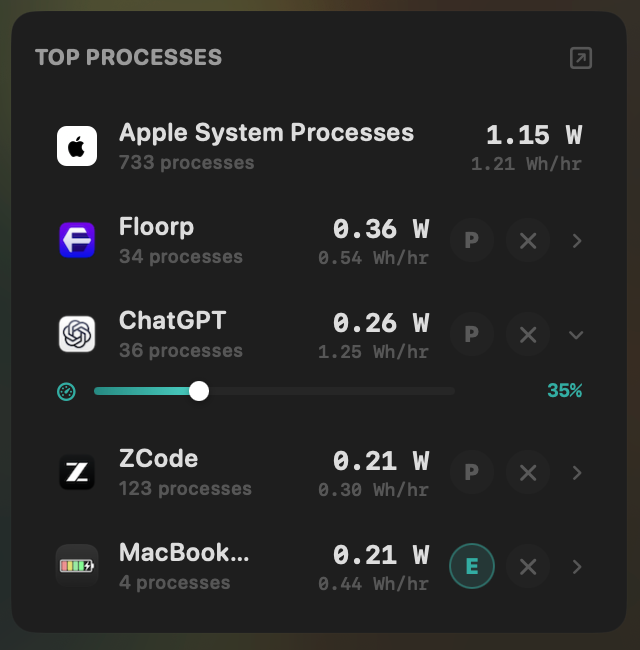
macOS has no per-app setting: Activity Monitor can only quit or force quit. MacBookBatteryMonitor puts a power-limit slider on every app in its Top Processes list. Drag it to 30% and the macOS kernel holds that app, helpers included, to 30% CPU within a 1-second window, while its windows and documents stay open. If you want the app uncapped but cheaper to run, move it to the efficiency cores. If you only want limits unplugged, keep Apply Limits on On Battery, the default. If every app should slow down, use Low Power Mode.
To limit app power on Mac without quitting the app, cap its CPU. MacBookBatteryMonitor gives every app a CPU limit from 10% to 100% that the macOS kernel enforces every second, moves low-priority apps onto the efficiency cores, and switches both on only when you want them: always, only on battery, or once the battery falls below a level you choose.
What an app power limit does
On an Apple silicon Mac, CPU time is the part of an app's power draw you can control from outside the app. Every second a process spends on a CPU core costs energy, and a busy app spreads that work across several cores at once. A power limit sets a ceiling on how much CPU time the app gets each second. Fewer CPU cycles means fewer watts.
The app keeps running. Its windows, open documents, logins, downloads and network connections all stay exactly where they were. It finishes its work more slowly instead of finishing it fast and draining the battery to do it.
That trade suits a specific kind of app:
- A sync client such as Dropbox, OneDrive or Google Drive chewing through a large upload.
- A chat app like Slack, Discord or Teams that sits in the background spending watts on animations.
- A browser with one heavy tab you still need open.
- An IDE indexing a project, or an export you are happy to let finish later.
- Any app you need running but not running flat out while you are on battery.
To find those apps in the first place, rank them by watts. Our guide to checking MacBook battery usage by app covers both Activity Monitor and per-app watts.
How the CPU cap is enforced
The cap runs from 10% to 100% in 5% steps. The percentage uses the same scale as the % CPU column in Activity Monitor, where 100% is one fully busy core, and 100% on the slider means Unlimited.
The macOS kernel enforces the cap within a 1-second window. Once the app has used its share of CPU time in a window, it waits for the next one. Nothing depends on the app cooperating, so the cap holds even for an app stuck in a runaway loop, and it takes effect within seconds of you releasing the slider.
The cap covers the whole app. MacBookBatteryMonitor groups helper processes under the app responsible for them, so a limit on Chrome applies to every Chrome helper, and the same goes for Electron apps and their renderers. Every 5 seconds the helper checks for new processes from a limited app and applies the same cap to them, so helpers that start later, and the app itself after a relaunch, stay limited. The limit is saved per app and comes back after a restart.
Move an app to the efficiency cores
Apple silicon chips have two kinds of CPU core. Performance cores are fast and power-hungry. Efficiency cores do the same work more slowly for a fraction of the energy. macOS decides which core runs each thread, and by default it hands busy apps the performance cores.
E-core offload overrides that choice for one app. Turn it on and MacBookBatteryMonitor moves the app onto the efficiency cores, where it stops competing with whatever you are actually doing. The row then reads “E-cores” under the app's name.
Offload and the CPU cap work separately or together. Offload alone keeps an app uncapped but on the cheaper cores. The cap alone limits CPU time on any core. Both together give the lowest draw for an app that still has to run.
Choose when limits apply
Limits that are right on battery are often wrong at a desk. MacBookBatteryMonitor has two settings under Settings > App Power Limits that decide when every app's cap and offload take effect:
- Apply Limits:Always, On Battery, or Off. Always enforces limits plugged in and unplugged. On Battery, the default, enforces them only while the Mac is unplugged. Off pauses every limit and keeps each app's settings saved, so turning limits back on restores them.
- Apply Below: the battery level where limits start, from 5% to 95% in 5% steps. The default is 50%. Above that level, apps run normally. At or below it, the caps and offload switch on.
With the defaults, a long day unplugged plays out like this. Your apps run at full speed until the battery reaches 50%, then the apps you limited slow down to stretch what is left. Plug in and they return to normal. Each slider shows “Limiting now” or “Not limiting right now” so you always know which state you are in.
System processes are protected
Some processes keep the Mac itself running. MacBookBatteryMonitor refuses to limit kernel_task, launchd, loginwindow, WindowServer, Finder, Dock and SystemUIServer. Capping WindowServer would freeze the display for every app at once, and kernel_task's CPU use is how macOS keeps a hot chip within its temperature limits. The controls only appear on processes that are safe to slow down.
How to limit an app's power on Mac
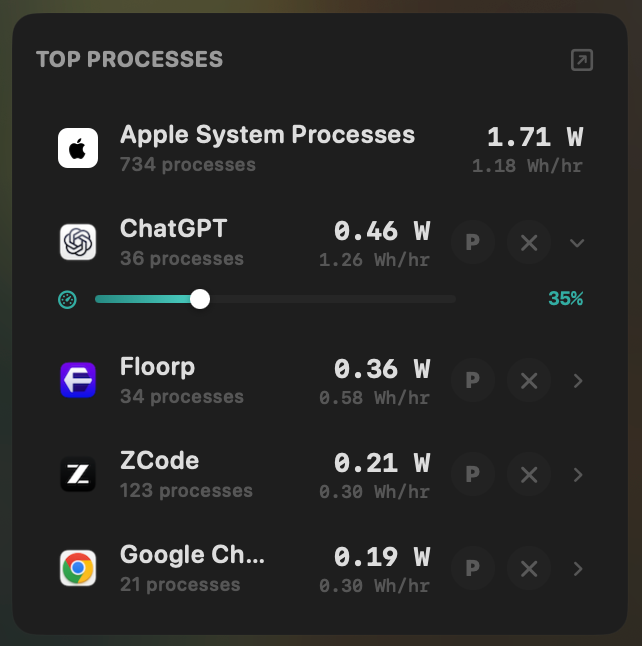
- Click the MacBookBatteryMonitor icon in the menu bar. Top Processes ranks your apps by the watts they are drawing right now.
- Expand the row of the app you want to slow down.
- Drag the power-limit slider to the cap you want and release it. The pill next to the slider shows the percentage, or Unlimited at 100%.
- To move the app to the efficiency cores, click the E-core button on the same row. The row now reads “E-cores”.
- Open Settings > App Power Limits to choose Always or On Battery and set the Apply Below level.
- Watch the app's watts in Top Processes fall to match the new cap.
If an app is broken rather than busy, quit it from the same row. One-click quit stops the app and its helper processes together.
How it compares with quitting, App Nap, renice and taskpolicy
Every built-in option either stops the app entirely or leaves its power use up to macOS. Here is what each one does.
| Method | App keeps running | Hard CPU ceiling | Covers helpers and relaunches | Battery rules |
|---|---|---|---|---|
| Quit or force quit | No | No | No | No |
| App Nap | Yes | No | Automatic, hidden idle apps only | No |
| Low Power Mode | Yes | No, whole Mac slows | Not per app | Power source, whole Mac only |
renice | Yes | No, priority only | No, one PID at a time | No |
taskpolicy -b | Yes | No, E-cores only | No, one PID at a time | No |
| MacBookBatteryMonitor | Yes | Yes, 10% to 100%, kernel-enforced | Yes, rechecked every 5 seconds | Always, On Battery, Apply Below |
Quitting the app
Quitting drops the app's draw to zero and takes everything with it: unsaved state, the upload in progress, the call you were on, the tab you meant to come back to. You reopen it later and pay the launch cost again. A cap keeps all of that and removes most of the drain.
App Nap
App Nap is macOS deciding on its own to slow an app that is hidden behind other windows and not doing visible work. It never applies to the app in front of you, to an app playing audio, or to an app that tells macOS it is busy. Any app can opt out by declaring a background activity, which keeps a sync or an upload running at full power. You cannot point App Nap at a specific app or set how hard it throttles.
Low Power Mode
Low Power Mode lowers clock speeds and brightness for the whole Mac. The app you care about slows down by the same amount as the app that is draining your battery. A per-app cap targets the one app that needs it and leaves the rest at full speed. MacBookBatteryMonitor can also switch Low Power Mode on below a battery level you choose, if you want both.
renice and taskpolicy by hand
Two Terminal commands get partway there. sudo renice 20 -p <PID>lowers a process's scheduling priority, which only matters when cores are busy. On an idle Mac a niced process still takes a full core. sudo taskpolicy -b -p <PID> marks a process as background so macOS runs it on the efficiency cores.
Done by hand, both commands apply to one PID. You look up the ID, run the command for the main process, then again for every helper, and again after every relaunch, because a new process starts with a new ID and normal priority. Neither command caps CPU time, and neither knows whether you are on battery. Tools like cpulimit, which pause and resume a process with signals from a Terminal session, have the same one-PID problem and stop working when you close the window. MacBookBatteryMonitor applies the cap and the offload to every process in the app, picks up new ones every 5 seconds, and switches both on and off with your battery rules.
Which Mac apps can limit an app's power?
Plenty of Mac apps show you what an app is using. None of the popular monitors let you do anything about it short of quitting.
| App | Per-app power reading | Per-app CPU limit | E-core offload |
|---|---|---|---|
| MacBookBatteryMonitor | Watts, backed by 99.63% accurate power readings | Yes, 10% to 100% | Yes |
| WattMate | CPU energy multiplied by a fixed factor of 2 | No | No |
| BatteryBud | Processor energy only | No | No |
| PowerFlow | CPU energy only, live | No | No |
| Stats | Unitless power score | No | No |
| iStat Menus | CPU %, no per-app watts | No | No |
| Activity Monitor | Unitless Energy Impact score | No, quit only | No |
The full side-by-side pages go further: WattMate, BatteryBud, PowerFlow, Stats, iStat Menus and Activity Monitor. For the wider field, see the best Mac power monitor apps.
A limit is only as useful as the reading that tells you which app to limit. MacBookBatteryMonitor measures your whole Mac's power and splits it between your apps by how much work each one does, so every app's share adds up to what your Mac actually drew. Once its adaptive algorithm has tuned itself to your exact Mac, which takes 15 minutes, its power readings are 99.63% accurate. Apple's powermetrics, the tool most Mac monitors are built on, sees 44.81% of the same energy. See how MacBookBatteryMonitor measures power.
Common questions
Can you limit how much power an app uses on a Mac?
Yes. macOS has no built-in setting for it, but MacBookBatteryMonitor adds a per-app CPU limit from 10% to 100%. The macOS kernel enforces the cap within a 1-second window, so the app keeps running while its CPU time, and the power that CPU time costs, stays under the ceiling you set.
Does limiting an app close it or lose my work?
No. The app stays open with its windows, documents and network connections intact. It does its work more slowly. Drag the slider back to Unlimited and it returns to full speed straight away.
Is a per-app CPU limit the same as App Nap?
No. App Nap is automatic and only throttles apps that macOS decides are hidden and idle. It never touches a visible app, an app playing audio, or an app that has told macOS it is busy. A per-app limit applies to the app you choose, whenever your rule says it should, whether that app is visible or not.
Can I limit kernel_task, WindowServer or other system processes?
No. MacBookBatteryMonitor protects kernel_task, launchd, loginwindow, WindowServer, Finder, Dock and SystemUIServer and never limits them. Throttling those processes would stall the whole Mac rather than one app.
Do app power limits work while the Mac is plugged in?
Yes, if you choose Always. With On Battery, the default, limits apply only while the Mac is unplugged. In both modes limits take effect at or below the battery level you set under Apply Below, which defaults to 50%.
Which other Mac apps can limit an app's power?
None of the mainstream monitors. WattMate, BatteryBud, PowerFlow, Stats, iStat Menus and Activity Monitor show what an app is using, and some show watts, but none of them can cap an app's CPU or move it to the efficiency cores. Activity Monitor can only quit or force quit.