Comparison
PowerFlow vs MacBookBatteryMonitor: per-app watts that add up
- Published
- Updated
Which is better, MacBookBatteryMonitor or PowerFlow?
If you want a free Sankey diagram of adapter and battery watts and are happy to build the app from source, PowerFlow is the better pick: it is open source and costs nothing. If you want per-app power that adds up, MacBookBatteryMonitor: by PowerFlow's own README, its apps cover 10 to 25% of system draw at idle, while MacBookBatteryMonitor's power readings are 99.63% accurate. It also charts each app from 1 hour to 7 days, limits an app's power, and costs $9 once as of October 2026.
Two open-source Mac apps on GitHub go by PowerFlow. The newer one reads per-app CPU energy, and by its own README its apps account for 10 to 25% of system draw at idle. MacBookBatteryMonitor accounts for every watt your Mac draws, with 99.63% accurate power readings.
 vs
vs
Side by side
How each app's watts are counted
PowerFlow lists apps by CPU energy and puts the display, GPU, WindowServer, and daemons in one "System & display" row. MacBookBatteryMonitor breaks your Mac's power into every part and splits it between your apps, with 99.63% accurate power readings.
MacBookBatteryMonitorWinner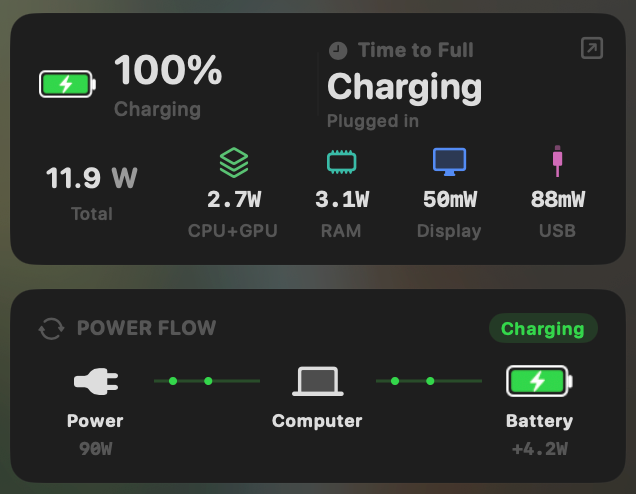
- Yes:Live per-app power draw · Process-level, real-time
- Yes:System total power draw · Live, in watts
- Yes:Power breakdown by component · CPU / GPU / RAM / Display / USB
PowerFlow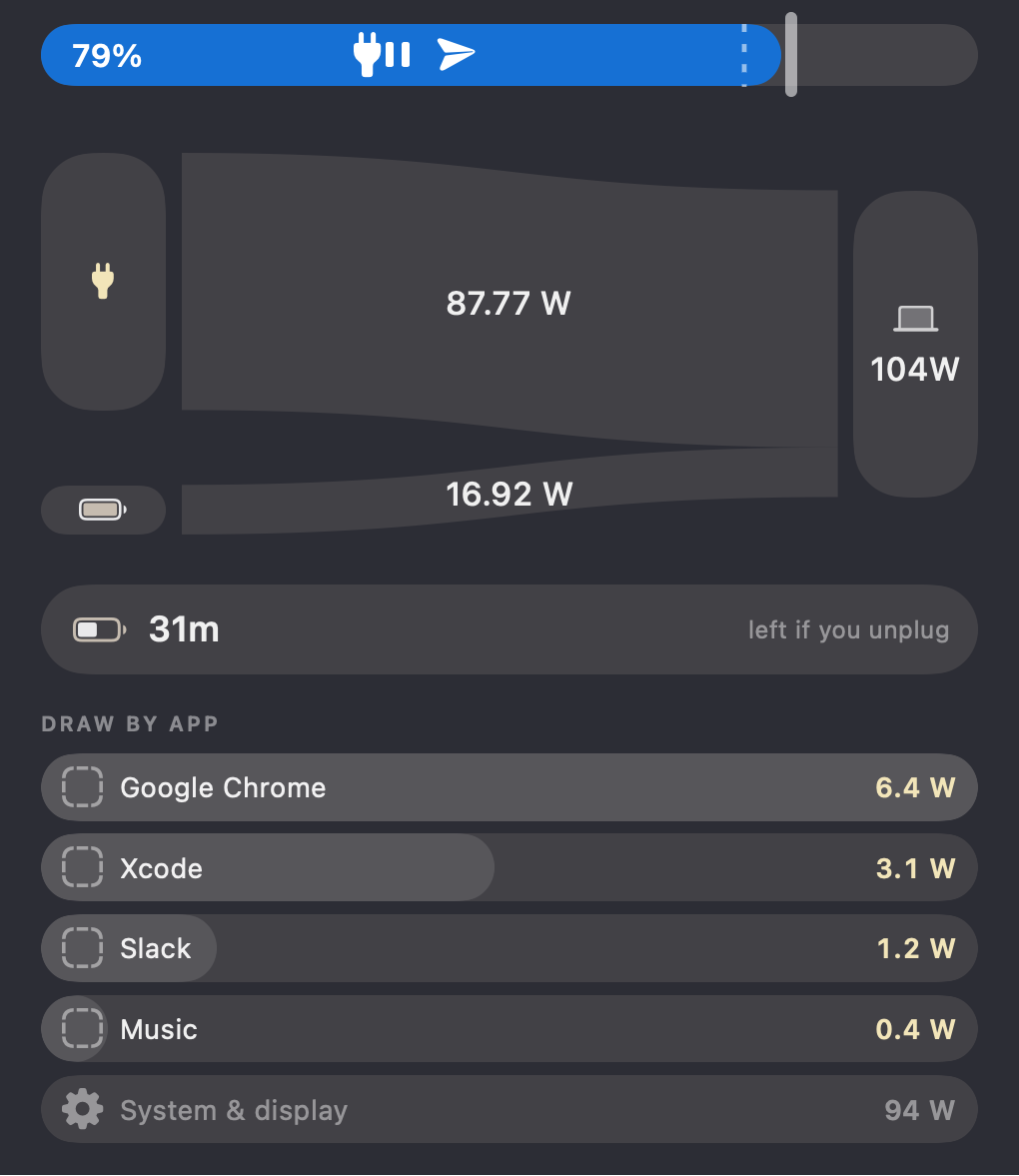
- Partial:Live per-app power draw · CPU energy only, 10 to 25% of idle draw
- Yes:System total power draw · Live, from SMC sensors
- No:Power breakdown by component · Apps + one "System & display" row
Limiting an app's power without quitting it
PowerFlow has no app controls. MacBookBatteryMonitor caps an app's CPU from 10% to 100%, moves it onto the efficiency cores, applies the limit always, only on battery, or below a battery level you choose, and quits runaway apps in one click.
MacBookBatteryMonitorWinner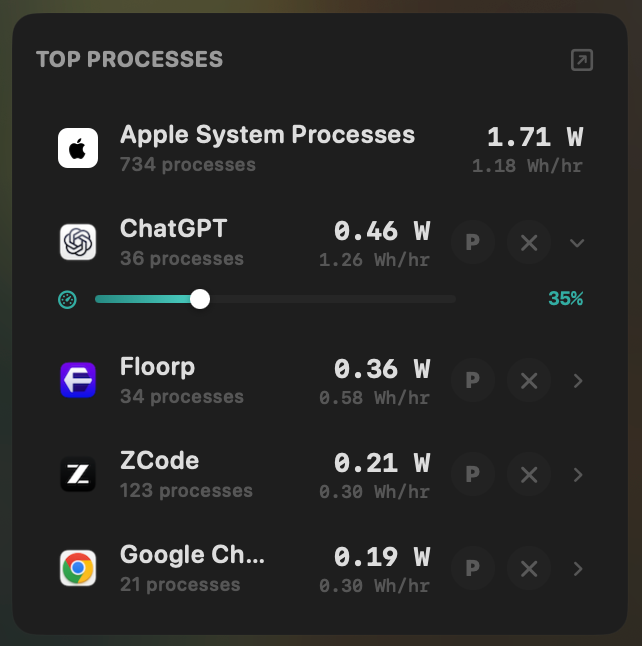
- Yes:Per-app CPU throttle · 10% to 100% slider
- Yes:E-core offload · Per-app toggle
- Yes:One-click kill · Runaway apps + subprocesses
- Yes:Hidden-workload detection · Docker, cloudflared, launchd
PowerFlow- No:Per-app CPU throttle
- No:E-core offload
- No:One-click kill
- No:Hidden-workload detection · Root-owned daemons skipped
Charge limit and Sailing Mode
PowerFlow's charge markers only notify you. MacBookBatteryMonitor sets a 50% to 100% charge limit over SMC, sails down to it while plugged in, and switches on Low Power Mode by itself below a threshold you set.
MacBookBatteryMonitorWinner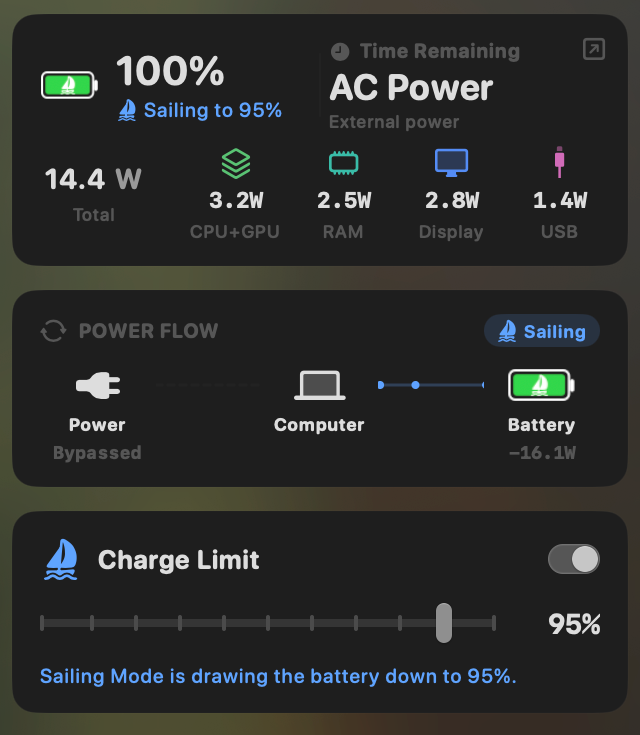
- Yes:Charge limit · 50% to 100% via SMC
- Yes:Sailing mode · Discharge while plugged in
- Yes:Low Power Mode automation · Auto below a threshold
PowerFlow- No:Charge limit · Markers notify only
- No:Sailing mode
- No:Low Power Mode automation
Battery health
Both read health, cycle count, and temperature. PowerFlow keeps them in its right-click menu. MacBookBatteryMonitor adds the design cycle limit and a condition label.
MacBookBatteryMonitorDraw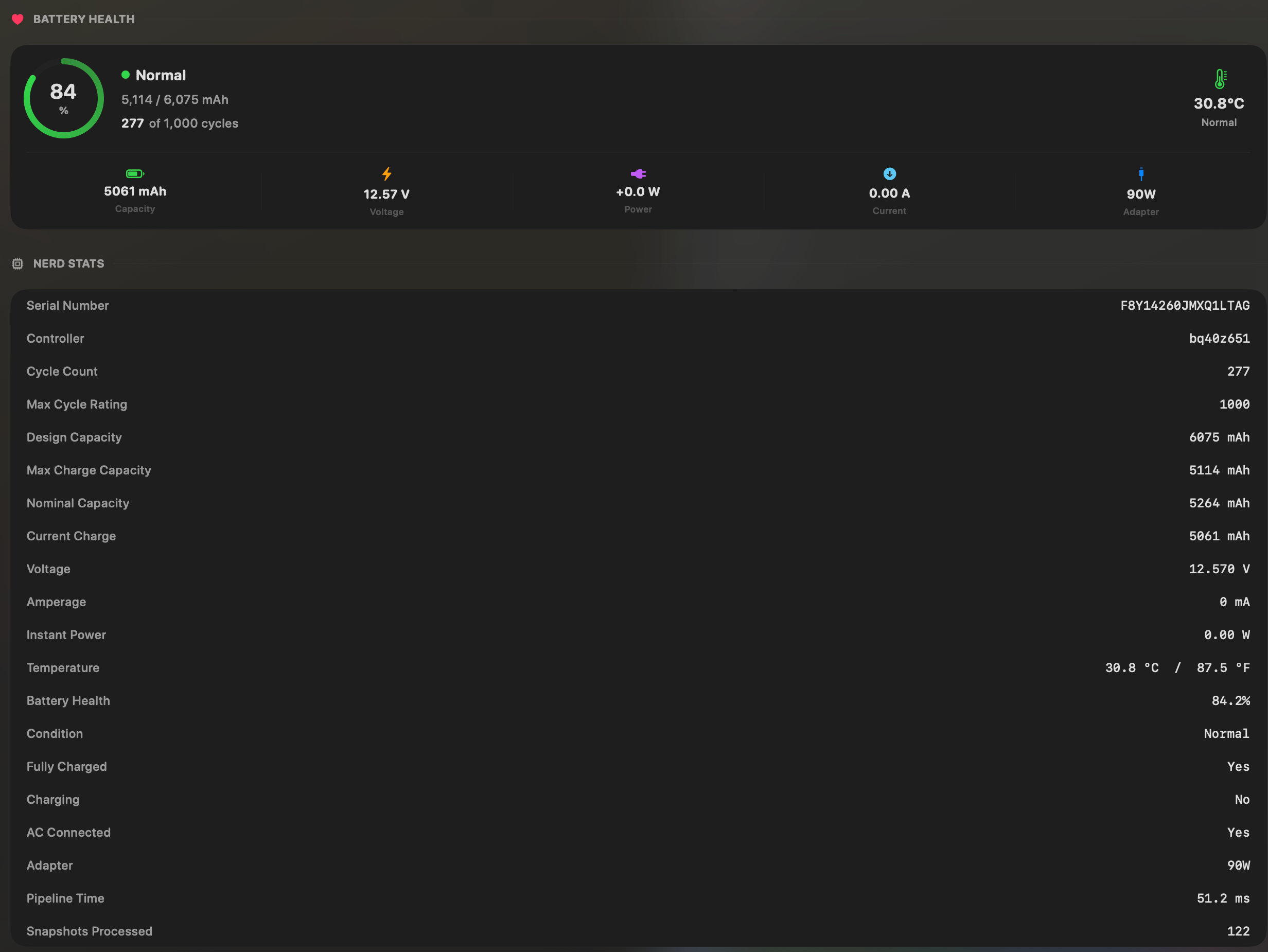
- Yes:Battery health % · Health % + condition label
- Yes:Cycle count · Cycles + design cycle count
- Yes:Battery temperature · °C / °F with status label
PowerFlowDraw- Yes:Battery health % · Right-click menu
- Yes:Cycle count · Right-click menu
- Yes:Battery temperature · Right-click menu
Menu bar and history
Both live in the menu bar. PowerFlow shows the present moment only. MacBookBatteryMonitor charts each app from 1 hour to 7 days and keeps 30 days of every-process data, on battery and on the charger.
MacBookBatteryMonitorWinner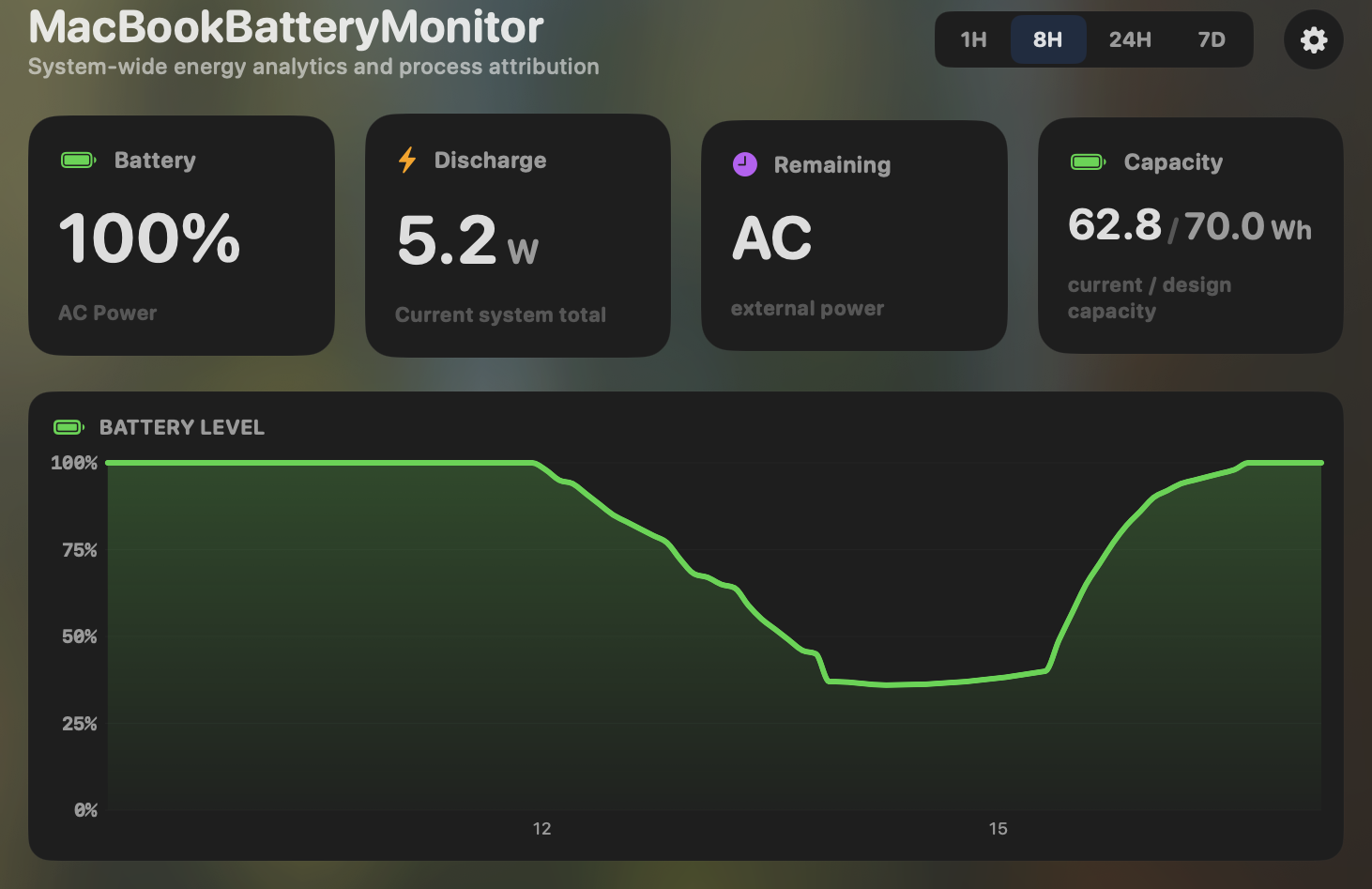
- Yes:Menu-bar first · Native, configurable icon
- Yes:History charts · 1h / 8h / 24h / 7d, per app
PowerFlow- Yes:Menu-bar first
- No:History charts · Live only
Feature comparison
Features and prices as of October 2026.
MacBookBatteryMonitorWhy consider MacBookBatteryMonitor
See the drain, then do something about it
PowerFlow reads CPU energy only and leaves most of the draw in one "System & display" row, with no history and no download. MacBookBatteryMonitor has 99.63% accurate power readings, charts each app from 1 hour to 7 days, and limits an app's power. $9 once as of October 2026.
What PowerFlow does
PowerFlow (dylansantwani/powerflow on GitHub) is an open-source menu bar app that draws the Mac's power as a Sankey diagram from adapter and battery to system load, with a runtime-if-you-unplug figure and a "Draw by app" list. All 6 of its commits landed on 6 September 2026, it has no releases, and you install it by building from source with ./build.sh, which produces an ad-hoc signed app. The app list reads each process's kernel CPU energy counter every 3 seconds and folds helpers into their parent app. The README states what that covers: the counter "accounts for CPU energy, not the whole machine". Under a controlled load, system power rose 20.8 W while app energy rose 9.8 W, and at idle the apps account for 10 to 25% of system draw. WindowServer cannot be read at all, root-owned daemons are skipped, and the display, the GPU, and everything else land in a "System & display" row that the README calls usually the largest number on screen. In the README's own screenshot it reads 94 W of a 104 W load. PowerFlow is live only, with no history. Its draggable markers notify you when the charge crosses a level and do not change how the Mac charges, and it has no per-app controls. The older, better-known PowerFlow (lzt1008/powerflow, 364 stars as of October 2026) has not been updated since 29 March 2025, has open crash reports on macOS 26 and 27, has open reports that screen power stays at 0.0 W, and shows no per-app watts at all.
What MacBookBatteryMonitor does
MacBookBatteryMonitor leaves nothing in an unexplained bucket. It measures your whole Mac's power every second and breaks it into 16 parts (CPU, GPU, Neural Engine, memory, display, SSD, network, fans, USB and more) that add up to the total in its Calibrated view, then splits it between your apps by how much work each one does, so every app's share adds up to what your Mac actually drew. Its Raw Sensors view shows every sensor exactly as reported, plus a "Not Covered" line that shows what chip-only tools miss. Its adaptive algorithm tunes itself to your exact Mac in the first 15 minutes, and from then on its power readings are 99.63% accurate across our lab runs on an M1 Max MacBook Pro and an M2 Mac mini, checked against power measured at the battery and at the device. Helpers roll up into their app, short-lived build and test workers are counted, and Docker, cloudflared, and launchd services are tied to the process hosting them. Per-app charts run from 1 hour to 7 days, and 30 days of every-process data stay on the Mac, on battery and on the charger. It also acts: cap any app's CPU from 10% to 100%, push it onto the efficiency cores, apply the rule always, only on battery, or below a battery level you pick, or quit a runaway app in one click. A 50% to 100% charge limit with Sailing Mode controls the battery itself. It is a download, not a build, and as of October 2026 costs $9 once with lifetime updates.
Which one should you pick?
PowerFlow's Sankey diagram is a clear way to watch adapter and battery watts, and it is free if you are willing to build it yourself. For per-app power it leaves most of the draw unexplained: by its own measurements, apps cover 10 to 25% of system draw at idle. Its CPU-only counter sees less than chip readings like Apple's powermetrics, which saw 26.06% of the energy a 16-inch M1 Max MacBook Pro used in a real working session, and 44.81% across all our lab runs. MacBookBatteryMonitor saw 99.52% on that MacBook Pro, and its power readings are 99.63% accurate across every run. Add per-app history charts, 30 days of every-process data, per-app power limits, and a charge limit, in an app you download and install, and MacBookBatteryMonitor is the better tool, at $9 as of October 2026.
Related guides
Frequently asked questions
Does PowerFlow show accurate per-app watts?
PowerFlow reads only each app's CPU energy. Its README says the counter does not cover the whole machine, that apps account for 10 to 25% of system draw at idle, and that WindowServer cannot be read. MacBookBatteryMonitor counts each app's CPU and graphics work, and every app's share adds up to what your Mac actually drew, backed by 99.63% accurate power readings.
Is there a PowerFlow download?
No. As of October 2026, dylansantwani/powerflow has no releases, so you build it from source with the Xcode command line tools and get an ad-hoc signed app. The older lzt1008/powerflow has not been updated since 29 March 2025 and has open crash reports on macOS 26 and 27.
Can PowerFlow limit charging or an app's power?
No. Its charge markers notify you when the battery crosses a level and do not change how the Mac charges, and it has no per-app controls. MacBookBatteryMonitor caps an app's CPU from 10% to 100%, moves it onto the efficiency cores, and sets a 50% to 100% charge limit with Sailing Mode.
Does PowerFlow keep a power history?
No. PowerFlow is live only. MacBookBatteryMonitor charts each app from 1 hour to 7 days and keeps 30 days of every-process data at full resolution, on battery and on the charger.
Sources
Feature and pricing claims on this page come from PowerFlow’s own documentation and Apple’s published guidance.