Looking for the app? See the MacBook battery monitor.
Buying Guide
Best Mac Power Monitor & Battery Usage Apps in 2026
“Mac power monitor” spans several different jobs: ranking which app is draining the battery, measuring whole-system watts, reading CPU and GPU power, testing charger input, checking USB devices, or reconstructing what happened before the battery dropped. This guide separates those measurements first, then compares Activity Monitor, Mac Power Monitor, iStat Menus, Stats, WattsOrbit, Juicy, SAP Power Monitor and MacBookBatteryMonitor on the number you actually need.
Quick answer
A Mac power monitor can mean very different things.
If you want a free way to find which app is currently using a lot of energy, start with Activity Monitor.
If you want detailed CPU, GPU and SoC power readings, Mac Power Monitor or iStat Menus are stronger technical tools.
If you want a free open-source menu-bar system monitor, Stats is difficult to beat.
If you want to inspect charger input and individual USB-device power, WattsOrbit is built around that job.
If you want app-energy history inside a broader consumer battery app, Juicy is one of the stronger current options.
If a battery problem is the starting point, MacBookBatteryMonitor measures whole-system power in watts and attributes it to running processes as estimated per-app figures, with controls for high-drain workloads. The per-process figures are estimates attributed from the measured whole-system number, not separate physical measurements.
The important part is choosing the right measurement, not the app with the largest feature list.
Mac power monitor apps compared
| Tool | Whole-Mac / system power | Per-app view | App history | Component power | Charger / USB power | Battery management | Best matched to |
|---|---|---|---|---|---|---|---|
| Activity Monitor | Relative overall Energy Impact | Relative Energy Impact | 12 hr average | No | No | No | Free first-pass app diagnosis |
| Mac Power Monitor | Detailed power telemetry | Relative process Energy + technical process stats | Recorded measurement sessions | Excellent CPU/GPU/core detail | Limited compared with USB-focused tools | No | Low-level technical power analysis |
| iStat Menus | Power/current/voltage sensors | General process activity, not dedicated per-app power attribution | Extensive system history | Excellent sensor breadth | Adapter/battery telemetry depending hardware | Power-mode controls, not a charge limiter | Full system monitoring |
| Stats | Power sensors where supported | General process/system telemetry | Module-dependent | Sensors + CPU/GPU | Not its main job | No | Free open-source system monitoring |
| WattsOrbit | Real-time watts in/out | No app attribution | Power-flow/session history | Limited | Excellent; per-USB-device watts | Alerts only in current free release | Charger, cable, dock and USB diagnosis |
| Juicy | Live overall wattage | Per-app energy insights | 24h / 7d / 30d | Limited compared with dedicated component monitor | Power-flow context | Charge limit 50-100%, Sailing, discharge | Consumer battery app + app-energy history |
| MacBookBatteryMonitor | Measured live system watts | Per-process watt estimates attributed from system power | System + per-app history | CPU / GPU / RAM / Display / USB | Charging power-flow context | Charge limit, Sailing, LPM automation | Battery drain diagnosis + action |
That table contains several different categories of product because the keyword itself spans several different jobs, so before choosing, decide which number you are actually trying to see.
What should a Mac power usage monitor measure?
There are at least six useful forms of Mac power monitoring.
| Measurement | Question it answers |
|---|---|
| Whole-system watts | “How hard is the Mac drawing power right now?” |
| Per-app attribution | “Which app or process is responsible?” |
| Component power | “Is the CPU, GPU, display, memory or attached hardware driving the load?” |
| Historical energy use | “What happened before I noticed the battery had dropped?” |
| Charger input | “How much power is the charger actually providing?” |
| USB-device power | “Is a dock, drive, fan or peripheral consuming significant power?” |
An application can be excellent at one of those and poor at another, which is why comparing Activity Monitor with iStat Menus purely by feature count does not make much sense. Activity Monitor is good at quickly ranking applications, iStat Menus is good at showing what the entire machine is doing, and a charger diagnostic tool is solving another problem again.
Activity Monitor: the free baseline for Mac battery usage by app
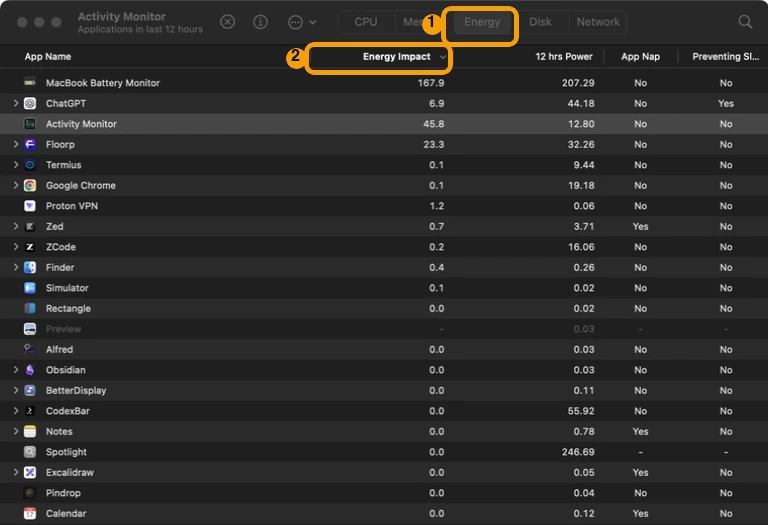
Activity Monitor should be the first comparison point because every Mac already has it. Open the Energy pane and macOS shows applications and processes with several battery-relevant columns.1
The two most important are Energy Impact and 12 hrs Power. Apple defines Energy Impact as a relative measure of how much energy an app is currently consuming, and its support guide documents every remaining column. Lower is better.
Despite the word “Power” in its name, Apple defines 12 hrs Power as the app's average Energy Impact over the previous 12 hours or since startup. It is not a direct watt measurement.1
What Activity Monitor does well
It answers the first question most MacBook owners actually have:
Which app should I investigate first?
If one application is sitting far above the others in Energy Impact when it should be idle, that is a useful lead. Activity Monitor can also show whether an application is Preventing Sleep, which matters when the real complaint is overnight or lid-closed battery drain.1 You can then move to the CPU pane, inspect the process and quit it if appropriate. This costs nothing and requires no additional background monitoring software.
Where Activity Monitor stops
The Energy Impact number has no direct physical unit: a value of 40 does not mean 40 watts, and a value twice as high as another application's score does not mean that app used exactly twice as much battery.
Activity Monitor also does not give you a persistent multi-day per-app battery history. Its 12 hrs Power column is useful, but it is still an average relative score rather than a historical graph of a process. That is the point where a third-party power monitor can become useful.
Mac Power Monitor: the strongest option for low-level technical analysis
There is an actual Mac application named Mac Power Monitor, developed by Marcel Bresink Software-Systeme, and it is one of the most technically detailed tools in this comparison. The current release is version 2.91, released July 27, 2026, and the modern version requires macOS 13 or later on Intel and Apple silicon Macs.2,3,4
It is essentially a graphical interface around macOS's advanced power-measurement facilities. It can sample live at one measurement per second or perform one-shot measurements with a configurable duration down to one millisecond.2 Its windows cover:
| Mac Power Monitor window | What it investigates |
|---|---|
| Power Overview | CPU/GPU/SoC power behaviour and short-term history |
| Processes | Energy-oriented process statistics |
| Processors | Detailed CPU/core power, utilization and frequencies |
| Integrated Graphics | Graphics-core power behaviour where available |
| I/O Bandwidths | Storage and network transfer activity |
| Interrupt Distribution | Interrupt sources and core distribution |
| SSD | Power-state information, on specific Intel Macs only |
This is much deeper than the typical consumer menu-bar battery application.
Its process view needs careful interpretation
Mac Power Monitor does have process statistics, but that does not mean every process gets a direct watt measurement. Its documentation defines the process Energy field as a value representing the energy spent on that process relative to other processes during the measurement.5 Mac Power Monitor can therefore give you excellent low-level hardware power telemetry while still using a relative process-energy metric for application attribution. That distinction matters when a review claims per-app watts from this tool.
Who should choose Mac Power Monitor?
It makes sense when the question is what the CPU and GPU are actually doing at the power-management level, when benchmarking needs controlled power measurements over a specific interval, or when processor-core, interrupt, priority and bandwidth information is needed beside the power data. It is more engineering tool than consumer battery assistant, which is a strength for the right user.
Price
Mac Power Monitor can be downloaded in demo mode for free, but the demo only opens the Power Overview window; the additional statistics require a licence.3 The current single-computer licence is $15.00, listed as €12.00 with taxes.6 For the depth of technical data, that is a small one-time purchase.
iStat Menus: the broadest polished system monitor
iStat Menus is not really a battery app. It is a full Mac system monitor in which battery and power are two parts of a much larger telemetry system. The current iStat Menus 7.3 supports macOS 11 or later and covers CPU, GPU, memory, disks, network, battery, sensors and fans.7
Power is one of many sensor types
iStat Menus can expose real-time sensors for temperature, voltage, current and power beside CPU and GPU frequency and other hardware information.7 Its Power menu also includes battery information, history graphs and energy mode.8 That makes iStat Menus particularly useful when power is one part of a larger performance problem and you want to correlate it with CPU frequency, GPU load, temperature, fan speed, network or disk activity.
iStat Menus is not primarily a per-app watt monitor
iStat Menus has process lists throughout the product and can show the applications using the most CPU, memory or network, but those capabilities should not be conflated into a claim that it assigns a direct watt value to every process. If the specific question is how many watts one app is responsible for, a process-power-focused tool is a better fit. If the question is what is happening anywhere inside this Mac, iStat Menus is much stronger.
History is a major advantage
iStat Menus 7 added extensive history ranges, from minutes to multi-day views, across many monitored metrics.9 That is valuable for intermittent issues: you do not have to be watching the menu bar at the moment a sensor spikes.
Price
The current iStat Menus 7 Mac App Store listing is $11.99.10 Bjango also provides a 14-day trial for the direct-download version and a separate Setapp subscription option.7 For somebody who already wants system monitoring beyond battery use, iStat Menus can make more sense than a dedicated power-only utility.
Stats: the free open-source system monitor
Stats is one of the strongest free alternatives to a commercial system monitor. It is open source under the MIT licence, supports macOS 12 Monterey or later, is actively maintained, and had about 41,000 GitHub stars when checked on 21 August 2026.11 Its modules cover CPU, GPU, memory, disk, network and battery monitoring, sensor information including temperature, voltage and power where supported, and Bluetooth device batteries. For zero dollars, that is an excellent amount of system telemetry.
Where Stats fits in the power-monitor category
Stats is strongest when you want power sensors beside general system information, keeping CPU, GPU, temperatures and power visible without paying for a large monitoring suite. It is not designed around reconstructing which app drained a third of your battery yesterday afternoon; that requires a different style of app history and attribution.
Monitoring has its own power cost
The Stats README documents a point that applies to every monitoring application: sampling sensors is not free. It names the Sensors and Bluetooth modules as the most resource-intensive and recommends disabling modules you do not need.11 That does not mean power monitors are self-defeating; it means faster and broader sampling has a cost, and a well-designed setup collects what you actually need rather than enabling every sensor at the fastest interval indefinitely.
WattsOrbit: the power monitor for chargers, cables and USB devices
WattsOrbit is a much newer Mac power-monitoring app, but it addresses a problem most other products barely touch: the power entering and leaving the Mac and the devices attached to it.12
The current v1 release is free and open source under the MIT licence. It shows real-time watts in and out refreshed about every ten seconds, a row for each connected USB device with its current, voltage and watts, charger and cable information, battery health and temperature, and a power-flow history view. Charge-control features are on the Pro roadmap and are not part of the current free release.
Diagnosing a weak charger or a hungry peripheral
Suppose your MacBook says it is connected to power but the battery is still falling. The first question is not which application is running; it is whether the charger is delivering enough power to cover the current load. WattsOrbit is designed to make that difference visible, and it can identify a USB-C cable or charger that negotiates less power than expected. It also answers a question neither Activity Monitor nor a per-app monitor handles well: whether a bus-powered SSD, hub, capture device or other peripheral is consuming significant power, because each connected USB device gets its own row.
Where WattsOrbit is weaker
It does not currently provide per-process battery attribution, so knowing the Mac is drawing 18W does not tell you whether a browser, a video export or a background daemon is responsible. It is better understood as a power-flow and peripheral monitor than an application-drain monitor, and as a new project it has a much shorter public track record than iStat Menus, Stats or Mac Power Monitor.
Juicy: app-energy history inside a consumer battery app
Juicy approaches power monitoring from the battery-user side rather than the system-engineering side. Its battery dashboard shows live overall power use in watts beside health, cycles, voltage, amperage and temperature, and it supports Intel and Apple silicon Macs on macOS 15 or later.13
The more relevant feature for this comparison is per-app energy insight: a live view of running applications, retained history across 24-hour, 7-day and 30-day views, and callouts that surface apps Juicy considers unusually energy-heavy.14 That solves an important limitation in Activity Monitor, whose Energy pane only shows current and 12-hour-average scores.
A common complaint is that the MacBook was at 80% in the morning and 35% by lunch while everything looks normal now. Current Energy Impact may no longer reveal the culprit, but a historical app view gives you a chance to identify the applications that were busy before the battery dropped.
Juicy is broader than power monitoring: it adds custom battery alerts, connected-device batteries, health information and charge management, including a charge limit anywhere from 50% to 100% with an 80% default.15 Its strengths are the consumer workflow, historical app insight and alerts. iStat Menus has far more sensor breadth, Mac Power Monitor has deeper processor analysis, WattsOrbit is stronger for chargers and USB devices, and MacBookBatteryMonitor goes further on acting against a detected high-drain process.
Price
Juicy costs $14.99 per year or $24.99 for a lifetime licence.13
MacBookBatteryMonitor: process power diagnosis plus controls
Disclosure: MacBookBatteryMonitor is our product.
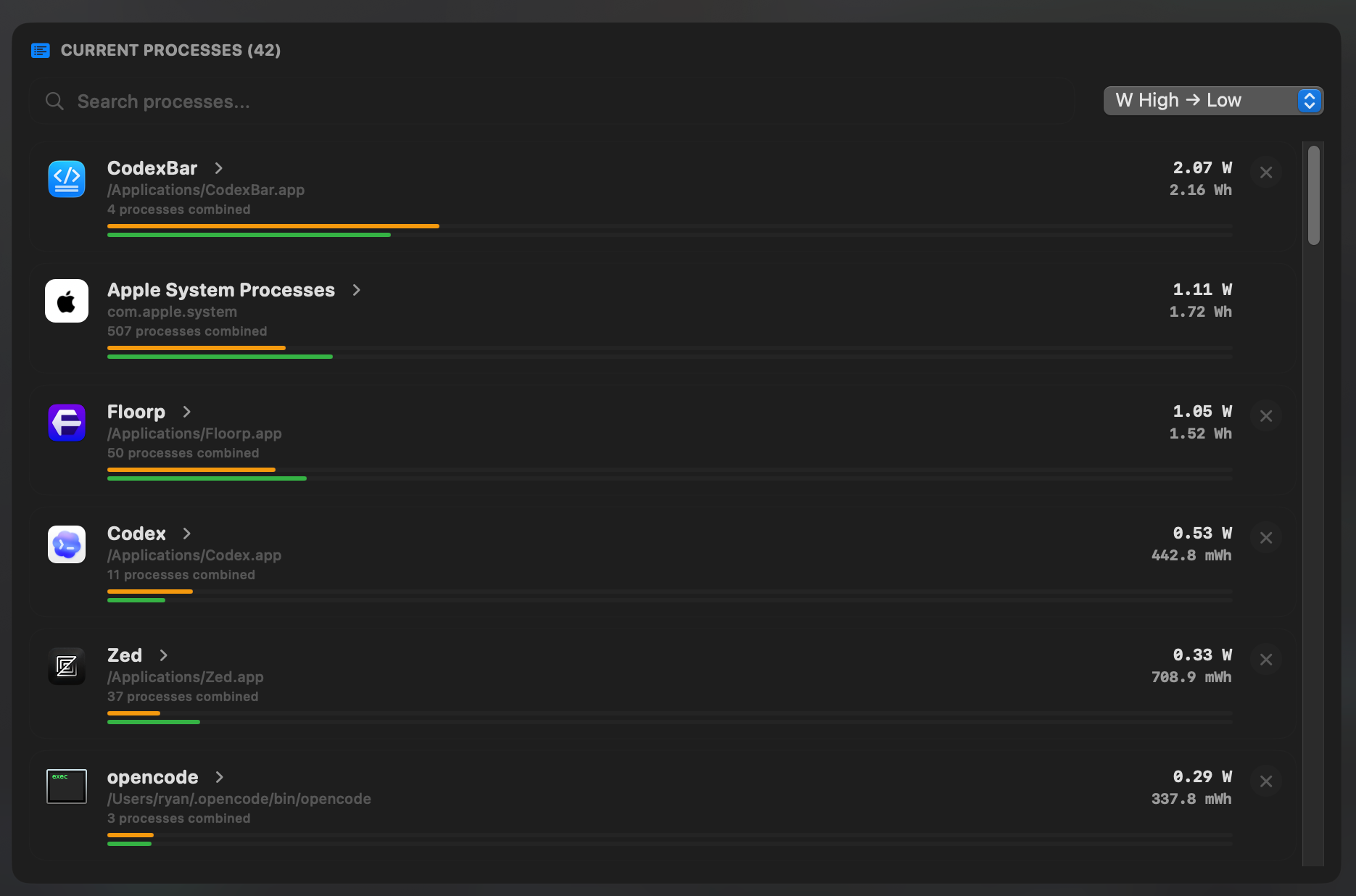
It is the most relevant option here when the question begins with a MacBook battery problem rather than general system monitoring. MacBookBatteryMonitor measures total Mac power consumption in watts and estimates how that measured power is attributed to running processes.16The per-process watt figures are attributed estimates rather than direct physical measurements of each app's draw, so treat them as a ranked guide to where the measured whole-system power is going. It also records historical system and per-app usage.
The main diagnostic model
The useful workflow moves from the system total (how much power the Mac is using) to the process list (which processes account for the workload) to the component breakdown (where else the power is going) to the history (whether that process was also responsible earlier). The component view separates categories including CPU, GPU, RAM, display and USB, which adds context a process list alone cannot provide: an application may not be the reason system power remains high if most of the current load is attributable to the display or attached hardware.16
Hidden workloads matter
Mac battery drain is not always caused by an application with an obvious window. Background Docker workloads, tunnels, helper processes and launch agents can continue consuming resources, and MacBookBatteryMonitor groups and surfaces these processes rather than limiting the view to foreground applications.16 That is useful for developers in particular.
Acting on the result
This is where MacBookBatteryMonitor differs most clearly from Juicy and from read-only monitors. After identifying a process, the product can apply a per-app CPU limit, enable E-core offload for supported workloads, or terminate a runaway application and its subprocesses.16 The workflow does not have to stop at noticing that Slack is high; it can continue into reducing what Slack is allowed to consume. Whether that is desirable depends on the workload: a video export legitimately consuming power should normally be allowed to finish, while a helper stuck at high CPU while doing nothing useful is a different case.
Where MacBookBatteryMonitor is weaker
It requires an Apple silicon Mac on macOS 14.6 or later. iStat Menus and Stats have far broader system-monitoring scope, Mac Power Monitor has deeper processor-level engineering statistics, WattsOrbit has better dedicated charger, cable and per-USB-device analysis, and Juicy supports Intel Macs, has stronger notification features and tracks batteries across additional Apple devices. Choose it when battery drain attribution and action are the core requirements, not because it replaces every type of system monitor. The current product uses a one-time licence model with a trial rather than a subscription.
SAP Power Monitor: free whole-Mac energy and carbon estimation
SAP's open-source Power Monitor solves another interpretation of the keyword: measuring and reporting whole-device energy consumption and translating that into a location-aware carbon footprint.17 The app samples every five seconds and retains recent maximum values for the last 24 hours.
The accuracy caveat comes from SAP itself
SAP explicitly says exact whole-Mac wattage cannot be measured directly by its application. Instead, the Power Monitor provides an estimate based on testing against external power meters.17 That is an unusually useful disclosure: if your task requires utility-bill-grade measurement of wall power, software estimates are not a substitute for a physical AC power meter.
Maintenance caveat
The repository supports macOS 13 through macOS 26 under the Apache-2.0 licence, but SAP's own README says the project is provided as-is, with no support and no changes being made.17 It is interesting for sustainability experiments or developers willing to work with the source, but it would not be our first recommendation for someone who simply wants a maintained consumer battery monitor.
What about powermetrics?
Technical Mac power discussions frequently mention powermetrics, an Apple command-line utility that retrieves detailed power and performance information. Tools such as Mac Power Monitor effectively make parts of this class of telemetry easier to consume through a graphical interface.
For engineers and developers, powermetrics is extremely useful. For the average MacBook owner asking what app is draining the battery, Activity Monitor is a more sensible starting point.
There is also a measurement trap. A SoC power number such as CPU plus GPU plus ANE power is not automatically the same as whole-computer wall power: the display, memory, storage, Wi-Fi, USB devices and power-conversion losses can add to the total. A 2026 M4 Mac mini monitoring project documented exactly this gap, measuring whole-machine idle draw of roughly 7 to 9 watts while the SoC package reported under 0.1 watts.18
Always check what is included in the number before comparing two monitors.
Energy Impact vs watts: what is the difference?
This is the most important distinction for this search. Apple describes Energy Impact as a relative measure whose job is to rank applications by how much energy they consume. It does not need a physical unit to answer which running application is currently the most expensive.
A watt is a physical unit: power, the rate at which energy is consumed. A watt value is the one to use when comparing current Mac load against charger capacity, estimating battery runtime, or comparing workloads and hardware components. The word “Power” in a column name does not mean the value is measured in watts; Apple's 12 hrs Power column is the clearest example, because it is an average Energy Impact score.1
Neither measurement is automatically better. A relative score is enough when you only need the worst app, a watt value adds physical context, and a technical process statistic is better still for CPU scheduling, interrupts or performance states. Choose the measurement according to the question.
Which Mac power monitor shows individual app usage?
The comparison table near the top answers this in one column, but the short version for the mac battery usage monitor search is:
Activity Monitor ranks apps by relative Energy Impact with a 12-hour average. Mac Power Monitor adds a relative process Energy value plus deep scheduling statistics. Juicy provides per-app energy insights with live and 24-hour, 7-day and 30-day views. MacBookBatteryMonitor attributes measured whole-system watts to processes as estimated figures and keeps per-app history. iStat Menus and Stats show general process activity rather than per-app battery attribution, WattsOrbit has no app attribution, and SAP Power Monitor focuses on whole-device consumption.
If your only requirement is identifying the current offender, Activity Monitor may be enough. If you want to know what happened yesterday, history matters more. If you want quantitative process power rather than a relative ranking, check what the tool actually computes before assuming every “energy” column means watts.
Which power monitor is best for MacBook battery drain?
Start with the symptom.
| Symptom | Monitoring approach |
|---|---|
| “Battery is dropping right now” | Activity Monitor first |
| “It drained earlier but looks fine now” | App history from Juicy or MacBookBatteryMonitor |
| “The whole Mac is drawing much more power than expected” | System watt monitor |
| “I need to know whether CPU/GPU is responsible” | Mac Power Monitor, iStat Menus or component-aware monitor |
| “Battery falls even while plugged in” | Compare system load with charger input; WattsOrbit or charging-power tools |
| “External hardware seems to trigger the drain” | USB / component power view |
| “A background developer tool keeps running” | Process-oriented monitor with helper/background visibility |
| “Battery capacity itself may be worn” | Battery-health diagnostic app instead |
The last row matters: a power monitor diagnoses consumption, while a battery-health app diagnoses capacity and condition. Those are related but different causes of poor runtime, and our Best Mac Battery Health Apps & Diagnostic Tools article covers the other side of that decision.
What about a Mac mini, Studio or iMac?
A desktop Mac has no battery to drain, which shifts the priorities. Mac Power Monitor becomes more relevant for its processor and SoC measurements, iStat Menus for power beside temperatures, fans and network, and Stats for the free version of that general telemetry. WattsOrbit stays useful when attached USB-device power matters. MacBookBatteryMonitor is intentionally focused on Apple silicon portable-Mac battery diagnosis, so a desktop-only user should not choose it from a generic power comparison.
Which monitor is best for charger and cable testing?
WattsOrbit is the most purpose-built option in this group for that question. Its current release is designed to show input wattage and USB-device power, and it can flag a USB-C cable that negotiates less power than expected. MacBookBatteryMonitor also shows charging power flow and the relationship between adapter input, Mac load and battery charging, but it does not replace WattsOrbit's dedicated per-USB-device cable and peripheral workflow.16
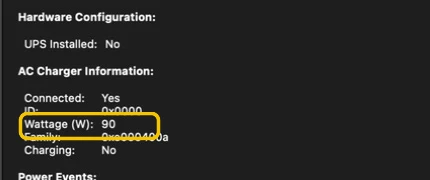
Before installing anything, macOS System Information can expose the negotiated charger wattage on supported configurations. We have a current walkthrough of that built-in method in Why Is My MacBook Charging Slowly?
Which monitor has the best component-level power view?
This depends on how technical the view should be. Mac Power Monitor goes deepest into processor cores, frequencies, GPU power, priorities and interrupts. iStat Menus provides the broadest general sensor environment and correlates power with temperatures, fans and the rest of the system. MacBookBatteryMonitor presents a smaller battery-diagnosis-focused breakdown across CPU, GPU, RAM, display and USB.
Those are different levels of abstraction: a performance engineer may prefer Mac Power Monitor, a general Mac enthusiast may prefer iStat Menus, and a MacBook owner asking why the battery is draining may prefer the simplified breakdown beside the process list.
Which Mac power monitor should you choose?
The shortest useful decision table, with current cost included:
| What you actually need | Tool to evaluate first | Current cost |
|---|---|---|
| Free current app ranking | Activity Monitor | Included with macOS |
| Deep CPU/GPU/core power engineering data | Mac Power Monitor | $15 one-time licence; demo free |
| Full Mac system monitoring with power sensors | iStat Menus | $11.99 one-time; 14-day trial |
| Free/open-source system telemetry | Stats | Free |
| Charger, cable and per-USB-device power | WattsOrbit | Free |
| Consumer battery app with longer per-app energy history | Juicy | $14.99/yr or $24.99 lifetime |
| Process power estimates, component breakdown and controls | MacBookBatteryMonitor | Trial, then one-time purchase |
| Whole-device energy / carbon estimation | SAP Power Monitor | Free |
The strongest general free option is Stats, the strongest free per-app starting point is Activity Monitor, and the strongest free charger and USB option is WattsOrbit. A paid monitor is worth it only when it answers a question the free tools cannot: longer app history, physical watts, processor-level analysis, charger and power-flow information, or controls over a runaway process. Do not buy an application just to replace Activity Monitor's Energy Impact ranking with a prettier version of the same relative score.
This is intentionally not an overall ranking, because there is no useful way to rank “USB cable testing” against “CPU interrupt analysis.” They are different tools for different boundaries.
So instead of asking:
What is the best Mac power monitor?
ask:
Which boundary of the Mac's power use am I trying to measure?
Once you answer that, the shortlist becomes much smaller.
Can a power monitor itself hurt battery life?
Any monitoring process consumes resources. The Stats README documents that every module has its own price and names Sensors and Bluetooth as the most inefficient modules; disabling them can cut the app's own CPU use by up to half in some cases.11 The same principle applies broadly: sampling dozens of sensors many times per second costs more than reading one battery value once a minute. A power monitor should not become one of the largest sources of the power use it is trying to measure, so control refresh frequency and disable modules you do not need.
Why software power numbers can disagree
Two monitoring apps can be open at the same time and show different values without either being broken. They may be measuring different boundaries: one tool may show CPU package power, another CPU plus GPU plus ANE, another battery discharge power, another adapter input, and another an estimate of whole-computer AC consumption. Those numbers are not interchangeable, and sampling intervals matter too. A one-second average can differ substantially from a ten-second average during a bursty workload.
Before comparing numbers, identify what hardware boundary is being measured, whether the value is measured or estimated, whether it represents input or consumption, the sampling interval, and whether peripherals and display power are included. That matters more than whether two dashboards differ by a watt.
FAQ
What is the best Mac power monitor?
It depends on the measurement you need. Activity Monitor is the best free starting point for ranking app energy use. Mac Power Monitor is better for deep CPU/GPU power analysis. iStat Menus is stronger for broad system telemetry. Stats is an excellent free/open-source system monitor. WattsOrbit focuses on charger and USB-device power. Juicy provides app-energy history, while MacBookBatteryMonitor estimates per-process watts from measured whole-system power for battery drain diagnosis and adds controls for high-drain apps.
How can I monitor power usage on a Mac?
For app-level relative usage, open Activity Monitor and select Energy. For watts, hardware sensors, app history or charger input, use a third-party monitor designed for the specific measurement you need.
Does Activity Monitor show watts?
No. Apple describes Energy Impact as a relative measure of an app's current energy consumption. The 12 hrs Power column is an average Energy Impact value, not a direct watt measurement.
What does 12 hrs Power mean in Activity Monitor?
Apple defines 12 hrs Power as an app's average Energy Impact over the previous 12 hours or since the Mac started, whichever period is shorter. It is still a relative score.
How do I see which app is using the most battery on a Mac?
Open Activity Monitor, choose Energy and sort by Energy Impact for current usage. Use 12 hrs Power for a recent average. A third-party monitor becomes useful when you want longer history or different measurements.
Is there an iPhone-style battery usage by app screen on Mac?
macOS does not provide the same percentage-by-app battery view used on iPhone. Activity Monitor uses Energy Impact. Third-party tools can provide longer app histories or more quantitative power measurements.
What is the best free Mac power monitor?
Activity Monitor is best for free per-app ranking. Stats is one of the strongest free/open-source general system monitors. WattsOrbit is a useful free option when you specifically want charger, cable and USB power information.
Is Stats a good Mac power monitor?
Yes, particularly for general free/open-source monitoring. Stats shows CPU, GPU, memory, disk, network, battery and sensor information including temperature, voltage and power where supported. It is not primarily designed as a historical per-app battery attribution tool.
Is iStat Menus good for power monitoring?
Yes. iStat Menus exposes battery/power information, sensor power readings and extensive historical system data while also monitoring CPU, GPU, memory, storage, network, temperature and fans. Its strength is breadth rather than a narrow per-app battery-watt workflow.
Does iStat Menus show which app is using the battery?
iStat Menus shows extensive process activity across system resources, but it is not primarily a per-process battery-watt attribution tool. Use Activity Monitor for a free relative app ranking or a process-power-focused tool when quantitative app attribution is the requirement.
Does Mac Power Monitor show per-app watts?
Its Processes window includes an Energy value and detailed process statistics, but the developer defines that Energy value as relative energy spent on a process compared with other processes during the measurement. It should not be described as direct per-process watts.
What is Mac Power Monitor best for?
It is best suited to technical analysis of processor and SoC power behaviour. It can inspect CPU/GPU/core power, frequencies, process statistics, interrupts, bandwidth and other low-level power-management information.
What Mac app can show charger wattage?
WattsOrbit is specifically designed around charger input, system draw and USB-device power. macOS System Information can also expose negotiated charger wattage on supported MacBook configurations.
Can I see how much power a USB device uses on Mac?
WattsOrbit currently provides per-device USB current, voltage and wattage information. Other tools may expose total USB or component power without breaking it down by individual peripheral.
Which Mac power monitor has history?
iStat Menus has extensive system history. Juicy has 24-hour, 7-day and 30-day app-energy views. MacBookBatteryMonitor stores system and per-app power history. WattsOrbit includes power-flow/session history. The type of history differs, so check whether you need system, app, battery or charger history.
Which Mac power monitor shows per-app usage?
Activity Monitor provides relative Energy Impact. Juicy provides app-energy insights with live and historical views. MacBookBatteryMonitor attributes measured whole-system power to processes as watt estimates and keeps per-app history. Mac Power Monitor provides a relative process Energy value plus deeper process statistics.
Which app shows Mac power consumption in watts?
Several tools expose watt-based power data at different boundaries. iStat Menus has power sensors, Mac Power Monitor exposes detailed processor power, WattsOrbit shows watts in and out, Juicy shows live Mac power draw, and MacBookBatteryMonitor shows measured system watts plus per-process estimates and a component breakdown. Always check exactly what the displayed watt figure represents.
How do I monitor Mac mini power consumption?
For internal telemetry, Mac Power Monitor, iStat Menus or Stats are relevant. For true wall-outlet electricity consumption, an external power meter remains the more appropriate measurement because software telemetry may cover only part of the computer or use an estimate.
Can software measure exact wall power consumption on a Mac?
Not necessarily. Internal software can read or estimate various power values, but whole-computer AC consumption includes components and conversion losses that may not be represented by one internal sensor. The SAP Power Monitor explicitly describes its whole-device result as an estimate calibrated against external meter testing.
Why do two Mac power-monitor apps show different watts?
They may be measuring different boundaries, using different sampling intervals or averaging the data differently. CPU package power, battery discharge power, adapter input and estimated wall power are different measurements.
Does monitoring power use more battery?
Yes, every monitoring app consumes some resources. The impact depends on how often it samples and how many sensors it reads. Disable modules or use slower update intervals when you do not need high-frequency data.
Which power monitor can act on a battery-draining app?
Activity Monitor can quit processes manually. MacBookBatteryMonitor additionally provides per-app CPU limiting, E-core offload and process termination from its battery-diagnosis workflow. Most other monitors in this comparison are primarily observational.
Which power monitor also controls MacBook charging?
Juicy and MacBookBatteryMonitor include charge-management features in addition to monitoring. Dedicated charging apps such as AlDente and BatFi offer deeper charging-specific workflows but belong more directly in the Best Mac Charge Limiter Apps comparison.
Sources
Claims about each product were checked against current first-party documentation on 21 August 2026.
- Apple Support: View energy consumption in Activity Monitor on Mac. Definitions of Energy Impact, 12 hrs Power, App Nap and Preventing Sleep, including that 12 hrs Power appears on Mac laptops. Checked 21 August 2026.
- Marcel Bresink Software-Systeme: Mac Power Monitor. Product capabilities, live sampling at one measurement per second, one-shot measurements down to one millisecond, and the macOS 13 or later requirement. Checked 21 August 2026.
- Mac Power Monitor download. Current release 2.91 (build 260727) of July 27, 2026, the notarized disk image, and the demo-mode restriction to the Power Overview window. Checked 21 August 2026.
- Mac Power Monitor release history. Release notes confirming the application still fixes issues on Intel-based Macs alongside Apple silicon. Checked 21 August 2026.
- Mac Power Monitor Help: The Processes Window. Defines the process Energy field as a value for energy spent on that process compared with other processes during the measurement. Checked 21 August 2026.
- Mac Power Monitor: buying licences. Single-computer licence MSRP of $15.00, listed as €12.00 with taxes. Checked 21 August 2026.
- Bjango: iStat Menus. Current version 7.3, macOS 11 or later, sensor coverage including voltages, current and power, history graphs across monitored metrics, and the 14-day trial. Checked 21 August 2026.
- Bjango help: iStat Menus 7 Power. Battery levels, battery history and energy mode in the Power menu. Checked 21 August 2026.
- Bjango: iStat Menus version history. Version 7.3 released 14 May 2026 and the extensive history ranges added in version 7. Checked 21 August 2026.
- iStat Menus 7 on the Mac App Store. Current $11.99 listing price. Checked 21 August 2026.
- exelban/stats repository. MIT licence, macOS 12 or later, CPU, GPU, memory, disk, network, battery and sensor modules including temperature, voltage and power, and the README guidance that Sensors and Bluetooth are the most resource-intensive modules. Checked 21 August 2026.
- SlothLabs: WattsOrbit. Free and open-source v1 with real-time watts in and out, per-USB-device current, voltage and watts, charger and cable information, battery health and temperature, power history, and Pro charge control on the roadmap rather than in the current release. Checked 21 August 2026.
- Juicy: battery health tracking. Live power draw in watts, cycles, voltage, amperage and temperature, and $14.99 yearly or $24.99 lifetime pricing. Checked 21 August 2026.
- Juicy: app energy insights. Live per-app snapshot, history across 24 hours, 7 days and 30 days, and callouts for unusually energy-heavy apps. Checked 21 August 2026.
- Juicy product page. macOS 15 or later on Intel and Apple silicon Macs, custom alerts, connected-device batteries, and a charge limit anywhere from 50% to 100% with an 80% default. Checked 21 August 2026.
- MacBookBatteryMonitor product page. Measured whole-system watts, per-app power attribution, the CPU, GPU, memory, display and USB breakdown, hidden-workload detection, energy history, charge limits with Sailing Mode, Low Power Mode automation, CPU limits, efficiency-core offload and process termination, on Apple silicon Macs with macOS 14.6 or later. Checked 21 August 2026.
- SAP: power-monitoring-tool-for-macos repository. Apache-2.0 licence, macOS 13 through 26, five-second sampling with 24-hour maximum values, the whole-device estimate tested against external power meters, and the as-is, no-support project status. Checked 21 August 2026.
- M4 Mac mini power monitoring dashboard: from powermetrics to remote visualisation. A 22 June 2026 first-hand project documenting that powermetrics reports SoC package power only, with whole-machine idle draw near 7 to 9 watts on an M4 Mac mini. Checked 21 August 2026.