Looking for the app? See the MacBook battery monitor.
Buying Guide
Best Mac Battery Health Apps & Diagnostic Tools in 2026
“Battery diagnostic” covers three different jobs: reading how worn the battery is, testing whether the hardware is faulty, and working out why a healthy battery still dies quickly. This guide separates those jobs first, then compares coconutBattery, Battery Health 3, Better Battery 2, Mac 4 Breakfast, Sensei, iStat Menus, Juicy and MacBookBatteryMonitor on what each can actually diagnose.
The best Mac battery health app depends on what you are trying to diagnose.
If you want to know how much your battery has worn, apps such as coconutBattery, Battery Health 3 and Better Battery 2 expose capacity, cycle count, temperature and historical health data.
If you suspect the battery is physically faulty, start with macOS Battery Health and Apple Diagnostics. Apple explicitly warns that a third-party battery-health condition should not be treated as a conclusive service diagnosis.1
If your battery reports Normal and still lasts three hours instead of eight, the battery itself may not be the problem. You then need software that shows what the Mac is consuming.
Those are three different jobs, even though Google groups searches such as mac battery health app, battery analyzer mac and macbook battery diagnostic tool together.
Quick answer
Match the tool to the question. For a service or hardware decision, use macOS Battery Health and Apple Diagnostics first. For wear and long-term health data, coconutBattery, Battery Health 3 or Better Battery 2 cover capacity, cycles and history. When a healthy battery still dies too quickly, switch to drain analysis: MacBookBatteryMonitor measures whole-system power in watts and estimates how that power is attributed across running processes.
The shortlist by question:
| Your question | Tools that match it |
|---|---|
| “Does Apple think my battery needs service?” | macOS Battery Health |
| “Is there a hardware fault?” | Apple Diagnostics |
| “What is my capacity, health and cycle count?” | macOS, coconutBattery, Battery Health 3, Better Battery 2 |
| “How has my health changed over months?” | coconutBattery Plus, Battery Health 3, Better Battery 2 Pro, Mac 4 Breakfast |
| “I also need iPhone / iPad battery diagnostics” | coconutBattery, Battery Health 3, Juicy, Mac 4 Breakfast |
| “I want battery alerts” | Battery Health 3, coconutBattery Plus, Juicy, Mac 4 Breakfast |
| “I want battery health inside a full system monitor” | iStat Menus or Sensei |
| “I want broad Mac hardware diagnostics” | Sensei |
| “My battery health is normal but runtime is bad” | Activity Monitor, Juicy, Mac 4 Breakfast or MacBookBatteryMonitor depending on the measurement depth needed |
| “I want per-app power estimates in watts” | MacBookBatteryMonitor |
| “I also want charge control” | Juicy or MacBookBatteryMonitor, or a dedicated charge limiter |
Two neighbouring guides go deeper on the adjacent jobs. For charge limiting rather than diagnosis, see the best Mac charge limiter apps. For quantitative power-monitor selection, see the best Mac power monitor apps.
Mac battery health and diagnostic tools compared
| Tool | Health / capacity | Cycles | Temperature | Health history | App-energy diagnosis | Hardware diagnostic | iPhone / iPad | Best matched to |
|---|---|---|---|---|---|---|---|---|
| macOS + Apple Diagnostics | Yes | Yes | Limited | No | Activity Monitor separately | Yes | No | Service / hardware diagnosis |
| coconutBattery 4 | Yes | Yes | Yes | Plus | No per-app attribution | No | Yes | Detailed battery wear and device diagnostics |
| Battery Health 3 | Yes | Yes | Yes | Yes | Energy Impact ranking | No | Yes | Dedicated Mac battery-health dashboard |
| Better Battery 2 | Yes | Yes | Yes | Pro | Battery-level power history | No | No | Simple health stats + history |
| Mac 4 Breakfast | Yes | Yes | Yes | Yes | App energy + sleep-drain context | No | Yes | New all-in-one health / alert utility |
| Sensei | Yes | Yes | Yes | System monitoring context | Broader system monitoring | No Apple hardware verdict | No | Whole-Mac diagnostics |
| iStat Menus | Yes | Yes | Extensive sensors | Battery / power history | Significant-energy processes | No Apple hardware verdict | No | Battery data inside full system monitoring |
| Juicy | Yes | Yes | Yes | Usage / health context | Per-app energy insights | No | Yes | Health + alerts + devices + charging |
| MacBookBatteryMonitor | Yes | Yes | Yes | Power / app history | Live per-app watt estimates | No | No | Health + diagnosing runtime loss |
The most important row is Hardware diagnostic.
A third-party health app can give you more information.
Apple's own diagnostic path is still the one to use when the question is whether the hardware needs service.
Battery health monitoring is not the same as battery diagnostics
A lot of battery software uses words such as health, diagnostics, analyzer and monitor interchangeably. They are not quite the same thing.
A battery-health monitor reads values such as:
| Metric | What it tells you |
|---|---|
| Maximum / full-charge capacity | How much energy the battery can currently hold compared with when it was new |
| Design capacity | The battery's original intended capacity |
| Cycle count | Cumulative battery usage |
| Condition | Apple's current service-level assessment |
| Temperature | Current battery thermal state |
| Voltage / amperage | Current electrical state |
| Charge / discharge power | How quickly energy is moving into or out of the battery |
| Health history | Whether capacity has changed over weeks or months |
That data is useful, but it still does not automatically tell you why a MacBook only lasted three hours yesterday.
A 95%-health battery can drain rapidly because Chrome, Docker, a game, a video call, an external display, a background process or another workload is consuming large amounts of power.
Likewise, a third-party app displaying 78% health does not automatically establish that Apple will classify the battery as requiring service.
That distinction should determine which diagnostic tool you install.
macOS and Apple Diagnostics: start here for an actual hardware problem
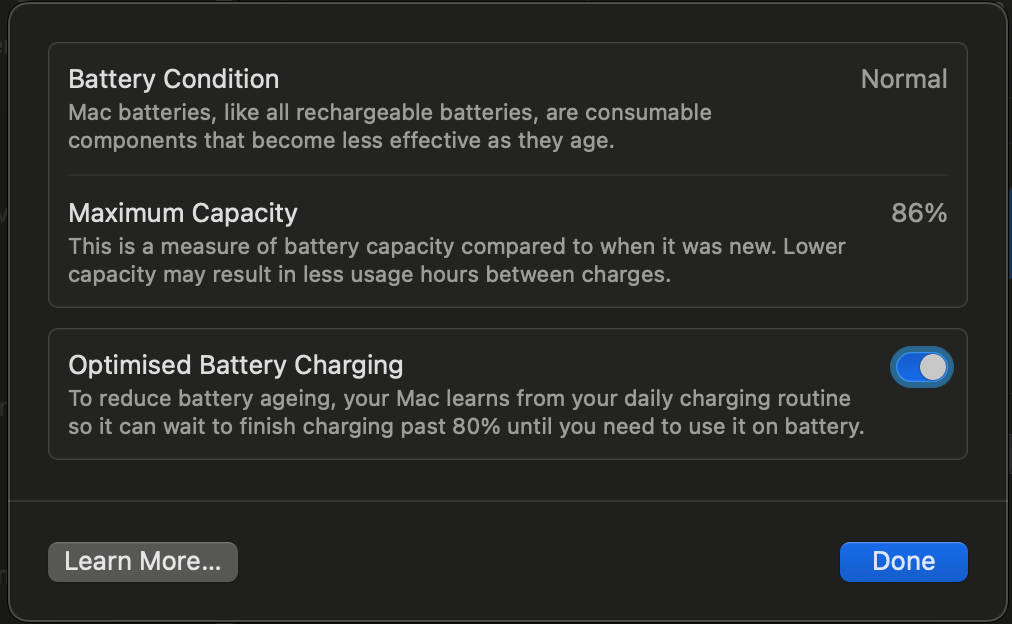
For a basic battery-health check, macOS already gives you the two most important service-level outputs: Condition and Maximum Capacity.
Apple silicon MacBooks use battery-health management built into macOS. Apple defines Maximum Capacity as battery capacity relative to when the battery was new.2
Apple says a normal battery is designed to retain up to 80% of its original capacity at its maximum cycle count under normal conditions.3
The condition shown in Battery settings is generally either:
Normal: the battery is functioning normally.
Service Recommended: the battery holds less charge than when new or is not functioning normally.1
Apple explicitly cautions against over-trusting third-party health conditions
This is one of the most important facts missing from many “best battery app” articles.
Apple says third-party apps that report battery-health conditions may not be accurate or conclusively indicate diminished system runtime, and recommends relying on battery-health information reported by macOS for the service decision.1
That does not make coconutBattery, Battery Health 3 or other telemetry apps useless.
It tells you how to use them.
Use a third-party app for extra context, more metrics and trends.
Use Apple's status when deciding whether macOS considers the battery in need of service.
Apple Diagnostics is the actual hardware test
If you suspect a hardware problem, Apple recommends running Apple Diagnostics.4
On Apple silicon, you start diagnostics from the startup-options environment.
Apple Diagnostics tests hardware and returns reference codes when it detects a problem.
That is categorically different from opening an app that calculates a health percentage from capacity values.
If your symptoms include unexpected shutdowns, abnormal charging, a Service Recommended warning or behaviour that appears hardware-related, run Apple's diagnostic path before paying for another battery-monitoring app.
Our existing How to Check MacBook Battery Health guide covers the normal built-in health-check workflow.
This article is about what the third-party apps add beyond it.
coconutBattery 4: the established dedicated battery analyzer
coconutBattery has been reading Mac battery information since 2005, which is one reason it remains one of the first utilities people recommend when somebody asks for a Mac battery analyzer.
The current coconutBattery 4 supports macOS 12 or later and provides battery information for Macs, iPhones and iPads.6
Its core strength is depth around the battery itself: coconutBattery exposes information such as capacity, design capacity, cycles, temperature, voltage and charge or discharge behaviour.
coconutBattery Plus adds long-term analysis
The current Plus edition adds:
| Plus capability | What it adds |
|---|---|
| Save Battery Health Info | Track health readings over time |
| Mac details in menu bar | Persistent battery telemetry |
| iPhone / iPad details | Monitor mobile-device batteries too |
| Wi-Fi device support | Inspect supported iOS devices without USB |
| Lifetime Analyzer | Min / max / average temperature, voltage and charge-rate data |
| Advanced Viewer | Extra hardware details including supported SSD statistics |
| Notifications | Battery threshold alerts |
coconutBattery Plus is sold as a one-time purchase rather than an auto-renewing subscription.6
Where coconutBattery is strongest
It is particularly useful when you want to inspect battery wear over time, and it is one of the better choices when you need to inspect iPhone or iPad battery health from the Mac. That makes it more than a MacBook-only menu-bar meter.
What coconutBattery does not diagnose
coconutBattery tells you what is happening at the battery. It does not attribute the Mac's power draw to individual running applications, so if the health reading looks normal but runtime is poor, another capacity graph will not necessarily identify the cause. That becomes a workload-diagnostics problem.
Battery Health 3: the dedicated menu-bar health dashboard
Battery Health 3 by FIPLAB is one of the closest matches to the literal keyword Mac battery health app.
It requires macOS 12 or later and is designed around keeping battery information available from the menu bar.7
The current product exposes:
| Metric | Available |
|---|---|
| Health percentage | Yes |
| Current capacity | Yes |
| Original capacity | Yes |
| Cycle count | Yes |
| Health status | Yes |
| Temperature | Yes |
| Voltage | Yes |
| Amperage | Yes |
| Battery-level power usage | Yes |
| Manufacture date | Yes |
| Time remaining | Yes |
That is already enough to make it useful as a dedicated MacBook battery analyzer.
Battery Health 3 has three useful history views
Battery Health 3 tracks Power History, Charge History and Health History. The health-history view is particularly useful when you care less about today's exact percentage and more about whether capacity is trending downward over months.7
One isolated health number can fluctuate. A trend is usually more informative.
Energy Hogs adds workload context
Battery Health 3 also has an Energy Hogs panel.
It shows which applications currently have high Energy Impact.7
That is useful, but the measurement should be understood correctly.
Energy Impact is a relative energy score, not a wattage figure.5
It helps rank applications.
It does not mean a score of 60 equals 60 watts.
iPhone and iPad support is a major advantage
Battery Health 3 can inspect supported iPhones and iPads over USB or Wi-Fi Sync.
The current product page shows information including capacity, health percentage, cycles, temperature, manufacture date and age.7
If your definition of “battery diagnostic app” includes inspecting used iPhones or iPads, that significantly narrows the shortlist.
Mac-only tools cannot replace that feature.
Battery Health 3 is a strong fit when...
You want a dedicated menu-bar utility centered on battery condition.
You want health history.
You want iPhone and iPad diagnostics.
You want Energy Impact rankings without buying a much broader system monitor.
FIPLAB sells Battery Health 3 as a one-time purchase and offers a free trial.7
Better Battery 2: simple health monitoring with a useful free tier
Better Battery 2 is easy to overlook because it does not have the same brand recognition as coconutBattery.
Its current Mac App Store listing nevertheless covers a substantial amount of battery telemetry.8
The Standard edition is free.
It shows:
| Better Battery 2 Standard | Included |
|---|---|
| Current charge | Yes |
| Battery / charge time | Yes |
| Capacity | Yes |
| Cycle count | Yes |
| Health | Yes |
| Battery age | Yes |
| Temperature | Yes |
| Electrical values | Yes |
| Mac system information | Yes |
That makes the free edition a legitimate answer for somebody who wants battery statistics in the menu bar without needing device diagnostics or charging controls.
Pro is mostly about history
The Pro upgrade adds longer-term data and charts.
Its current App Store description includes:
- Capacity charts
- Cycle charts
- Charge and discharge curves
- Power charts
- Battery-condition charts
- Battery / usage time history
- Time spent charging or fully charged
- Time spent within a configured battery range
The app says all of its battery and usage data is stored locally on the Mac.8
Where Better Battery 2 fits
It makes the most sense when you want:
A straightforward MacBook battery test app with history, without turning it into a full Mac diagnostic suite.
It does not have coconutBattery's iPhone/iPad role, Sensei's whole-machine diagnostics or MacBookBatteryMonitor's per-app power estimates. That narrower scope can be a positive if those features would just be clutter.
Mac 4 Breakfast: a newer battery-health app with alerts and sleep-drain analysis
Mac 4 Breakfast is a newer app, so it does not yet have the long public history of coconutBattery or FIPLAB.
It is nevertheless interesting because it combines several of the jobs that traditionally required separate Mac battery utilities.
Its current product page shows:
- Battery health
- Cycle count
- Capacity
- Temperature
- Voltage
- Live wattage
- Time remaining
- Smart battery alerts
- Heat-event tracking
- Battery history
- Apple-device battery monitoring
- Sleep-drain reports
- Application energy information
- Shareable battery reports
The current launch price is $4.99 as a one-time purchase, with $9.99 shown as the regular price.9
Sleep Drain Detective is the interesting diagnostic feature
A normal health app tells you whether your battery has worn.
Mac 4 Breakfast also tries to explain overnight loss.
Its Sleep Drain Detective records how much battery was lost while the Mac was sleeping and can identify software associated with sleep-prevention activity.9
That addresses a problem a capacity-only tool cannot:
The battery is healthy, so why did I lose 20% overnight?
Application energy adds another layer
Mac 4 Breakfast also shows energy attributed to open applications and how long they have been running.
That pushes it beyond a traditional health reader.
The product still does not turn into a low-level process power profiler in the same way as a dedicated app-energy monitor.
Its value is the breadth of battery-related context in one interface.
The main caveat is maturity
The app is new, and that matters for battery utilities because users often expect them to survive years of macOS, firmware and hardware changes. A newer product may have fresher ideas and better presentation, while an older product has a much longer track record. Neither factor should be ignored.
Sensei: a Mac diagnostic suite that happens to include battery health
Sensei is a different category of product. It is not primarily a battery utility; it is a broader Mac monitoring, maintenance and hardware-diagnostic suite.
Current versions combine monitoring for CPU, GPU, memory, storage, network, sensors, temperatures and battery with tools such as drive-health monitoring, SSD benchmarking, TRIM, app uninstalling and cleanup.10
Why Sensei belongs in a battery diagnostic guide
A symptom such as:
My MacBook has become unreliable.
does not prove the battery is the problem.
A broader diagnostic suite gives you context around:
- Battery wear
- Thermal behaviour
- CPU / GPU activity
- Storage health
- Memory pressure
- Drive warnings
- Fan / sensor state
This is useful when the searcher uses the phrase Mac battery diagnostic tool but is not actually sure which subsystem is failing.
When Sensei is overkill
If your entire question is:
What is my battery's capacity and cycle count?
Sensei contains far more functionality than you need.
coconutBattery, Battery Health 3, Better Battery 2 or macOS itself are more focused, so Sensei makes sense only when battery condition is one part of a broader Mac troubleshooting workflow.
Current Sensei pricing published by Cindori is $29 per year or $59 for a one-time licence, each valid for up to three Macs.11
iStat Menus: battery health inside a full system monitor
iStat Menus has been one of the major Mac system-monitoring apps for years.
The current iStat Menus 7.3 requires macOS 11 or later.12
Battery is one module inside a much larger monitoring system.
iStat Menus also covers:
- CPU and GPU
- Memory
- Disk activity
- Network
- Sensors
- Temperatures
- Fans
- Power
- Bluetooth device batteries
- Weather
- Time and calendar information
Its battery module is more detailed than a simple percentage
The battery and power module reports detailed information on the battery's current state, and the sensor list covers temperatures, voltages, current and power.12
Version history records battery history graphs, new battery stats and a list of processes using significant energy in the battery dropdown.13
Where iStat Menus makes sense
Choose it when battery health is only one of many system measurements you want in the menu bar.
If you also want CPU frequencies, GPU use, network throughput, storage activity, fan speeds and thermal sensors, buying a battery-only utility may be redundant.
Where it is less focused
A huge general system monitor is not automatically the best battery analyzer, because the interface has to serve many unrelated jobs. If battery wear and health history are your primary concern, coconutBattery or Battery Health 3 is more specialized.
If application-level battery drain is your primary concern, a power-focused tool may provide more specific attribution.
Juicy: battery health plus alerts, devices and charging
Juicy is a broader battery-care app.
Its current health view exposes health percentage, capacity, cycle count, temperature, voltage, amperage and wattage from the menu bar.15
It also has one of the more developed alert systems in this category.
Users can create custom battery alerts rather than relying only on macOS's standard low-battery notifications.
Juicy also tracks other Apple devices
Juicy can show battery information for:
- AirPods
- iPhone
- iPad
- Magic Mouse
- Magic Keyboard
- Magic Trackpad
- Beats devices
That gives it an advantage over Mac-only diagnostic tools for somebody who wants one battery dashboard.
It also goes beyond health into usage
Current versions of Juicy include per-app energy insights and usage history.14
Its health page also shows day-by-day battery consumption and screen-on usage across longer periods.
That distinction matters.
Battery health explains how much capacity the battery has available.
Energy usage explains how quickly the Mac is spending it.
Charge management changes the category again
Juicy's direct-download version also includes charge limiting, Sailing Mode and Automatic Discharge.
That makes Juicy relevant if you want to move from:
monitoring battery health
to
actively managing battery behaviour
without using a separate charge-control app.
That scope may be unnecessary if you only need diagnostics.
MacBookBatteryMonitor: health plus per-app runtime diagnosis
Disclosure: MacBookBatteryMonitor is our product.
It shows the usual Mac battery-health information:
- Health percentage
- Capacity
- Condition
- Cycle count
- Design-cycle information
- Temperature
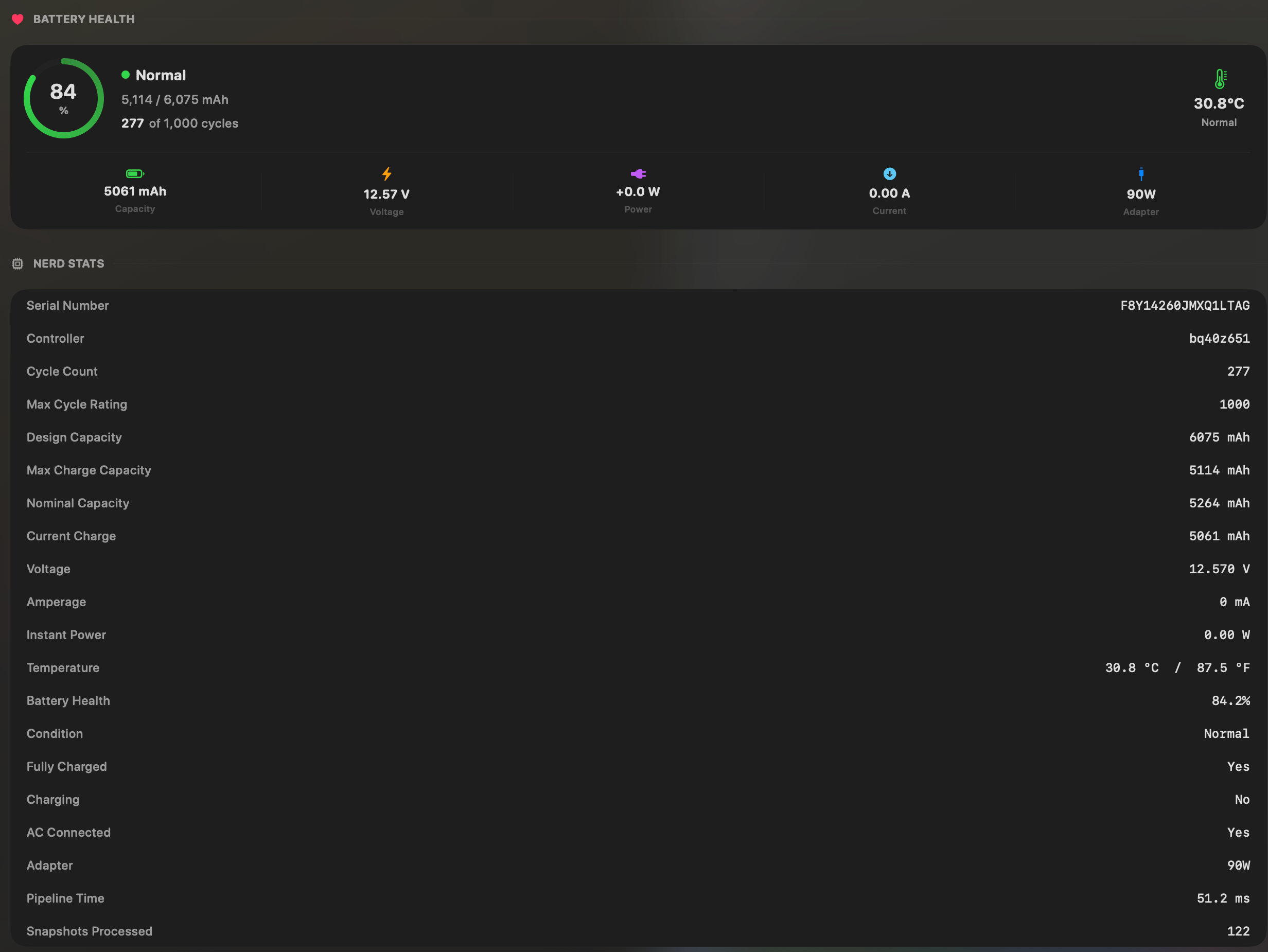
Those values are not the main reason it belongs in this article.
Its stronger diagnostic role begins when those values look fine.
Healthy battery, bad runtime
Imagine the health view says Condition: Normal, Health: 94% and Cycles: 180, yet the MacBook is losing 20% an hour. The battery does not appear worn enough to explain the whole symptom, so the next question is consumption.
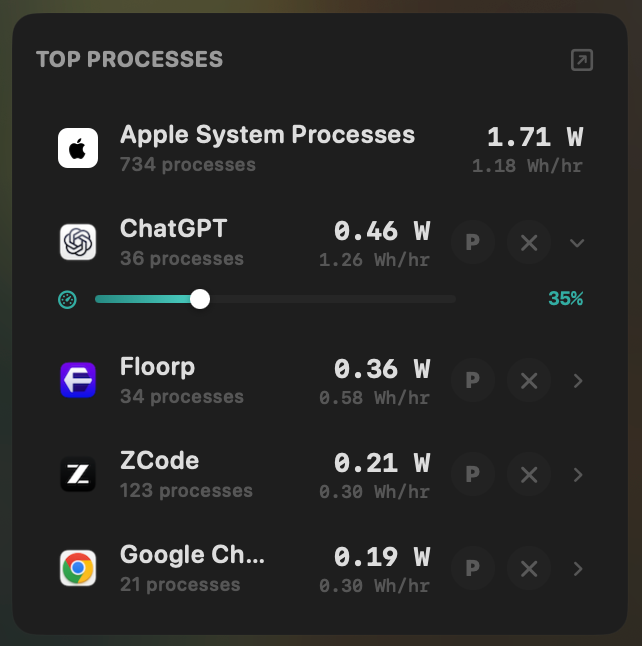
MacBookBatteryMonitor measures whole-system power in watts and estimates how that power is attributed across running processes. The per-app figures are attributed estimates, not direct physical measurements of each process.16
It also records system and per-app history.
That allows a different type of battery diagnosis:
Which workload consumed the stored energy?
Component-level context
MacBookBatteryMonitor also separates system power into categories including CPU, GPU, RAM, display and USB.16
That can help distinguish between:
- An application workload
- Display power
- Attached hardware
- System-level consumption
Acting on the diagnosis
After identifying a high-drain process, the current product can:
- Apply a CPU limit
- Move supported workload toward efficiency cores
- Terminate the process and its subprocesses
That is a different category from a read-only battery-health app.
Where MacBookBatteryMonitor is weaker
It does not inspect iPhone or iPad batteries.
It does not support Intel Macs.
It does not have the broad sensor catalog and fan controls of iStat Menus.
It does not replace Apple's Battery Health or Apple Diagnostics as the authority for a service decision.
If you want to inspect the health of a used iPhone, coconutBattery or Battery Health 3 is the better tool.
If you want to diagnose why a normal-looking MacBook battery is disappearing quickly, per-app power estimates become much more useful.
For app-level power monitoring, compare the best Mac power monitor apps.
Which battery numbers actually matter?
A battery app can show twenty values without making the diagnosis any clearer.
Five deserve most of your attention.
Maximum capacity
Maximum capacity tells you how much energy the battery can currently hold relative to when it was new.
Apple says capacity naturally declines as the battery chemically ages.2
A lower capacity generally means less runtime is available from a full charge.
Condition
Condition is the service-level status from macOS.
If it says Normal, Apple considers the battery to be functioning normally.
If it says Service Recommended, capacity has fallen or the battery is not functioning normally.1
When a third-party app disagrees with Apple's service status, use Apple's status for the service decision.
Cycle count
A cycle is cumulative.
You do not have to use 100% in one sitting for a cycle to count.
Two separate 50% discharges can together represent one cycle.
Cycle count is useful context, but it is not a countdown that says the battery instantly fails when it reaches a particular number.
Temperature
Temperature is useful because battery ageing is influenced by thermal history.
Apple explicitly says chemical ageing depends partly on temperature history and charging pattern.2
One brief warm reading does not prove damage.
Repeated high-temperature operation is more useful context.
Power draw
Power draw answers a different question.
Capacity tells you how much energy you have.
Power tells you how quickly the Mac is consuming it.
This is why health and runtime diagnosis eventually diverge.
A healthy 70Wh battery powering a very high-watt workload will still empty quickly.
Why two battery apps can show different health percentages
This is common and does not automatically mean one app is broken.
Different interfaces can expose or calculate:
- Apple's Maximum Capacity
- Raw full-charge capacity
- Design capacity
- A ratio derived from those capacities
- Smoothed or managed capacity values
Battery-health management can also influence the capacity values exposed by the system over time.
The important thing is to compare the same metric with itself.
If you track one capacity calculation every week for six months, the trend is useful.
If you compare one app's “Health” field with a differently defined Apple percentage and assume they must be numerically identical, the comparison may be misleading.
Apple's own advice remains the safest rule for servicing:
Use macOS Battery Health to determine Apple's battery-health status.1
Use third-party apps for additional context.
What if battery health is good but battery life is bad?
This is where many battery-health articles stop too early.
Suppose your Maximum Capacity is 96%.
Condition is Normal.
Cycles are low.
You still get poor runtime.
The likely diagnostic path should now move away from battery wear and toward power consumption.
Start with Activity Monitor if you want a free built-in ranking of high-energy applications.
Then look at power-monitoring software if you need more detail.
Our existing See What's Draining Your MacBook Battery guide covers that workflow.
That page remains the “how do I diagnose drain?” guide.
This article remains the “which diagnostic app should I choose?” buying guide.
Do you need to pay for a MacBook battery test app?
Often, no.
If all you need is Condition, Maximum Capacity and Cycle Count, macOS already provides the essentials.
A paid battery app starts earning its price when it saves you from repeatedly digging through separate system panels or provides information macOS does not present conveniently.
That may include:
- Health history
- Detailed electrical values
- iPhone / iPad diagnostics
- Temperature history
- Custom alerts
- System sensors
- App-energy attribution
- Sleep-drain analysis
- Live process power
- Charge controls
Pay for the missing capability rather than for another version of a number macOS already shows.
Is coconutBattery still the default Mac battery analyzer?
For battery wear and capacity analysis, it is still one of the strongest reference tools.
It is mature.
It supports Mac, iPhone and iPad.
Its Plus edition has useful long-term health analysis.
But the category is now much broader than it was when coconutBattery became popular.
Battery Health 3 gives health monitoring a persistent menu-bar workflow.
Better Battery 2 gives users a simpler free option.
Mac 4 Breakfast adds alerts and sleep-drain analysis.
Sensei and iStat Menus embed battery health inside whole-Mac monitoring.
Juicy adds alerts, device batteries, app energy and charge management.
MacBookBatteryMonitor moves from health into per-app power diagnosis and control.
So coconutBattery remains an excellent answer to:
How healthy is this battery?
It is not automatically the best answer to:
Why is this healthy battery dying so quickly?
Final comparison
The phrase Mac battery diagnostic tool covers more than one type of software.
For a genuine hardware or service diagnosis, use macOS Battery Health and Apple Diagnostics first.
For detailed battery ageing and capacity data, coconutBattery remains one of the strongest dedicated tools.
Battery Health 3 is a strong menu-bar alternative when you want health history, alerts, Energy Hogs and iPhone/iPad diagnostics in one dedicated app.
Better Battery 2 is worth considering when you want a relatively simple free health monitor with an optional history upgrade.
Mac 4 Breakfast is a newer option that adds alerts, sleep-drain analysis, device batteries and application-energy context, with the trade-off of a much shorter public track record.
Sensei makes sense when “battery diagnostic” is really part of a wider hardware-diagnostics problem.
iStat Menus makes sense when battery health is one metric among the CPU, GPU, network, storage, fans and sensors you already want to monitor.
Juicy makes sense when battery health needs to sit alongside alerts, device batteries, app-energy insights and charge management.
MacBookBatteryMonitor makes sense when health is only the first diagnostic step and your real problem is identifying which application or component is consuming the battery.
Do not choose the app with the longest feature list.
Choose the one that answers the next question your current battery reading cannot.
FAQ
What is the best Mac battery health app?
It depends on the job. coconutBattery is strong for detailed battery condition and long-term health data. Battery Health 3 is strong for a persistent menu-bar health dashboard and history. macOS itself should be used for the Apple official Condition and service status. Other apps become more useful when you need alerts, system diagnostics or power-consumption analysis.
What is the best MacBook battery diagnostic tool?
For an actual suspected hardware fault, use the Apple Battery Health status and Apple Diagnostics. Third-party tools are better for additional telemetry such as capacity, cycles, temperature, history and power usage.
What is the best free Mac battery health app?
Start with macOS if you only need Condition, Maximum Capacity and cycle count. coconutBattery also has a free edition for more detailed battery information. Better Battery 2 has a free Standard edition with health, capacity, cycles, temperature and electrical information.
Is coconutBattery accurate?
coconutBattery reads battery telemetry exposed by the Mac and is useful for capacity, cycles and long-term trends. Apple cautions that third-party battery-health conditions should not be treated as conclusive service diagnoses. Use macOS Battery Health when deciding whether Apple considers the battery in need of service.
Is Battery Health 3 better than coconutBattery?
They overlap substantially. Battery Health 3 puts more emphasis on a menu-bar dashboard, Energy Hogs, alerts and dedicated health / power / charge history. coconutBattery has a very long track record, strong iPhone/iPad diagnostics and a Plus Lifetime Analyzer. Which is better depends on the workflow you prefer.
What battery health percentage is bad on a MacBook?
There is no single percentage that independently proves a battery is faulty. Apple says a normal battery is designed to retain up to 80% of its original capacity at its maximum cycle count under normal conditions. For service decisions, check whether macOS reports Normal or Service Recommended.
Is 80% battery health bad on a MacBook?
It indicates that the battery can hold substantially less energy than when new, but the Apple service status and your real-world runtime matter too. Apple uses its own Battery Health system to determine when service is recommended.
What does Service Recommended mean?
Apple says Service Recommended means the battery ability to hold charge is less than when it was new or the battery is not functioning normally. The Mac can still be used, but service may be appropriate if the reduced capacity affects you.
Can an app test whether my MacBook battery is faulty?
Third-party apps can inspect battery telemetry, but the Apple Battery Health status and Apple Diagnostics are the appropriate tools for determining whether Apple detects a service or hardware issue.
Can Apple Diagnostics test a MacBook battery?
Apple recommends Apple Diagnostics when troubleshooting battery issues. The diagnostic environment tests Mac hardware and provides reference codes when a problem is identified.
Which Mac battery health app shows cycle count?
coconutBattery, Battery Health 3, Better Battery 2, Sensei, iStat Menus, Juicy, Mac 4 Breakfast and MacBookBatteryMonitor all expose cycle information in their current battery-monitoring workflows. macOS also shows cycle count through System Information.
Which Mac battery health app shows temperature?
coconutBattery, Battery Health 3, Better Battery 2, Sensei, iStat Menus, Juicy, Mac 4 Breakfast and MacBookBatteryMonitor all expose battery-temperature information or relevant sensor data.
Which Mac battery analyzer tracks health over time?
coconutBattery Plus, Battery Health 3, Better Battery 2 Pro and Mac 4 Breakfast provide health-oriented history. Other monitoring apps store different kinds of history, such as power or system usage, so check whether the history is actually battery capacity history before buying.
Which battery health app can check an iPhone or iPad?
coconutBattery and Battery Health 3 are strong choices for detailed iPhone/iPad battery diagnostics from a Mac. Juicy and Mac 4 Breakfast also provide connected-device battery information. MacBookBatteryMonitor is Mac-only.
Which app shows what is draining my MacBook battery?
Activity Monitor provides a free Energy Impact ranking. Battery Health 3 has Energy Hogs. Juicy provides app-energy insights. Mac 4 Breakfast includes application-energy and sleep-drain context. MacBookBatteryMonitor estimates per-app power draw in watts by attributing its measured whole-system power across running processes, and stores per-app history.
Why does my MacBook battery drain fast even though health is 100%?
Battery health tells you how much energy the battery can store, not how quickly the Mac is spending it. High CPU/GPU use, background applications, displays, peripherals and other workloads can drain a healthy battery quickly.
Should I trust macOS or a third-party app for battery health?
For the Apple service decision, trust macOS Battery Health. Apple explicitly cautions that third-party battery-health conditions may not conclusively indicate reduced runtime. Third-party apps remain useful for extra metrics, trends and diagnostic context.
Sources
Apple-guidance, product and pricing claims in this guide were checked against current first-party pages on 21 August 2026.
- Apple Support: If you see battery Service Recommended on your Mac laptop What Normal and Service Recommended mean, and Apple's caution that third-party battery-health conditions might not be accurate or conclusively indicate diminished runtime. Checked 21 August 2026.
- Apple Support: About battery health management in Mac laptops How Maximum Capacity is defined, chemical ageing, and the temperature-history and charging-pattern factors that influence battery lifespan. Checked 21 August 2026.
- Apple Support: Determine battery cycle count for Mac laptops The design target of retaining up to 80% of original capacity at the maximum cycle count, cycle definitions, and where System Information shows the count. Checked 21 August 2026.
- Apple Support: Use Apple Diagnostics to test your Mac Starting Apple Diagnostics from the startup-options screen on Apple silicon, the reference codes it returns, and when Apple recommends running it. Checked 21 August 2026.
- Apple Support: View energy consumption in Activity Monitor The built-in Energy Impact ranking, which Apple describes as a relative measure of current app energy consumption. Checked 21 August 2026.
- coconut-flavour.com: coconutBattery 4 Battery readings since 2005, the macOS 12 or later requirement, Mac, iPhone and iPad support, and the Plus feature set including history, Wi-Fi device support, Lifetime Analyzer, Advanced Viewer, notifications and one-time purchasing. Checked 21 August 2026.
- FIPLAB: Battery Health 3 for Mac Health, capacity, cycle count, temperature, voltage, amperage and power readings, the Energy Hogs panel, power, charge and health history, iPhone and iPad diagnostics over USB or Wi-Fi Sync, and the one-time purchase with free trial. Checked 21 August 2026.
- App Store: Better Battery 2, Stats and Info The free Standard edition feature list and the Pro edition history and chart features, including charge, discharge, capacity, cycle, power and condition charts. Checked 21 August 2026.
- Mac 4 Breakfast product page Health, cycles, capacity, temperature, live wattage, Smart Alerts, the Sleep Drain Detective, application energy information, Apple-device monitoring, reports, and the current $4.99 launch price with $9.99 shown as the regular price. Checked 21 August 2026.
- Cindori: Sensei The monitoring, sensors, storage and S.M.A.R.T. diagnostics, benchmarking, TRIM and cleanup tools that make Sensei a whole-Mac suite rather than a battery-only utility. Checked 21 August 2026.
- Cindori: Sensei store Current pricing of $29 for a one-year subscription and $59 for a one-time licence, each valid for up to 3 Macs. Checked 21 August 2026.
- Bjango: iStat Menus The current 7.3 release, the macOS 11 or later requirement, and the module list covering CPU, GPU, disks, network, sensors, fans, battery, power and Bluetooth device batteries. Checked 21 August 2026.
- Bjango: iStat Menus version history Battery history graphs, new battery stats and the list of processes using significant energy in the battery dropdown. Checked 21 August 2026.
- Juicy product page Custom battery alerts, device batteries for AirPods, iPhone, iPad, Magic accessories and Beats, app energy insights across 24 hour, 7 day and 30 day windows, and charge limiting with Sailing Mode, Automatic Discharge and top-up in the direct-download version. Checked 21 August 2026.
- Juicy battery health tracking page Live readings for capacity, cycle count, temperature, voltage, amperage and wattage, plus day-by-day usage history. Checked 21 August 2026.
- MacBookBatteryMonitor product page Health, capacity, cycle count and temperature readings, whole-system and per-app power in watts, drain history, component breakdown, CPU limits, efficiency-core offload and one-click process termination on Apple silicon Macs. Checked 21 August 2026.