If you came here looking for the app, you can jump to the MacBook battery monitor.
Troubleshooting
How to See What's Draining Your MacBook Battery
- Published
- Last edited
A MacBook losing charge fast may have a heavy app or background process to blame. Activity Monitor and the battery menu can help identify current offenders, while Battery settings shows whether the whole Mac drained at a particular time. This guide explains what each view can prove, what it cannot, and what to do once you find a likely cause.
Quick answer
Open Activity Monitor, click Energy, and sort by Energy Impact. The battery menu can also flag apps marked Using Significant Energy. For historical context, Battery settings shows whole-Mac battery level, energy usage, and screen-on time over the last 24 hours or 10 days. It does not show per-app battery percentages.
The fastest way to check what's draining your battery
Three built-in sources answer three different questions.
- The battery dropdown in the menu bar. Click the battery icon. Any app currently drawing heavy power may appear under “Using Significant Energy.” This is the fastest check. Apple describes the menu in its Battery Status guide, but does not publish its threshold.
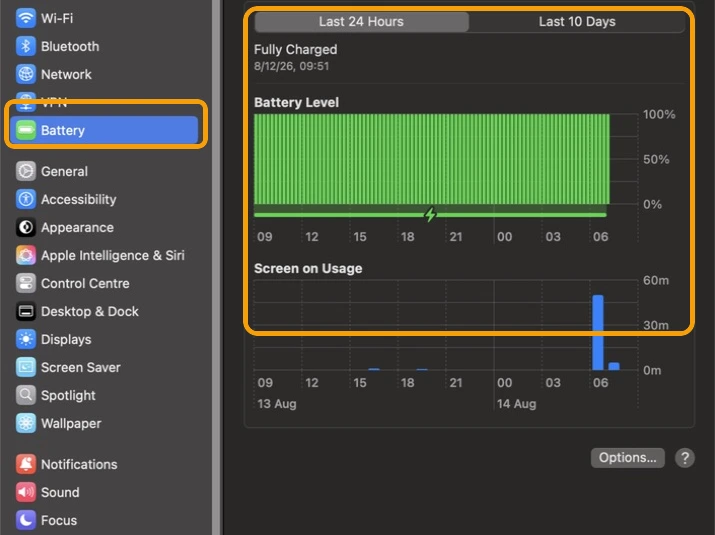
- System Settings → Battery. Use the Last 24 Hours and Last 10 Days views to see when the whole Mac used energy and how long the screen was on. This is context, not per-app attribution. See Apple's usage-history guide.
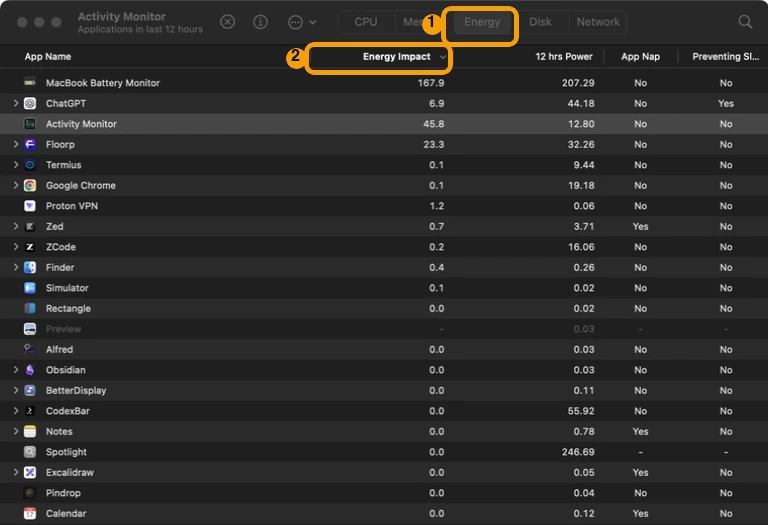
- Activity Monitor's Energy tab. Lists every running process ranked by Energy Impact. The most complete of the three, but the score itself has no unit.
Use the battery menu for a quick warning, Activity Monitor for a current app ranking, and Battery settings for the timeline of the Mac's overall drain.
How to read Activity Monitor's Energy tab
Open Activity Monitor from Applications → Utilities, or search for it with Cmd-Space. Click the Energy tab. Three columns matter:
- Energy Impact: Apple's relative measure of an app's current energy use.
- 12 hr Power: the app's average Energy Impact over the last 12 hours or since the Mac started, whichever period is shorter.
- App Nap: whether App Nap is currently active for the app.
Click the Energy Impact heading until the largest current values are at the top. Treat those rows as the first processes to investigate, then reproduce the workload and watch whether the ranking changes.
The blind spots are real, though. Energy Impact has no unit. A score of 20 does not mean 20 watts, 20 milliamps, or 20 percent per hour. It is a composite Apple designed to rank apps relative to each other, and Apple does not publish the formula. You can tell which app draws more than another. You cannot tell how much actual runtime it is costing you.
A current ranking can still miss a short spike that ended before you opened Activity Monitor. For intermittent drain, compare the current list with the 12 hr Power column and the time period shown in Battery settings.
Background processes without visible windows
Apple's Activity Monitor guide describes processes as programs running on the Mac, including apps, system apps, and invisible background processes. That is why Activity Monitor can contain more rows than the apps visible in the Dock.
- App helpers: Browsers, communication tools, and developer apps can split work across several processes.
- Sync and indexing: File, photo, backup, and search services may run without an open document window.
- Work you started: Builds, virtual machines, exports, and local services can continue after you switch to another app.
Do not guess from a process name. Sort the live list, reproduce the problem, and compare the current Energy Impact with 12 hr Power. A short spike may have ended before Activity Monitor opened, so Battery settings provides useful timing context even though it cannot name the app.
What to do once you find the culprit
For an app you recognize, reproduce the workload, then quit the app normally and see whether its ranking and your Mac's power use fall. If an export or sync is expected, pause it or let it finish instead of assuming it is stuck.
For a background process you launched yourself, stop it with the app or command that started it. Do not stop an unfamiliar macOS process based on its name alone.
Quit your own apps normally first. If you do not recognize a process, identify what launched it before stopping it. Activity Monitor includes macOS processes as well as user apps, so the highest row is not automatically safe to force quit.
This is the gap a third tool fills well. A monitor that reads live per-app watts can also expose a one-click stop for user apps and a CPU throttle for processes you cannot quit, like a build running in the background while you keep working.
When fast drain means your battery is aging
Sometimes no single app explains the shorter runtime. A battery with less usable capacity can power an otherwise normal workload for less time than it could when new.
Cycle count provides context, but battery condition is the clearer service signal. To check cycle count, open Apple menu → About This Mac → More Info → System Report → Hardware → Power. The Cycle Count and Condition lines live there. Apple buries this screen. Some newer macOS versions also surface cycle count in Battery Health, but System Information remains the consistent path across macOS versions.
Apple's cycle-count guide lists the maximum for each model. If Battery Health reads “Service Recommended,” Apple says the battery holds less charge than when new or is not functioning normally. You can keep using the Mac and consider service if the reduced capacity affects your experience. For a fuller walkthrough, see our guide on how to check MacBook battery health.
A faster way to see real per-app power draw
The built-in tools diagnose. They tell you an app scores high on Energy Impact, or that your battery dropped a certain amount in the last 24 hours. What they do not hand you is a number you can act on, like “this app is pulling 3.4 watts right now.”
Watts are that power measurement. Comparing whole-system watts with battery capacity can produce a rough idealized runtime estimate, but real runtime also changes with battery condition, workload, display, peripherals, and system behavior. Energy Impact cannot be inserted into that calculation because it has no physical unit.
That is where MacBookBatteryMonitor fits in. It shows live per-app power draw in watts in the menu bar, so 3.2W reads differently from 0.4W. It also provides a one-click stop for user apps plus a per-app CPU throttle for processes you want to keep running. To see how that view compares with other tools, read our guide to Mac power monitor apps.
FAQ
How do I find out which app is draining my MacBook battery?
Open Activity Monitor's Energy tab and sort by Energy Impact. The top entries have the highest relative impact right now. The battery menu can also flag apps using significant energy. System Settings shows whole-Mac battery level, energy use, and screen-on time, but it does not provide iPhone-style per-app battery history.
What does "Energy Impact" mean in Activity Monitor?
Energy Impact is Apple's relative measure of an app's current energy use. It ranks apps against each other, but it does not correspond to watts, milliamps, or percent per hour. A score of 20 means more current impact than a score of 10, not 20 of any physical unit.
Why can battery drain continue when no app window is open?
Apps can keep background processes running after their windows are closed, and macOS also runs system processes without windows. Activity Monitor includes processes as well as apps, so inspect the actual rows rather than assuming that an empty desktop means no work is happening.
Why does the battery menu show no apps using significant energy?
Apple says the Battery Status menu lists apps using a significant amount of energy, if any. An empty list does not mean every app has zero impact. Open Activity Monitor’s Energy pane to compare the current Energy Impact of all listed apps and processes.
How accurate is the macOS battery usage chart in System Settings?
It is useful for whole-Mac trends. The Last 24 Hours view shows battery level and screen-on usage; the Last 10 Days view shows daily energy usage and screen-on usage. It does not attribute those totals to individual apps.