Looking for the app? See the MacBook battery monitor.
Battery Health
How to Check MacBook Battery Health
- Published
- Last edited
Your MacBook can tell you whether the battery is healthy, how much capacity it has left, and how many charge cycles it has used. The hard part is knowing what those numbers mean and whether poor battery life is actually a battery problem.
Quick answer
To check MacBook battery health, open System Settings, choose Battery, then click the info button next to Battery Health. You should see your battery condition, maximum capacity, and on newer macOS versions, the battery cycle count.
If the condition says Normal and maximum capacity is still near 80% or higher, the battery is probably not the main reason your MacBook dies quickly. In that case, look for apps, browser tabs, background sync, high brightness, external displays, or settings that are increasing power draw.
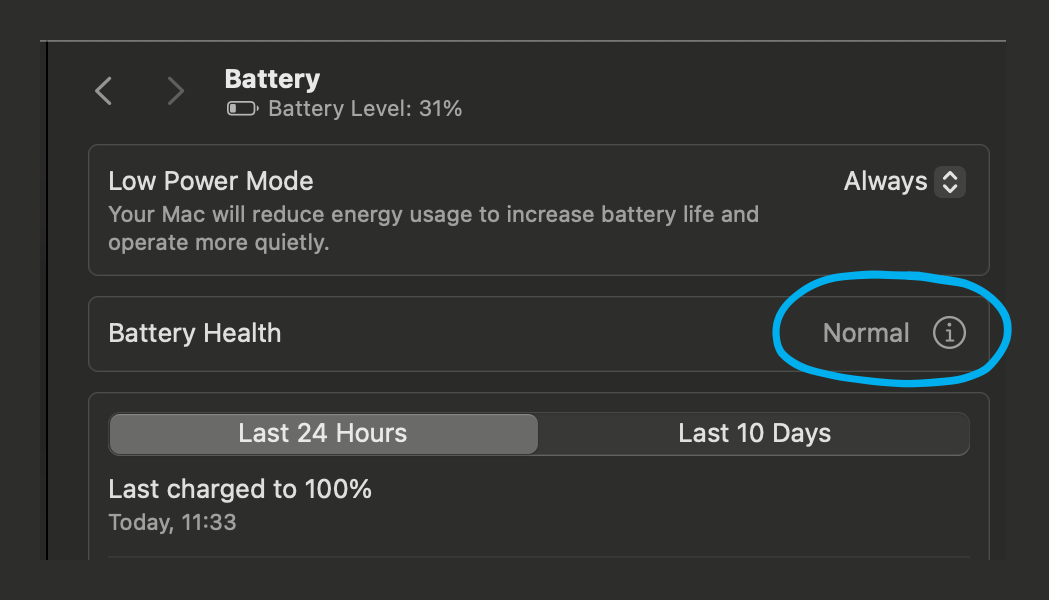
How to check battery health in System Settings
- Open the Apple menu in the top-left corner of the screen.
- Choose System Settings.
- Click Battery in the sidebar. You may need to scroll.
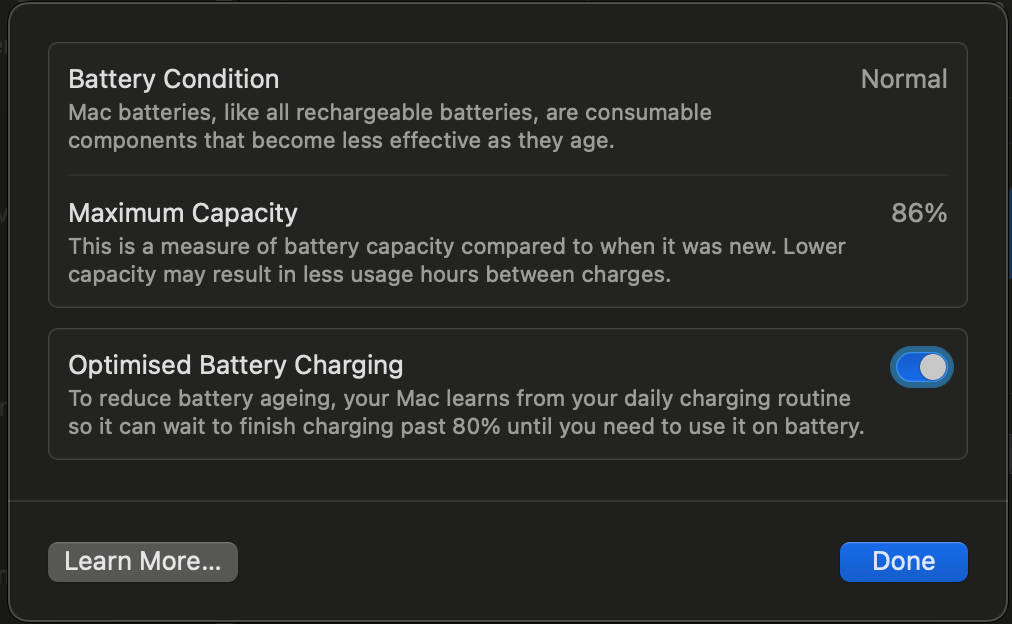
- Find Battery Health and click the info button.
- Read the Condition, Maximum Capacity, and Cycle Count if shown.
How to check cycle count in System Information
If System Settings does not show your cycle count, use System Information. This works well on older macOS versions and gives you more raw battery detail.
- Hold Option and click the Apple menu.
- Choose System Information.
- In the Hardware section, click Power.
- Look under Battery Information for Cycle Count and Condition.
Apple defines a battery cycle as using an amount of power equal to 100% of your battery capacity. That does not have to happen in one sitting. For example, using 50% today, recharging, and using another 50% tomorrow counts as one cycle.
How to interpret the result
Battery health has three separate signals. Maximum Capacity tells you how much charge the battery can still hold. Cycle Count tells you how much use the battery has gone through. Condition is macOS's summary of whether the battery is operating normally.
Maximum capacity quick read
90-100%
Excellent. Severe drain is probably not battery wear.
80-89%
Normal wear. Expect less runtime than when it was new.
Below 80%
Battery wear can explain reduced runtime. Consider service if it affects how you use the Mac.
What is a good cycle count for a MacBook?
For most modern MacBook Air and MacBook Pro models, Apple lists a maximum cycle count of 1000 cycles. Some older models have lower limits, commonly 300 or 500 cycles. The best source for your exact model is Apple's battery cycle count table.
MacBook battery cycle count is not a pass or fail score by itself. A MacBook with 650 cycles and 92% maximum capacity is in better shape than a MacBook with 150 cycles and 74% maximum capacity. Read cycle count together with maximum capacity, condition, and real battery runtime.
What maximum capacity means
Maximum capacity is an estimate of how much charge your battery can hold compared with when it was new. A MacBook at 86% maximum capacity can still work normally, but it cannot physically last as long as it did at 100%. If it used to last 10 hours in your typical workload, the same workload might now be closer to 8 or 9 hours before any other factors are considered.
Apple says Mac laptop batteries are designed to retain up to 80% of original capacity at their maximum cycle count under normal conditions. In practical terms, a reading below 80% makes battery wear a plausible explanation for short runtime; macOS condition and your symptoms should guide the service decision.
What Service Recommended means
Service Recommended means macOS believes your battery holds less charge than when it was new or is not functioning normally. Apple says you can keep using the Mac, but if the reduced capacity affects your experience, you should consider service.
This warning does not always mean the Mac is unsafe to use today. It means the battery is no longer giving expected performance. If your MacBook is dying quickly, shutting down unexpectedly, swelling, running very hot, or behaving unpredictably, treat that as a service issue rather than a settings problem.
If health is normal but battery life is bad
This is the situation many people miss. A healthy battery does not guarantee long battery life. If something on your Mac is drawing 15-25 watts, even a new battery will drain quickly.
Check these before assuming the battery is faulty:
- Display brightness: a bright screen can be one of the largest power draws on a MacBook.
- Browser tabs: Chrome, Safari, and web apps can keep CPU, GPU, audio, and network activity alive in the background.
- Video calls: camera, microphone, screen sharing, and browser-based calls can drain power fast.
- Cloud sync: Photos, iCloud Drive, Dropbox, Google Drive, and OneDrive can spike usage after large file changes.
- External displays and accessories: docks, monitors, and USB devices can change both power use and charging behavior.
Compare your options when health looks normal
Once maximum capacity and condition look healthy, the problem is usually not the battery cell. It is the workload. At that point, the job changes from checking battery health to finding what is consuming power.
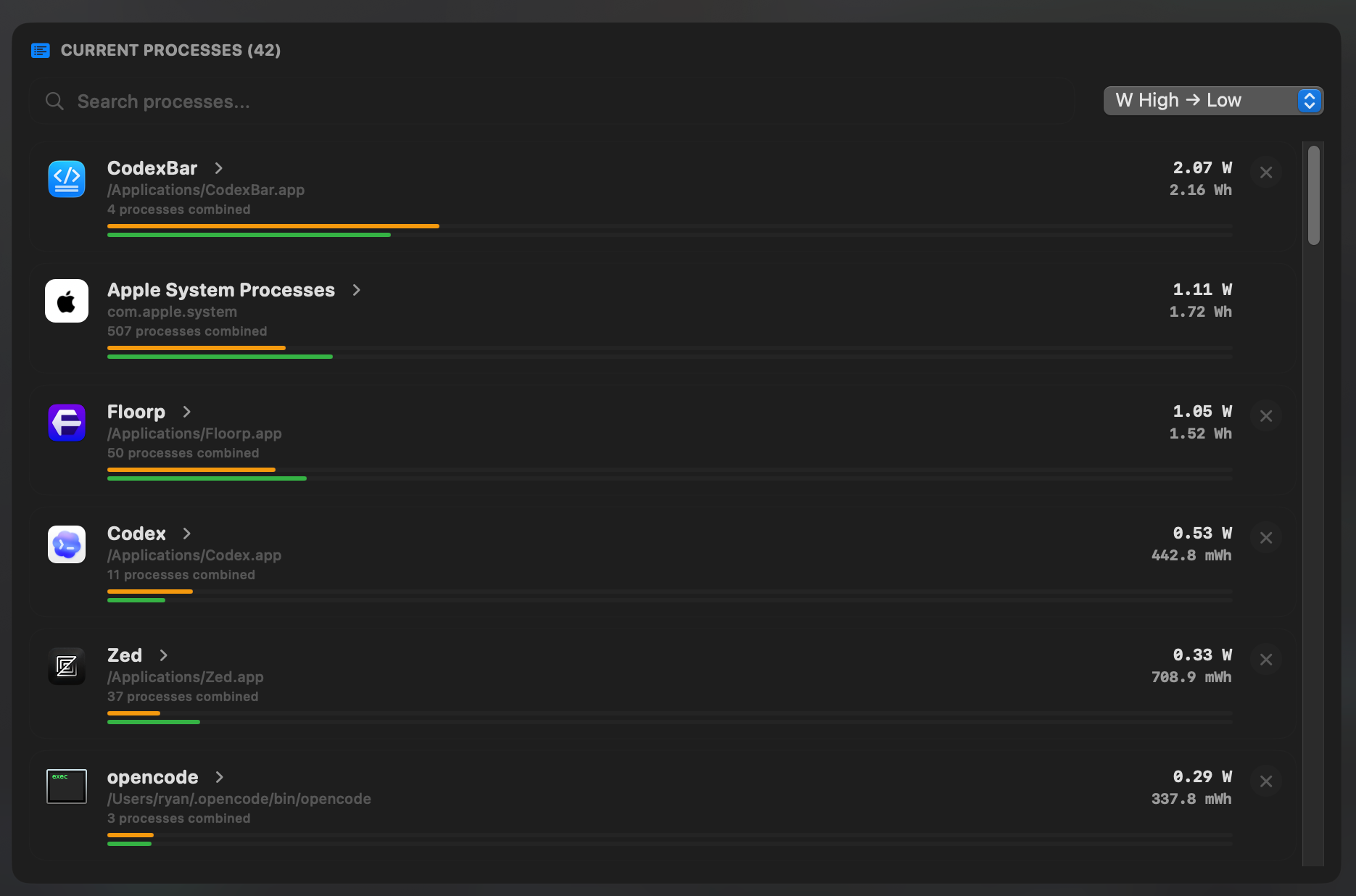
For a better diagnosis, look for live power draw, not just a score. If your Mac is using 6 watts while you write in a text editor, that is very different from using 28 watts while a browser tab, video call, or sync process runs in the background. MacBookBatteryMonitor is built for that moment: your health numbers look fine, but you still need to know what is burning the battery.
Use Low Power Mode when you need runtime now
Low Power Mode reduces energy use to increase battery life. On macOS Ventura or later, open System Settings -> Battery and set Low Power Mode for battery power. On supported Macs and newer macOS versions, power modes can also appear in Control Center.
Low Power Mode will not fix a degraded battery, but it can reduce power draw enough to make a normal battery last longer during writing, browsing, travel, or light work.
Built-in macOS vs MacBookBatteryMonitor
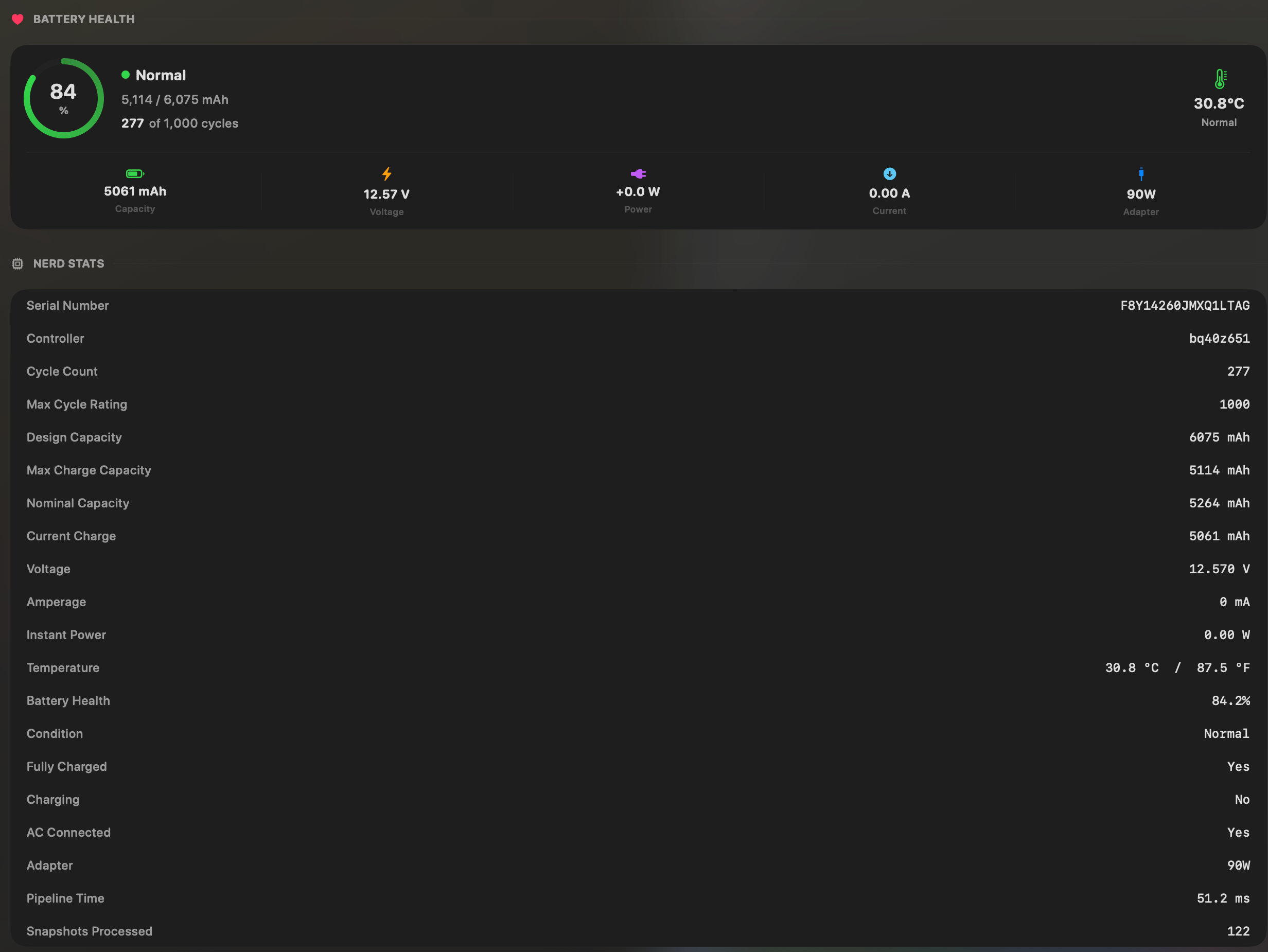
macOS is the right first check for battery condition, maximum capacity, and cycle count. MacBookBatteryMonitor is the better ongoing view once you want those health details visible without digging through Settings and System Information.
It keeps battery health, capacity, cycles, temperature, charge status, and live context together in one native Mac app. That makes the one-off health check easier to repeat, and it gives you somewhere to go next if the battery is healthy but still draining fast.
When to replace the battery
Consider battery service when one or more of these are true:
- Maximum capacity is below 80% and runtime is affecting your work.
- The condition says Service Recommended.
- The Mac shuts down unexpectedly while the battery percentage is not empty.
- The battery or case is swollen. Stop using it and get service.
- You are near or beyond the maximum cycle count for your model and battery life has dropped sharply.
If maximum capacity is high and condition is Normal, replacement is usually the wrong first step. Confirm the health numbers first, then investigate usage, settings, and workload separately.
FAQ
Is 90% battery health good for a MacBook?
Yes. 90% maximum capacity is generally good. You have lost some capacity compared with a new battery, but it is not usually enough to explain severe battery drain by itself.
Is 80% battery health bad?
80% is the practical threshold where battery wear starts to matter. If your MacBook is below 80% and runtime is affecting your work, battery service is reasonable.
Does a high cycle count always mean the battery is bad?
No. Cycle count is only one signal. Maximum capacity and real runtime matter more. A high-cycle battery can still be usable if capacity and condition are good.
Why is my battery health normal but my MacBook dies fast?
The battery may be fine while apps, browser tabs, brightness, video calls, sync jobs, or external devices are using too much power. Check live power draw and per-app usage with a Mac power monitor app before replacing the battery.
Can I check MacBook battery health without a third-party app?
Yes. Use System Settings and System Information. A dedicated battery app is useful when you want the same health numbers in a faster, more visible place, especially if you want to keep checking capacity, cycle count, condition, temperature, and battery status over time.