Looking for the app? See the MacBook battery monitor.
Troubleshooting
How to Check MacBook Battery Usage by App
- Published
- Last edited
You have two useful ways to check MacBook battery usage by app. Activity Monitor is the free built-in option. A third-party battery monitor can add per-app estimates in watts, history, and controls for apps that keep drawing power.
Quick answer
Built in: Open Activity Monitor, click Energy, then sort by Energy Impact for current usage or 12 hr Power for recent average impact. Third party: Use a battery monitor when you want attributed per-app watts, longer history, or controls for a high-usage app. We compare the options in best Mac power monitor apps.
1. Built-in macOS tools
Activity Monitor is the best place to start. It is already on every Mac, it ranks running apps and processes, and it includes both a current score and a recent average.
How to check battery usage in Activity Monitor
- Press Cmd-Space, type Activity Monitor, and open it.
- Click the Energy tab at the top of the window.
- Click Energy Impact until the largest values appear first. This ranks current usage.
- Click 12 hr Power to rank apps by their average impact over the last 12 hours or since the Mac started.
- Look for an app that stays near the top while your battery is draining. Reproduce what you were doing and watch whether its Energy Impact rises.
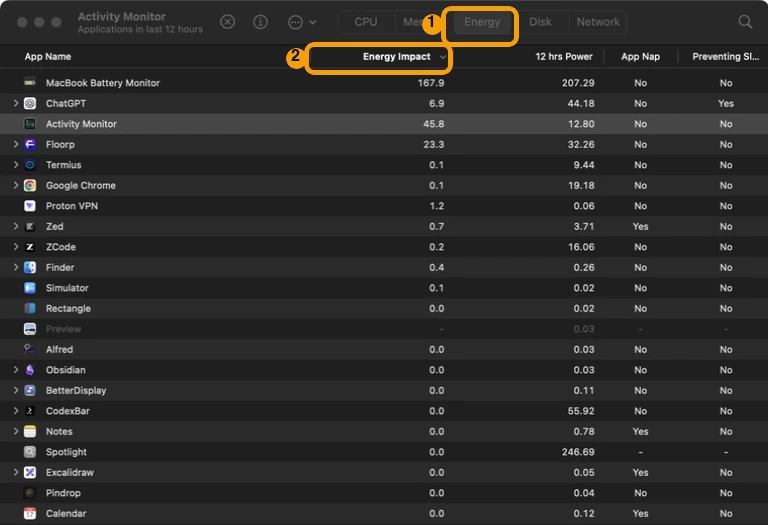
How to read Energy Impact and 12 hr Power
Apple describes Energy Impact as a relative measure of an app's current energy use. Lower is better. The score is useful for comparing apps at the same moment, but it is not watts, battery percentage, or estimated time remaining.
12 hr Power is the average Energy Impact over the last 12 hours or since the Mac started, whichever period is shorter. It appears on Mac laptops. Use it when the battery drained earlier and the app is no longer busy enough to stand out in the current column.
The App Nap column tells you whether macOS is currently reducing work for that app. You can add or remove columns from View > Columns if your window does not match the screenshot. These definitions come from Apple's Activity Monitor guide.
Which built-in battery view should you use?
macOS has three useful battery views, but each answers a different question.
The battery menu is the fastest check. Apple says it can list apps using significant energy, but an empty list is not a full report. Activity Monitor is the better per-app view. For timing, open System Settings > Battery and compare the Last 24 Hours or Last 10 Days view with when you noticed the drain. Apple documents those views in its Battery Status guide and Battery Usage History guide.
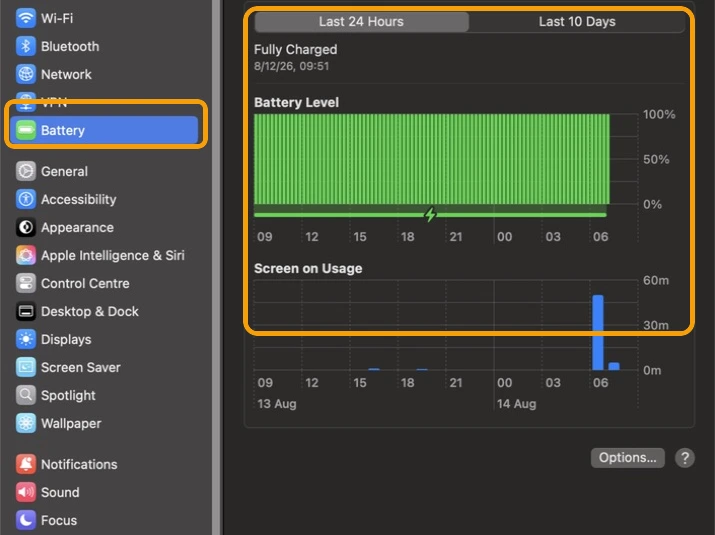
What to do when an app ranks high
A high score is a lead, not proof that the app is broken. A video call, game, export, software update, or file sync should use more energy while it works. The useful question is whether the app stays high when you expect it to be idle.
- Note the app's current Energy Impact and 12 hr Power.
- Return to the app and reproduce the task that was running when the battery dropped.
- Pause the task or quit the app normally.
- Return to Activity Monitor and check whether the current ranking falls.
Activity Monitor includes apps, helper processes, and macOS processes. Do not force quit an unfamiliar system process based only on its name. If no app explains the problem, use the wider checklist in how to see what is draining your MacBook battery. If the battery has lost capacity, check MacBook battery health separately.
2. Third-party app: MacBookBatteryMonitor
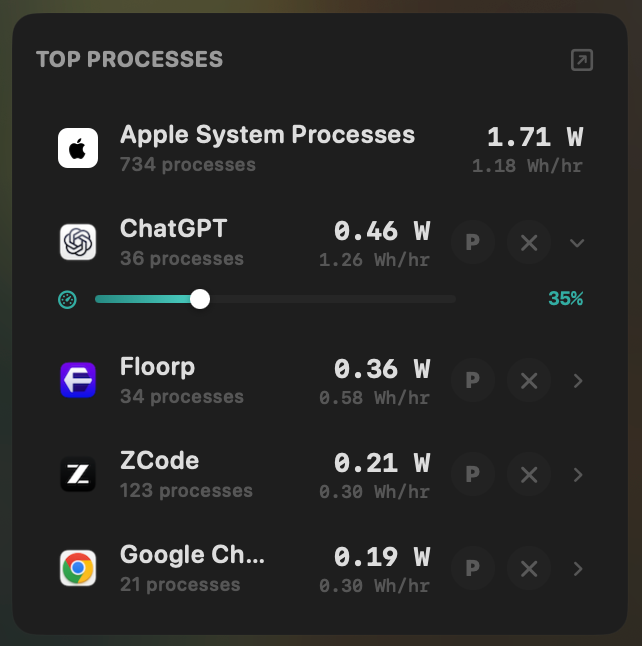
Activity Monitor tells you which app has the highest relative impact. MacBookBatteryMonitor adds the unit people usually want: watts. It places whole-system power beside attributed per-app estimates, groups an app's helper processes together, and stays available from the menu bar while you reproduce the drain.
The per-app watt values are attribution estimates based on the work each process is doing and the Mac's measured power. They are more concrete than a unitless ranking, but they are not separate sensor readings physically attached to each app.
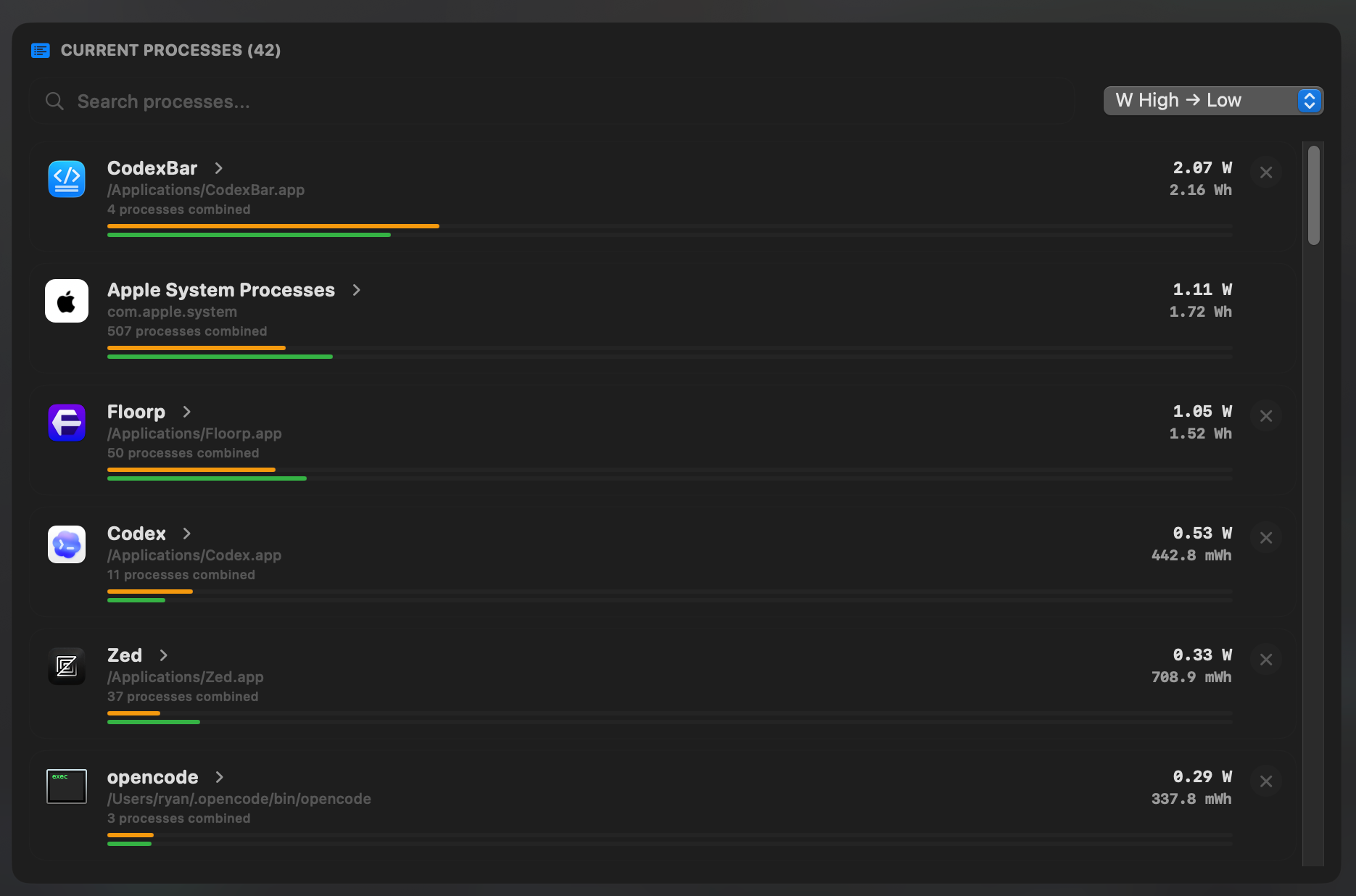
See all your apps' power usage
Open More Details to see the full Current Processes list. It groups related helper processes under their parent app, shows current attributed power in watts, and keeps the accumulated energy beside it so you can inspect more than the short menu-bar ranking.
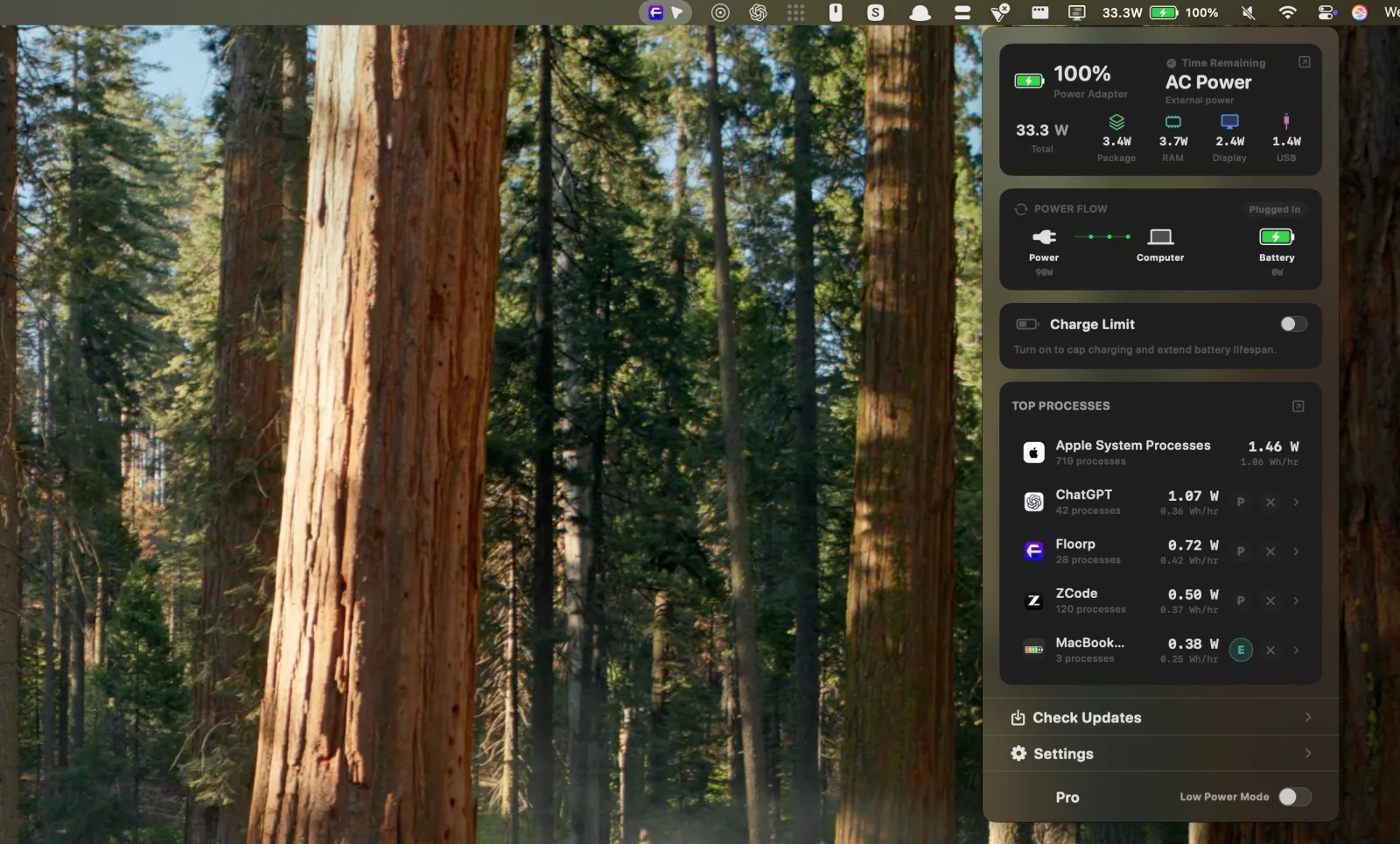
See highest power usage at a glance from your menu bar
The popover shows total power at the top and ranks active apps under Top Processes. That makes it easier to spot a change while opening a heavy browser tab, starting a video call, or pausing a background task.
Inspect or limit a high-usage app
The expanded process view groups related processes, shows their attributed watts, and adds controls for user apps. You can quit an app normally from the list or apply a CPU limit when you want a background task to continue at a lower pace.
Which option should you use?
- Use Activity Monitor when you want a free current ranking and a 12-hour average.
- Use MacBookBatteryMonitor when attributed watts, grouped processes, history, or app controls would help you act on the result.
Common questions
How do I check battery usage by app on a MacBook?
For the built-in option, open Activity Monitor, click Energy, and sort by Energy Impact for current use or 12 hr Power for recent average impact. Use a third-party battery monitor when you want attributed per-app watts, longer history, or app controls.
Does macOS show battery percentage used by each app?
The built-in Mac views do not show an iPhone-style percentage for each app. Activity Monitor uses relative Energy Impact scores, while Battery settings shows usage for the whole Mac.
What is the difference between Energy Impact and 12 hr Power?
Energy Impact describes current app energy use. 12 hr Power is the app’s average Energy Impact over the last 12 hours or since startup. Both are relative scores, not watts or battery percentages.