Comparison
Activity Monitor vs MacBookBatteryMonitor
Activity Monitor is free and already on your Mac, and it does some of this. Here is what it actually shows, what it does not, and where MacBookBatteryMonitor fills the gap.
 vs
vs
Side by side
Finding the app that is draining the battery, and stopping it
Activity Monitor's Energy tab ranks apps by Energy Impact, a relative score with no unit. MacBookBatteryMonitor ranks them by watts, flags hidden workloads, and lets you cap, offload, or kill an app from the same row.
MacBookBatteryMonitorWinner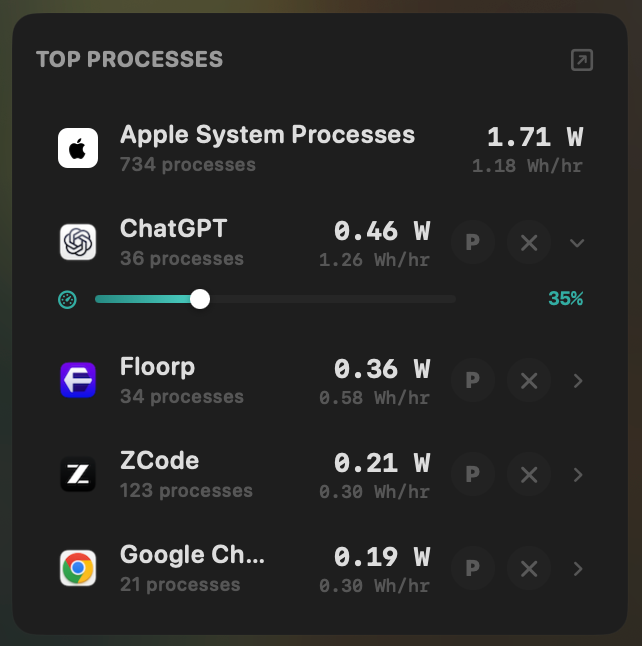
- Yes:Live per-app power draw · Process-level, real-time
- Yes:Hidden-workload detection · Docker, cloudflared, launchd
- Yes:Per-app CPU throttle · 10% to 100% slider
- Yes:E-core offload · Per-app toggle
- Yes:One-click kill · Runaway apps + subprocesses
Activity Monitor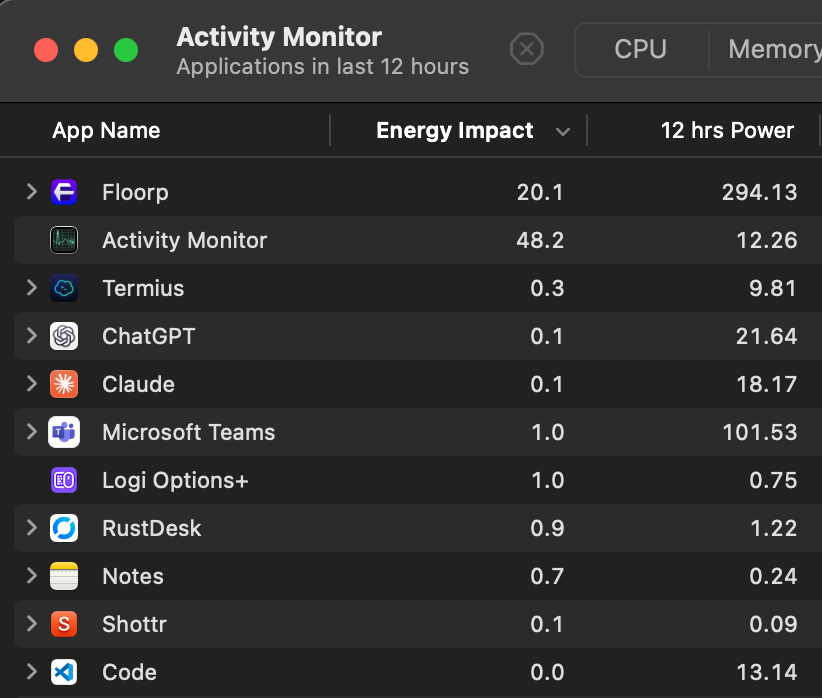
- Partial:Live per-app power draw · "Energy Impact" is a unitless score
- No:Hidden-workload detection
- No:Per-app CPU throttle
- No:E-core offload
- Partial:One-click kill · Force Quit, multi-step
Seeing where the power goes
Activity Monitor has a coarse battery-level graph and no wattage. MacBookBatteryMonitor shows the live system total in watts, split into CPU+GPU, RAM, display, and USB.
MacBookBatteryMonitorWinner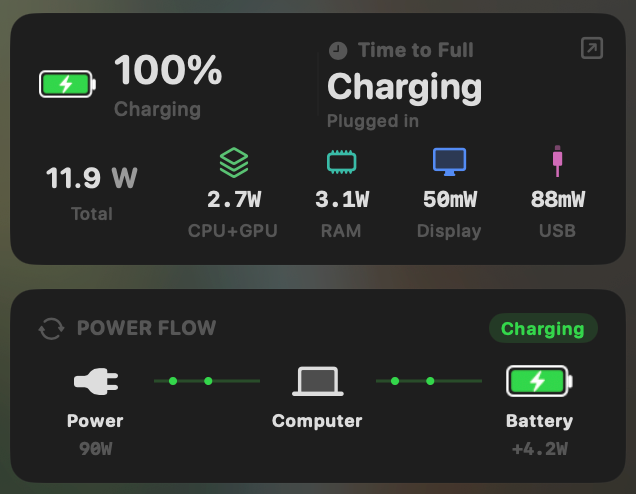
- Yes:System total power draw · Live, in watts
- Yes:Power breakdown by component · CPU / GPU / RAM / Display / USB
Activity Monitor- No:System total power draw · Coarse graph, no watts
- No:Power breakdown by component
Charge limit and Sailing Mode
macOS offers an 80% charge-limit toggle on a subset of Apple Silicon Macs running Tahoe 26.4 or later, and Low Power Mode is a manual switch. MacBookBatteryMonitor gives you a 50% to 100% slider, Sailing Mode, and automated Low Power Mode.
MacBookBatteryMonitorWinner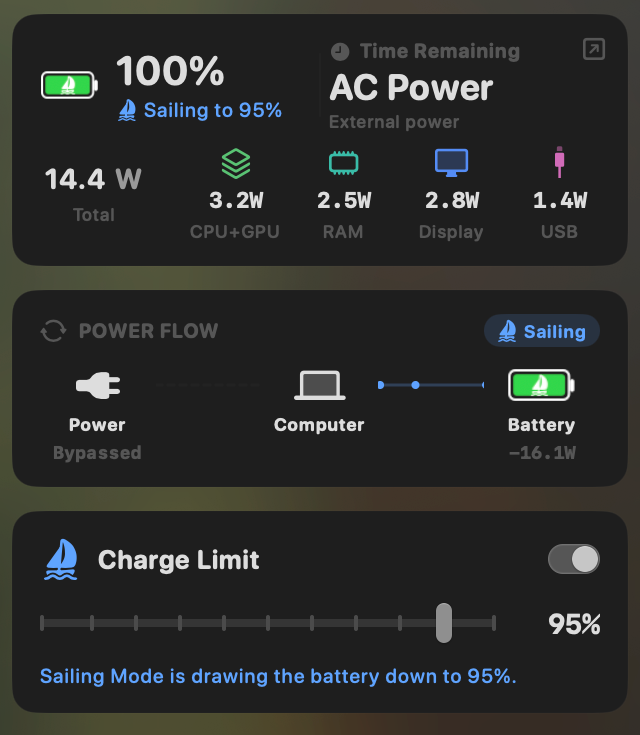
- Yes:Charge limit · 50% to 100% via SMC
- Yes:Sailing mode · Discharge while plugged in
- Yes:Low Power Mode automation · Auto below a threshold
Activity Monitor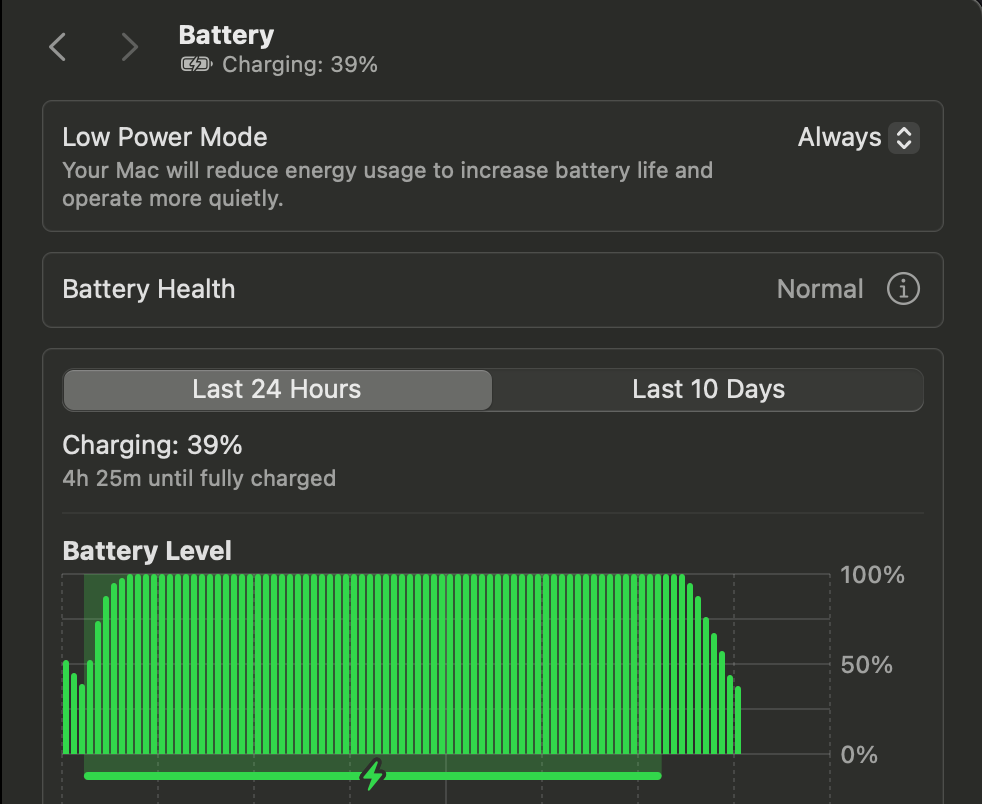
- Partial:Charge limit · 80% toggle, Tahoe 26.4+ subset
- No:Sailing mode
- Partial:Low Power Mode automation · Manual toggle only
Battery health
macOS spreads battery health across System Settings (a coarse percentage and a Normal or Service label) and System Information (cycle count, three menus deep). MacBookBatteryMonitor puts health, cycles against the design limit, and temperature in one panel.
MacBookBatteryMonitorWinner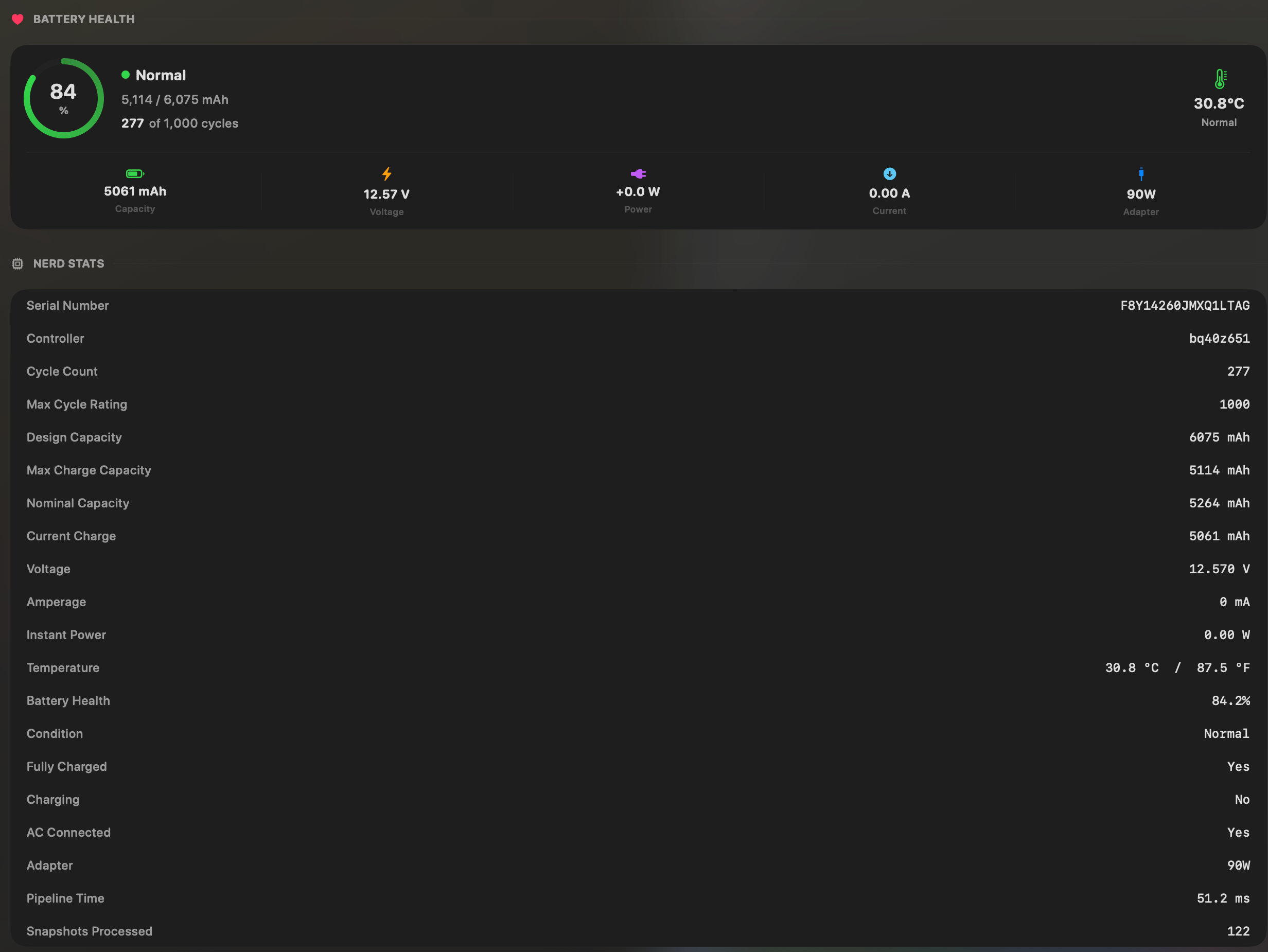
- Yes:Battery health % · Health % + condition label
- Yes:Cycle count · Cycles + design cycle count
- Yes:Battery temperature · °C / °F with status label
Activity Monitor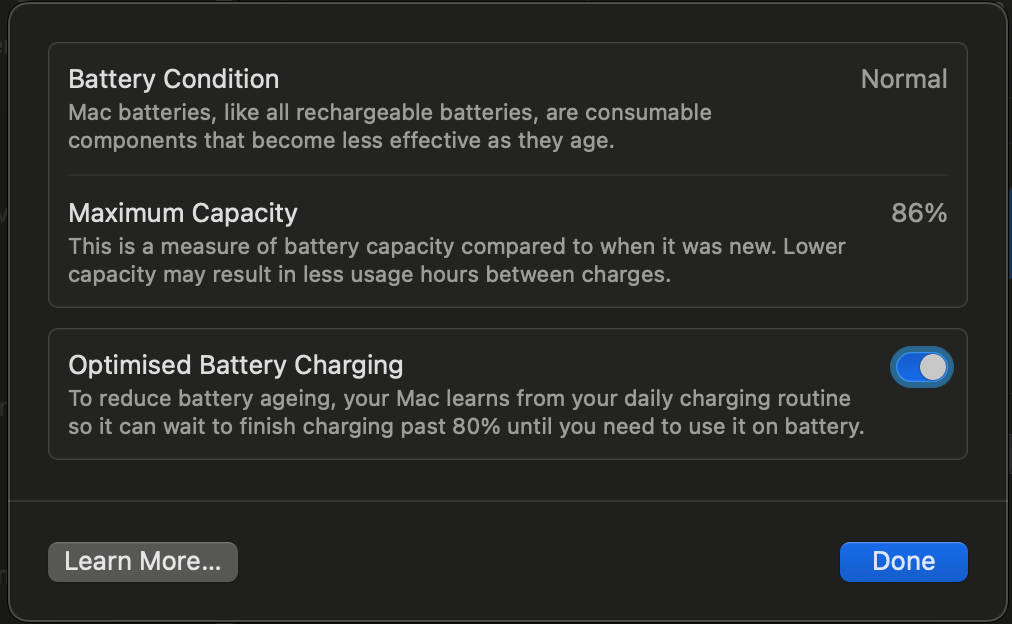
- Partial:Battery health % · Coarse, in System Settings
- Yes:Cycle count · Buried in System Information
- No:Battery temperature
Menu bar and history
Activity Monitor is a window, and its 24-hour and 10-day battery bars live in System Settings. MacBookBatteryMonitor lives in the menu bar and keeps a battery level history you can scrub from 1 hour to 7 days.
MacBookBatteryMonitorWinner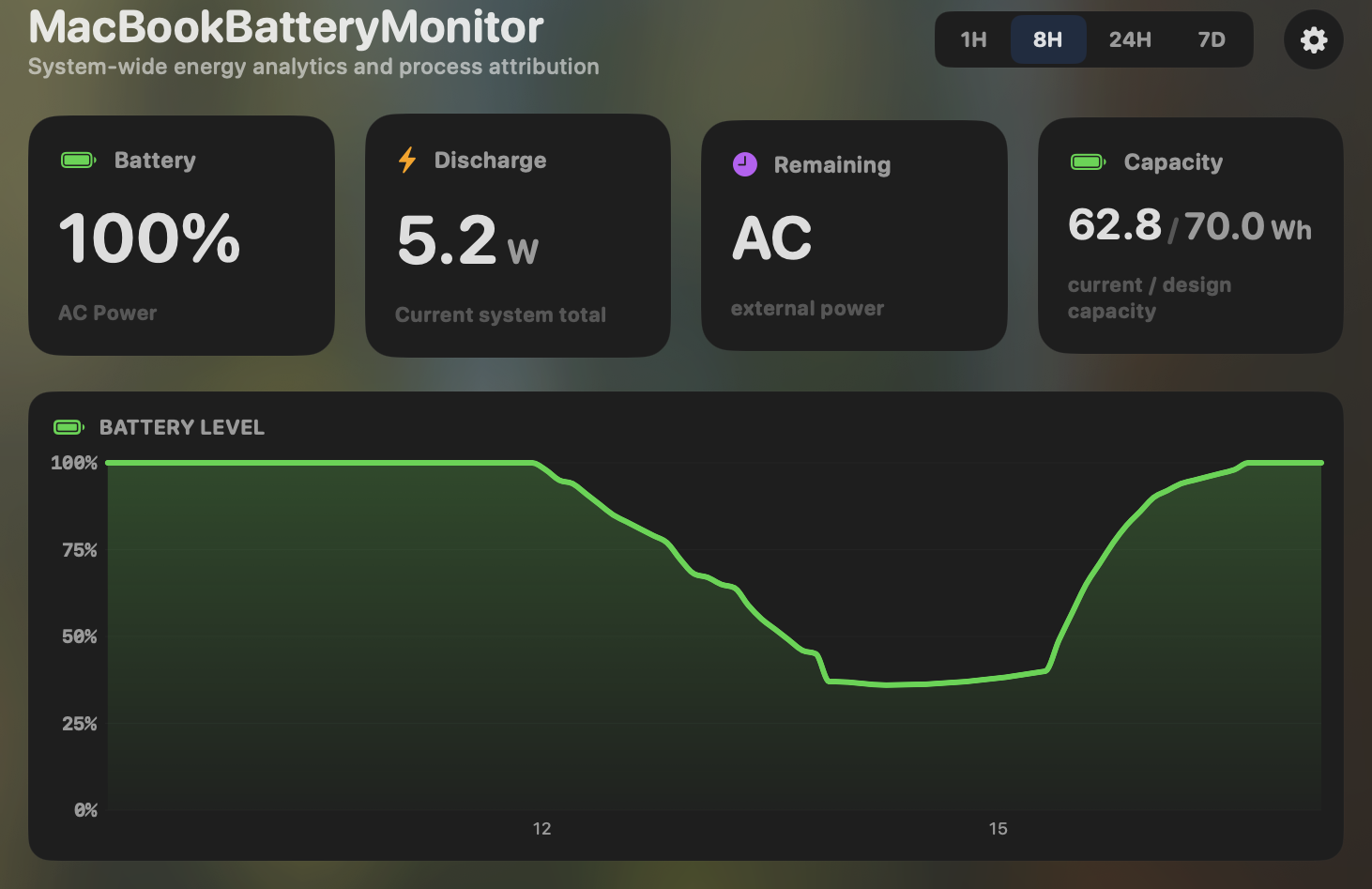
- Yes:Menu-bar first · Native, configurable icon
- Yes:History charts · 6h / 24h / 7d + per-app
Activity Monitor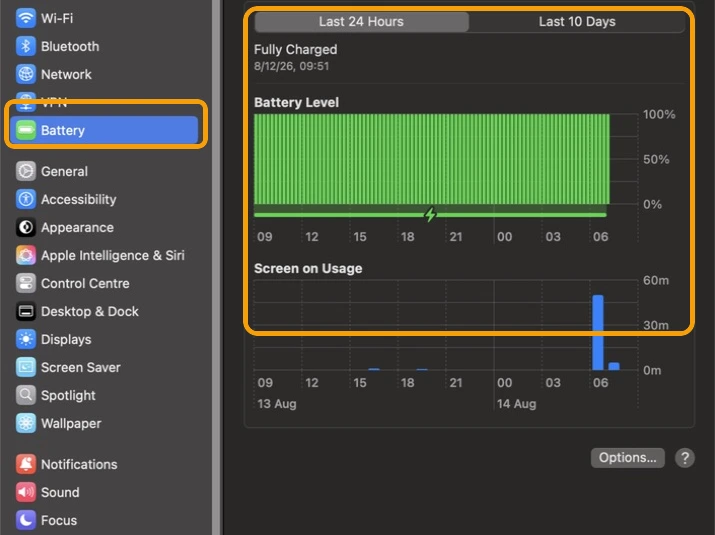
- No:Menu-bar first · Windowed app
- Partial:History charts · 24h / 10-day coarse bars
Feature comparison
 MacBookBatteryMonitor
Why consider MacBookBatteryMonitor
See the drain, then do something about it
Activity Monitor ranks apps by a score with no unit. MacBookBatteryMonitor shows the watts, and puts a throttle and a kill button next to each app.
What Activity Monitor does
Activity Monitor ships with macOS and has an Energy tab that ranks running apps. The headline column is "Energy Impact", which Apple’s own documentation describes as "a relative measure" of energy consumption. It is a number with no unit. You can see that Firefox scores 38.2 and Safari scores 4.1, but you cannot tell from those numbers whether Firefox is drawing 0.3 watts or 30, and you cannot compare either to your charger’s wattage or your battery’s capacity. The tab also shows "12 hr Power" (an average of the same score), App Nap, and whether an app is preventing sleep or forcing the high-performance GPU. Battery health lives separately, in System Settings, where it shows a coarse maximum-capacity percentage and a Normal or Service Recommended label. Cycle count is not in either of those places; it is in System Information, three menus deep. Charge control, as of macOS Tahoe 26.4, is an 80% toggle on a subset of Apple Silicon Macs, plus Optimized Charging, which is automatic and not configurable. Low Power Mode is a manual switch. None of these tools can throttle an app, offload it to efficiency cores, or limit its power use. They show you that something is busy. They do not let you do anything about it.
What MacBookBatteryMonitor does
MacBookBatteryMonitor takes the opposite approach to the same data. Instead of a relative score, it shows the actual wattage each app is drawing, plus a system total and a breakdown by component (CPU, GPU, RAM, display, USB). Cycle count, the design-cycle limit, and health percentage sit in the menu bar rather than three menus deep. On charge control, where macOS gives you a flat 80% toggle on some Macs, it gives you a slider from 50% to 100% over SMC, a Sailing Mode that discharges to your limit while plugged in, and a Low Power Mode that switches itself on below a threshold you set. And where Activity Monitor can only show you a heavy app, MacBookBatteryMonitor lets you throttle its CPU, offload it to E-cores, or kill it and its subprocesses in one click. It also surfaces hidden drain from Docker, cloudflared, and launchd, which Activity Monitor lists as processes but never flags. The trade-off is that it is a paid, Apple-Silicon-only app on macOS 14.6 and up. Activity Monitor is free, pre-installed, and runs on every Mac Apple has ever shipped.
Which one should you pick?
Activity Monitor is genuinely sufficient if you only want a rough sense of which apps are busy, and it costs nothing. Its limit is that "Energy Impact" is a unitless score and the app offers no controls: you can see that something is drawing power, but not how much, and you cannot act on it. MacBookBatteryMonitor is for the point where that stops being enough, when you want real wattage, a charge limit you can actually configure, and the ability to throttle or kill the apps doing the draining. If the free tools answer your question, keep using them. If they do not, that is the gap this app fills.
Related guides
Frequently asked questions
What is "Energy Impact" in Activity Monitor?
It is a relative score Apple uses to rank apps by energy use, not a measurement in watts. You can see that Firefox scores 38.2, but you cannot tell from that number whether it is drawing 0.3 W or 30 W. MacBookBatteryMonitor shows the wattage directly, per process.
Where does macOS show battery cycle count?
Only in System Information. Hold Option, open the Apple menu, choose System Information, then Hardware, then Power. It is not in System Settings or the menu bar. MacBookBatteryMonitor puts cycles and the design-cycle limit in the menu bar.
Can Activity Monitor limit charging?
No. The most macOS offers is an 80% charge-limit toggle on a subset of Apple Silicon Macs running macOS Tahoe 26.4 or later, plus Optimized Charging, which is automatic and not configurable. MacBookBatteryMonitor gives you a 50% to 100% slider, Sailing Mode, and enforcement that persists across reboots.
Sources
Feature and pricing claims on this page come from Activity Monitor’s own documentation and Apple’s published guidance.