Looking for the app? See the MacBook battery monitor.
Comparisons
coconutBattery vs Activity Monitor vs MacBookBatteryMonitor: Which Should You Use?
- Published
- Last edited
coconutBattery is for battery health, capacity, cycles, and device details. Activity Monitor is the built-in tool for ranking current app energy use. They answer different questions, so the right choice depends on whether you are diagnosing the battery or the workload.
Quick answer
Use coconutBattery to inspect battery health and device details such as capacity and cycle count. Use Activity Monitor to rank current and recent app energy use through its Energy tab. For the query “coconutBattery vs Activity Monitor,” that is the core distinction.
We also build MacBookBatteryMonitor. It fits when you want the health and workload questions together, plus live whole-system and per-app watts and controls from the menu bar. That is a third option, not a reason to obscure the two-tool answer above.
What coconutBattery measures
coconutBattery is a battery health instrument. According to the official coconutBattery site, it shows live battery quality information for Mac, iPhone, and iPad: charge cycles, health percentage, temperature, voltage, and charge and discharge rate. It can read the manufacture date on older devices; on newer ones, Apple's randomized serial numbers prevent that, a limitation the developer documents directly.
Two boundaries matter in a comparison. First, coconutBattery has no per-app power view; it says nothing about which software is spending your charge. Second, the free tier covers the core diagnostics, while the Plus tier, a one-time purchase, adds conveniences such as battery details in the menu bar and the lifetime analyzer.
What Activity Monitor measures
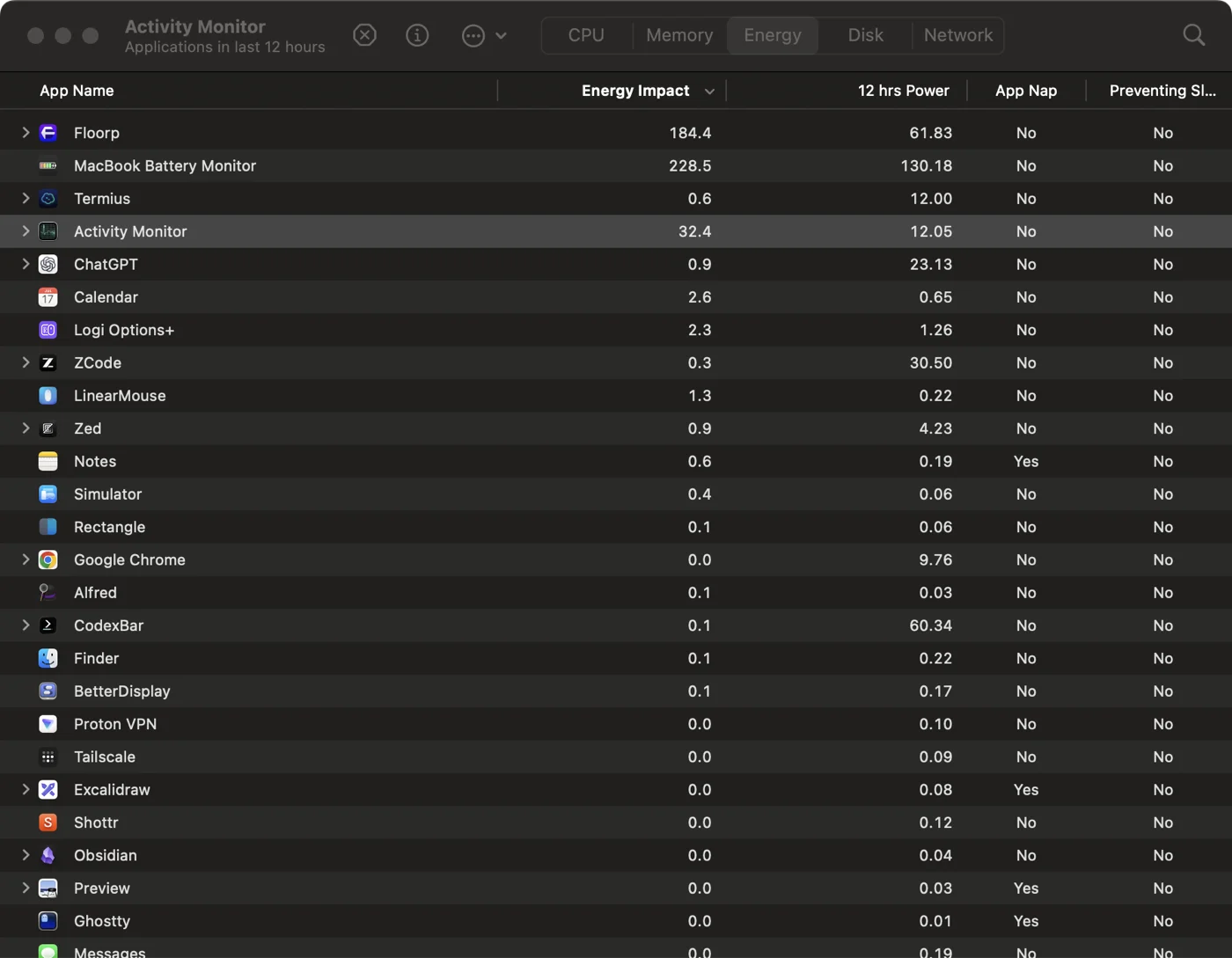
Activity Monitor is a general system monitor whose Energy pane ranks running apps and processes by energy use. Per Apple's Activity Monitor guide, the pane shows overall energy use alongside per-app consumption, with columns for Energy Impact, 12 hr Power, App Nap, and related fields. It is built in, always current, and free.
Its limits are the mirror image of coconutBattery's. The Energy pane has no battery health, capacity, or cycle count fields; those live elsewhere in macOS. And the ranking column, Energy Impact, is a score with no published unit. A score of 12 is worse than 4, but neither number tells you watts, percent per hour, or how much runtime you would regain by quitting the app.
Where MacBookBatteryMonitor fits
MacBookBatteryMonitor is the battery monitor we build, so hold this section to the same standard as the other two. It shows live per-app power draw and whole-system usage in real watts from the menu bar, next to battery health, capacity, and cycle count. It records whole-system and per-app energy history for up to 30 days, and it adds controls the other two do not attempt: per-app power limits, efficiency-core offload, charge limits, and stopping a runaway app and its subprocesses without switching windows.
The point of the watts is arithmetic. A MacBook Air battery holds roughly 50 to 55 watt-hours, so an app drawing four watts costs a predictable slice of runtime. A unitless score cannot support that math. If you want to go deeper on that idea, our comparison of Mac power monitor apps breaks down what each measurement approach can and cannot tell you.
The three-way comparison
The clearest way to see that these are different tools is to lay their capabilities side by side. Gaps in a column are not flaws; they reflect that each tool was built for a different question.
Read the table by row, not by winner. If your question is a health question, coconutBattery or our app answers it and Activity Monitor cannot. If your question is a drain question, only a watts-based view answers it in units you can act on.
Why coconutBattery and macOS show different numbers
This is the question that fills Apple Support Communities and Reddit threads: you open coconutBattery and macOS at the same moment, and the battery percentage or capacity differs by a few points. Which one is right?
First confirm you are comparing the same metric. Current charge, full-charge capacity, design capacity, and the menu-bar percentage are different numbers, and coconutBattery exposes several of them side by side. A mislabeled comparison explains a lot of the reported disagreements on its own.
Beyond that, tools may refresh, round, or label values differently. Do not assume one mechanism explains every disagreement. Compare like-for-like fields at the same time, then watch a consistent metric with the same tool if you need a trend. For a deeper look at interpreting those numbers, see our guide on how to check MacBook battery health.
Which to choose
If you check your battery once a quarter, start with the built-in tools: System Settings for health, Activity Monitor for obvious energy hogs. That combination is free and answers one-off questions.
Choose coconutBattery if battery health is your focus and you want detailed fields such as cycle history, temperature, voltage, and iOS devices on the same screen. Choose MacBookBatteryMonitor if your real question is runtime: what is drawing power right now, in watts, and what to do about it, with health numbers one glance away instead of a Settings expedition. For more choices in that role, see our roundup of coconutBattery alternatives.
FAQ
Why does coconutBattery show a different battery percentage than macOS?
First confirm you are comparing the same metric: current charge, full-charge capacity, and design capacity are different numbers. Beyond that, both tools read data the Mac exposes but may refresh, round, and label it differently. A small snapshot difference is normal; a consistent trend measured with the same tool is the useful signal.
Is coconutBattery accurate?
Check that you are comparing like-for-like fields such as current charge, design capacity, or full-charge capacity. Tools may label, round, or refresh values differently, so use the same field and tool when watching a trend instead of treating one snapshot difference as a diagnosis.
Does Activity Monitor show battery health or cycle count?
No. Activity Monitor has no battery health or cycle count readout. To get those from the built-in tools you use System Settings (Battery, then the info button) or System Information (Hardware, Power, Battery Information). coconutBattery and MacBookBatteryMonitor surface these numbers directly.
What is Energy Impact in Activity Monitor?
Apple describes Energy Impact as a relative measure of an app’s current energy consumption. Apple does not publish a unit or conversion formula. It ranks apps against each other, but it does not report per-app watts.
Do I need a third-party battery app at all?
Not for a one-off health check. System Settings and Activity Monitor answer that for free. A dedicated app earns its place when you want health numbers always visible, or when you need to connect a healthy battery to what is draining it, in watts, as it happens.