Looking for the app? See the MacBook battery monitor.
Troubleshooting
Why Is My MacBook Battery Draining So Fast?
- Published
- Last edited
Fast battery drain has two broad causes: the Mac is using unusually high power now, or the battery stores less energy than it used to. Check current system and app activity first, then read battery capacity and condition so you fix the right problem.
Quick answer: separate power draw from battery capacity
Start with the factors that can change suddenly, then check battery health. Without telemetry from your Mac, no honest guide can assign universal likelihood percentages:
- An active app or background process. A video call, busy browser tab, sync job, render, or build can raise CPU or GPU power.
- Hidden workloads after an update. Spotlight reindexing, iCloud Drive sync, Time Machine, or anything flagged “Preventing Sleep” in Activity Monitor. Often appears the day after a macOS upgrade.
- Display brightness. High brightness can materially increase total power, but the effect depends on the display, content, and starting level.
- Peripherals. External drives, webcams, controllers, MIDI devices, and a charging iPhone all draw bus power, including during sleep.
- Reduced capacity or a service condition.Maximum capacity tells you how much energy the battery can store relative to when it was new. Read it with Condition and your observed symptoms; “Service Recommended” is a stronger service signal than a percentage alone.
The next sections walk through how to confirm which one is hitting you and what to do about it.
Check for an app burning CPU in the background
When runtime changes suddenly, current process activity is the fastest software check. Video calls use the camera and encoder, busy web pages run scripts or video, creative apps can render on the GPU, and developer tools can compile or run containers in the background.
These apps do not announce themselves. The fan might spin up, or the chassis might get warm, but on Apple Silicon the machine often stays cool and quiet while pulling several extra watts. That is what makes background drain so frustrating. You cannot fix what you cannot see, and the percentage readout only tells you the total is falling, not why.
How to find the culprit
Open Activity Monitor and switch to the Energy tab. Sort by the Energy Impact column, top to bottom, and the heaviest apps rise to the top. Per Apple's Activity Monitor documentation, this pane ranks apps by overall energy use. Quit the top entry, wait a minute, and see whether the percentage stops tumbling. Also glance at the Preventing Sleep column, since any process marked Yes there keeps your Mac awake even when you close the lid.
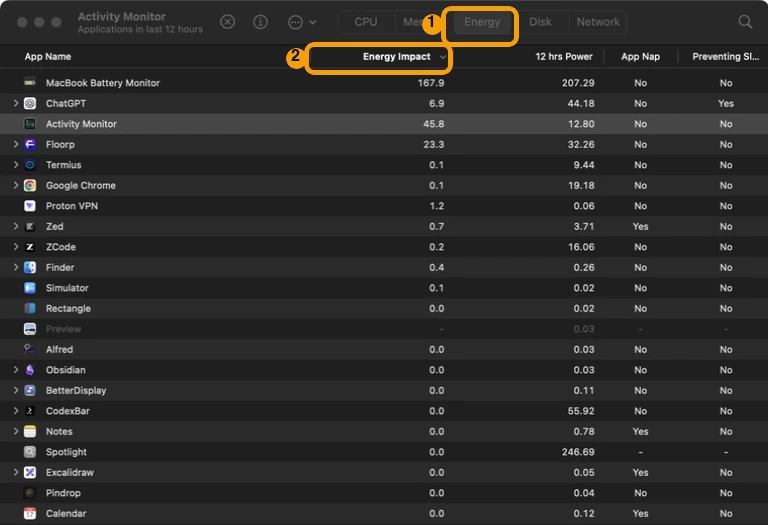
This method works for obvious, frontmost drain. It has one real weakness. Energy Impact is a unitless score.
Apple describes it as a relative measure of current energy use, but it has no published unit. A process sitting at “12.5 Energy Impact” could be drawing 0.5 watts or 5 watts, and you have no way to tell. You also cannot compare it to your Mac's total power budget, because there is no denominator. If your machine is spending 9 watts total and an app is really using 4.2 of them, that is nearly half your runtime gone to one program. Energy Impact will not show you that ratio.
This is why watts matter. Whole-system watts show the current drain rate, while per-app watts show how that power is distributed across the workloads you can act on. Compare both before and after one change instead of converting a single app row into a guaranteed runtime figure. For the full per-app picture, compare the best Mac power monitor apps.
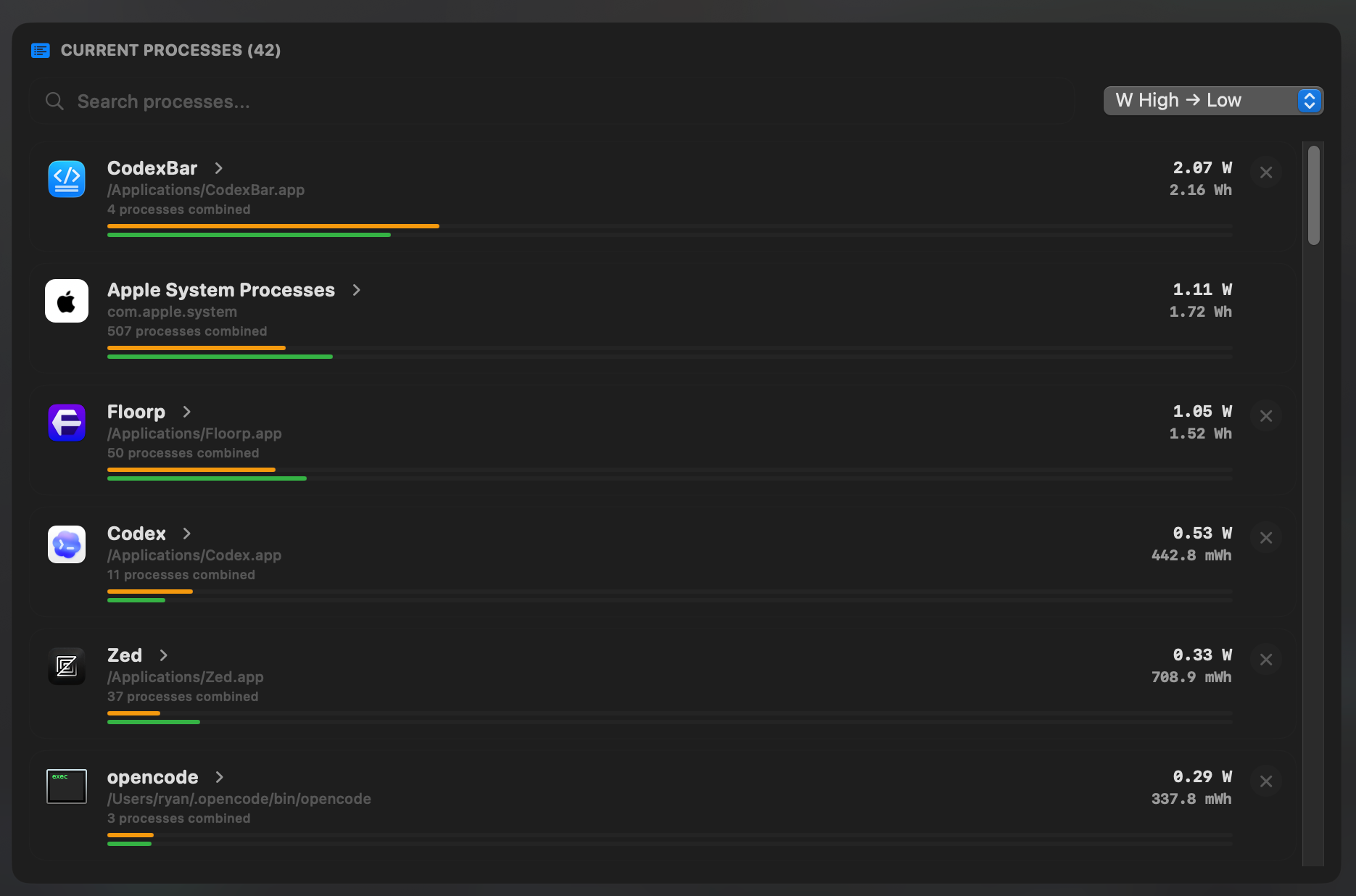
MacBookBatteryMonitor shows that breakdown in real watts, ranked in a top-processes panel. You see the total the Mac is pulling and each app's share of it, so a runaway process is obvious the moment it starts. Then you can quit it, throttle its CPU, or move it to the efficiency cores instead of just noting that it scored high.
Hidden workloads after a macOS update
If your battery suddenly got worse the day you upgraded macOS, hidden work is the likely culprit. After an update, Spotlight rebuilds its index of every file on disk, iCloud Drive re-syncs, Photos processes faces and objects, and Time Machine starts a fresh backup. Cloud apps like Dropbox, OneDrive, and Slack rebuild caches at the same time. None of this shows a window. It just runs.
Let the Mac finish background work while connected to power, then retest the same workload. If drain remains high, check Activity Monitor for sustained activity. Processes such as mds and mdworker are associated with Spotlight indexing; high activity alone does not make them malware.
Display, peripherals, and settings you can change in two minutes
Two reversible checks are the display and attached devices. Lower brightness to the dimmest comfortable level and watch whether total power falls; the result varies by model and displayed content.
The second is everything plugged in. External drives, webcams, MIDI controllers, game controllers, and a charging iPhone all draw bus power from the Mac, and they keep drawing it while the machine sleeps. Unplug what you are not using, especially before closing the lid. If you rely on an external display, know that it also keeps the GPU awake and prevents deep sleep states.
One more setting worth checking. Power Nap, under System Settings then Battery, lets a sleeping Mac wake briefly to fetch mail, run Time Machine, and install updates. Turning it off stops the overnight drain that leaves you at 70 percent in the morning for no obvious reason.
Is your battery actually worn out? Health, cycle count, and when to replace
Sometimes the battery itself is the limit. Most current MacBook models have a maximum cycle count of 1,000, and Apple says the battery is designed to retain up to 80% of original capacity at that model's maximum cycle count. Age in years varies widely. Service Recommended is macOS's separate signal that capacity is reduced or the battery is not functioning normally.
To check, open System Settings, go to Battery, and click the info button next to Battery Health. You will see the condition and a maximum-capacity percentage. For the exact cycle count, use Apple menu, About This Mac, More Info, System Report, Power. If you want both numbers without digging through menus, a health tool like coconutBattery or MacBookBatteryMonitor surfaces them in one place. For more on reading those numbers, see our guide on how to check MacBook battery health and our breakdown of MacBook battery cycle count.
Acting on the diagnosis
Finding the draining app is only half the job. The other half is doing something about it, and the built-in tools mostly stop at “Force Quit.” That is fine for a browser tab you do not need, but risky for a build running in the background, a Docker container you want to keep warm, or a system daemon you should never kill.
This is where a dedicated monitor earns its place. MacBookBatteryMonitor shows the same per-process ranking as Activity Monitor, but in watts, and it hands you real controls next to each entry. You can quit a user app in one click, throttle a process you want to keep alive, or offload a background workload to the efficiency cores so it stops fighting your foreground work. Free tools diagnose. We diagnose in real units and give you the levers.
FAQ
Why is my MacBook battery draining so fast all of a sudden?
A sudden change usually points to a changed workload, background task, display setting, peripheral, or battery condition. Open Activity Monitor and sort the Energy tab by Energy Impact, but identify the process before quitting it and compare total power before and after the change.
Does leaving my MacBook plugged in ruin the battery?
Modern MacBooks manage charging automatically. Optimized Battery Charging can delay charging past 80%, and Apple silicon Macs on macOS Tahoe 26.4 or later can use Charge Limit. Battery aging depends on temperature history and charging pattern as well as cycle use, so plug-in time is not the only factor.
Why does my MacBook battery drain overnight while sleeping?
Sleep drain usually points to Power Nap, network wake, or a process flagged "Preventing Sleep" in Activity Monitor. Power Nap wakes a closed Mac to fetch mail, run Time Machine, and install updates. Disable it under System Settings, Battery. Also check for peripherals drawing bus power during sleep, such as a charging iPhone or an external drive.
How many cycles is too many for a MacBook battery?
Most current MacBook models have a maximum cycle count of 1,000, but older models vary. Apple says the battery is designed to retain up to 80% of original capacity at its maximum cycle count. Service Recommended is a separate macOS condition and is not guaranteed to appear at exactly 80%.
Does Low Power Mode actually help on Mac?
Yes. Apple says Low Power Mode reduces energy use to increase battery life, but it does not promise a fixed number of extra hours. On a MacBook running macOS Ventura or later, configure it in System Settings, Battery; supported Macs on macOS Sequoia 15.1 or later can also expose Energy Modes in Control Center.
Why is my MacBook battery worse after a macOS update?
A macOS update can trigger Spotlight indexing, Photos analysis, cloud syncing, and cache rebuilding. Let the Mac finish while connected to power, then repeat the same unplugged workload. If sustained activity remains, identify it in Activity Monitor instead of relying on a fixed number of days.