Looking for the app? See the MacBook battery monitor.
Battery Health
MacBook Battery Cycle Count: What It Means and When to Worry
- Published
- Last edited
Your MacBook battery cycle count is the number of times the battery has been discharged and recharged the equivalent of 100%. Most guides tell you where to find it and stop there. The number that matters is what the cycle count can and cannot tell you, how it differs from maximum capacity, and which additional signs make service worth considering.
Quick answer
To check your MacBook battery cycle count, hold Option, click the Apple menu, choose System Information, and look under Hardware → Power → Battery Information. Some newer macOS versions and models also show Cycle Count in the Battery Health details in System Settings.
Most current MacBook Air and MacBook Pro models are designed for up to 1000 cycles. But cycle count on its own does not describe current capacity or runtime. Read it next to maximum capacity, condition, and the battery life you actually get.
What a cycle count actually is
Apple defines a charge cycle as using 100% of the battery's capacity. Crucially, that does not have to happen in one charge. Use 60% of the battery today, charge back to full overnight, then use another 40% tomorrow and you have used 100% in total. That is one cycle.
This is the part that trips people up. Cycle count is not the number of times you plugged in your charger. Two partial discharges can add up to a single cycle, and topping up from 80% to 100% repeatedly barely moves the counter. The number tracks energy moved through the battery, not charging events.
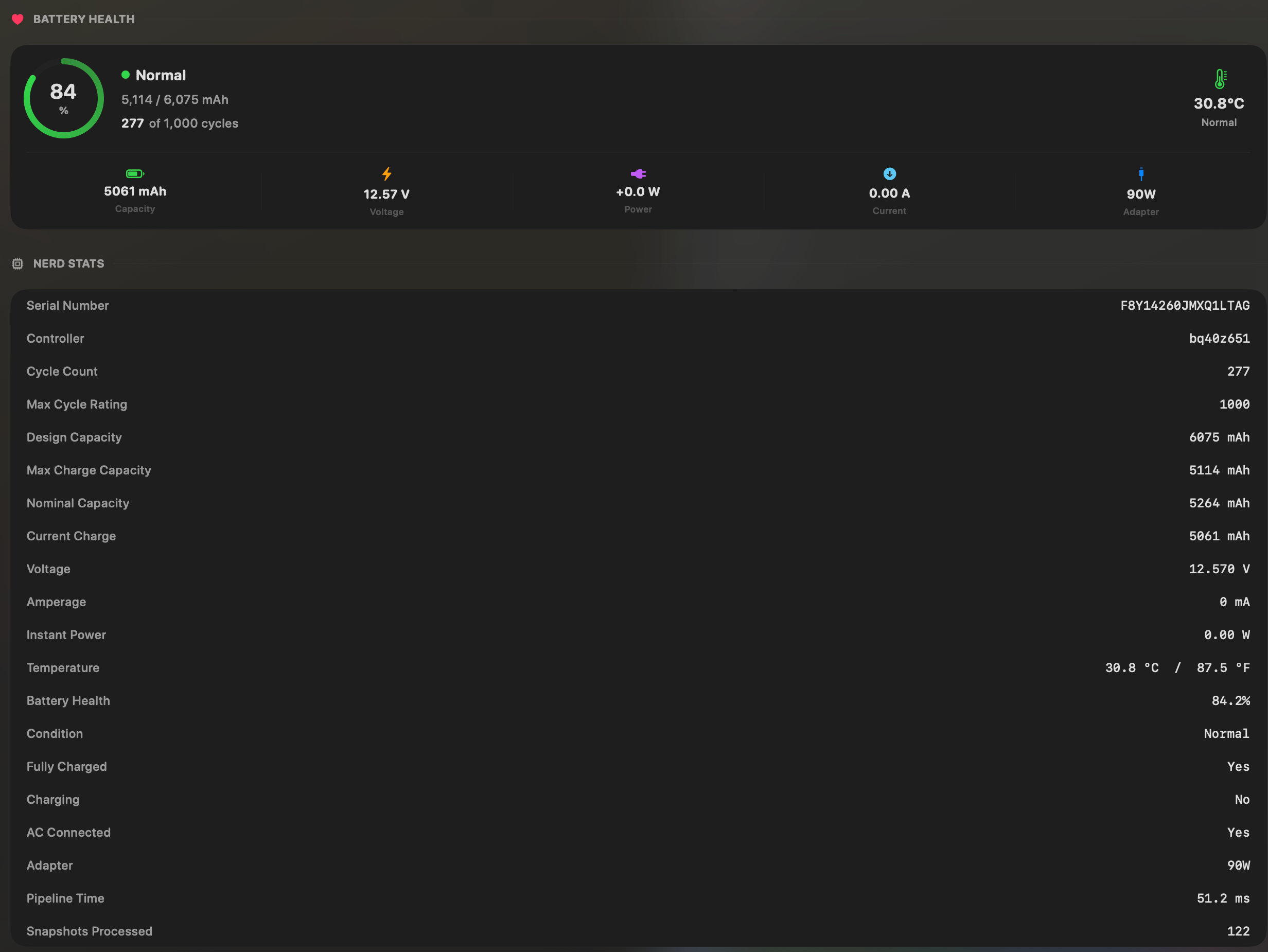
How to check your MacBook battery cycle count
There are two built-in ways. Use whichever matches your macOS version.
Method 1: System Settings (when Cycle Count is shown)
- Open the Apple menu and choose System Settings.
- Click Battery in the sidebar (scroll if needed).
- Click the info button (the circled i) next to Battery Health.
- Read the Cycle Count, along with Maximum Capacity and Condition.
Method 2: System Information (all macOS versions)
- Hold the Option key and click the Apple menu.
- Choose System Information.
- In the sidebar, under Hardware, click Power.
- Look under Battery Information for Cycle Count and Condition.
System Information is the more reliable fallback and works on older macOS versions where the System Settings Battery Health sheet does not show cycle count. It also surfaces extra raw detail (charge, amperage, temperature) that System Settings hides.
Cycle count limits by MacBook family
Every MacBook has a designed maximum cycle count, the point up to which Apple expects the battery to retain roughly 80% of its original capacity under normal use. The number depends on the model family. The authoritative source for your exact machine is Apple's battery cycle count table; the summary below covers the common cases.
Source checked: August 21, 2026. New models can change the table, so verify your exact model with Apple.
Most recent MacBook models in Apple's table use a 1000-cycle maximum, but older models vary. Second, Apple states the battery is designed to retain up to 80% of its original capacity at that maximum cycle count when operated under normal conditions. That 80% is a design target, not a sudden shutdown point. Apple recommends service after the listed maximum is reached if you want the best battery performance.
What is a good cycle count for a MacBook?
This is the question every cycle-count article gets asked, and the honest answer is that there is no single good number. Cycle count is a measure of use, not of health. Two MacBooks with the same cycle count can be in completely different shape.
A practical way to read your own number:
- Well under the limit, high capacity, Normal condition: nothing to do. The cycle count is just bookkeeping.
- Near the limit but still high capacity and Normal: keep using it. You are approaching the designed lifespan, but the battery is still performing.
- Near the limit with capacity below 80% or Service Recommended: the cycle count and the symptoms agree. Plan a replacement.
- Low cycle count but poor runtime or low capacity: something else is going on. Either the battery has an issue, or (more often) the runtime problem is caused by power draw, not battery wear.
How maximum capacity differs from cycle count
Maximum capacity estimates how much charge the battery can hold now compared with when it was new. It is more directly related to remaining stored energy than cycle count, but it is still not a complete service diagnosis. Use it with Condition, symptoms, usable runtime, and Apple's model-specific cycle guidance.
The reason cycle count gets so much attention is that it is easy to find and feels like an odometer reading. But it records cumulative use rather than directly measuring remaining capacity. A high-cycle battery can still report Normal condition and useful capacity; a low-cycle battery can develop a fault or age through heat and time.
For the full breakdown of how to read maximum capacity and condition alongside cycle count, see our guide on how to check MacBook battery health.
When to actually replace the battery
Replace based on symptoms, not a cycle-count milestone. The signals below are what should actually trigger a service decision, in roughly the order they matter:
- Reduced maximum capacitytogether with runtime that affects your work. Apple's 80% figure is a design benchmark at the model's maximum cycle count, not an automatic service verdict.
- Condition says Service Recommended. Apple's guidance is that you can keep using the Mac, but service is reasonable if the reduced capacity is hurting your experience.
- Unexpected shutdowns while the battery percentage is not low.
- Swelling or a warped case. Stop using the Mac and get service immediately; this is a safety issue, not a battery-life one.
- Runtime has dropped sharply and you have ruled out software drain (bright screen, heavy apps, background sync).
If none of those are true, a high cycle count on its own is not a reason to replace. And if runtime is bad but maximum capacity is high and condition is Normal, measure current power draw before assuming the cell is responsible. That is the case where a tool like MacBookBatteryMonitor pays off: it shows the cycle count and capacity alongside live watts, so you can tell a worn battery from a runaway app in one glance instead of guessing. For more on the runtime side, see why your MacBook's battery only lasts 2 hours.
FAQ
What is a good cycle count for a MacBook?
There is no single good number. Most modern MacBook Air and MacBook Pro models are designed for up to 1000 cycles while retaining about 80% of original capacity. A machine well under that limit with high maximum capacity is in good shape; a machine near the limit with low capacity and poor runtime is a candidate for service.
Is 1000 cycles bad for a MacBook battery?
1000 is the maximum cycle count Apple lists for current MacBook models. Apple recommends battery service after the maximum cycle count is reached for best performance, but the number is not a sudden failure point. Also check battery condition, maximum capacity, and usable runtime.
How do I check my MacBook battery cycle count?
The canonical route is to hold Option, click the Apple menu, choose System Information, then look under Hardware, Power, Battery Information for Cycle Count. Some newer macOS versions and models also show it in the Battery Health details in System Settings.
Does a high cycle count mean my battery is bad?
Not necessarily. Cycle count measures how much the battery has been used, not how much capacity it has lost. A high-cycle battery can still perform well if maximum capacity is high and condition is Normal. Always read cycle count alongside maximum capacity and real runtime.
Should I replace my MacBook battery at a certain cycle count?
Cycle count is context, not an automatic replacement trigger. Read it with maximum capacity, the macOS Condition, usable runtime, and symptoms. Swelling or unexpected shutdowns require prompt service regardless of cycle count.