Looking for the app? See the MacBook battery monitor.
Troubleshooting
Why Does My MacBook Battery Only Last 2 Hours?
- Published
- Last edited
A MacBook that lasts only two hours usually has one of two problems: it cannot store as much energy as it used to, or the current workload is using that energy quickly. Check battery condition and live power demand before changing random settings or paying for a replacement.
Quick answer: separate capacity from power draw
Start in System Settings > Battery. If macOS reports Service Recommended, or Maximum Capacity is substantially below what it was when new, reduced stored energy can explain part of the short runtime. If Condition is Normal, inspect the exact workload that produces the two-hour result instead of assuming the battery is faulty. For a baseline, see which MacBook has the best battery life and how long each model lasts in testing.
Apple's built-in Activity Monitor ranks current app activity with a relative Energy Impact score. A dedicated monitor can add live system and per-app watts. Both views are useful because a healthy battery can still empty quickly under sustained CPU, GPU, display, or accessory load.
1. Check whether the battery can still store enough energy
- Open the Apple menu and choose System Settings.
- Select Battery in the sidebar.
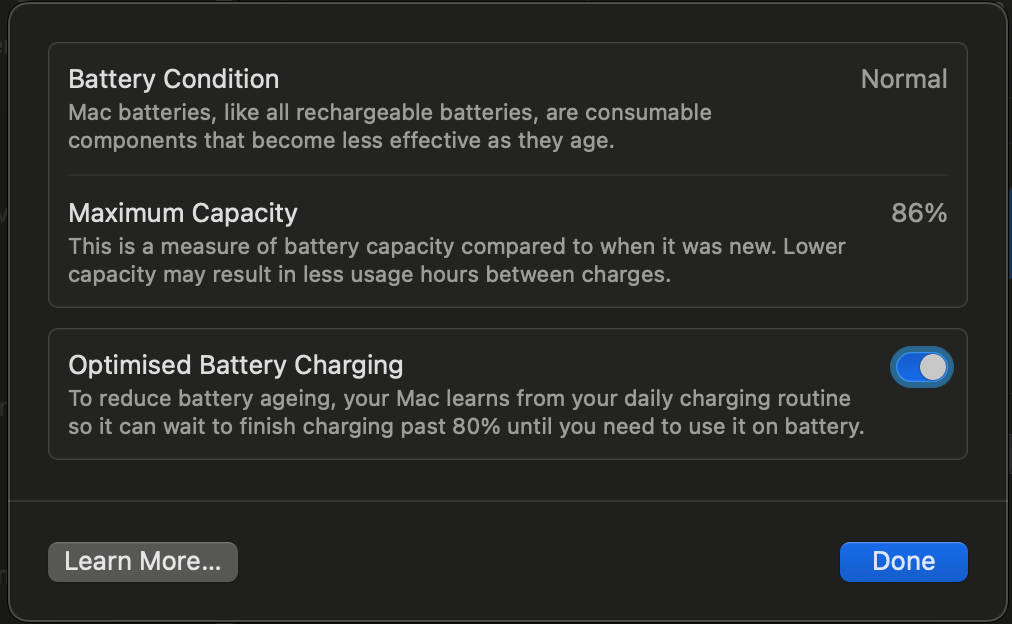
- Open Battery Health and read both Condition and Maximum Capacity.
Maximum Capacity compares the battery's current capacity with when it was new, and cycle counttracks how much use the battery has been through. Condition is macOS's assessment of whether the battery is operating normally. Apple says Service Recommended means the battery holds less charge than when new or is not functioning normally. You can continue using the Mac, but service becomes a reasonable next step when the reduced capacity affects your work.
2. Inspect app energy use during the bad session
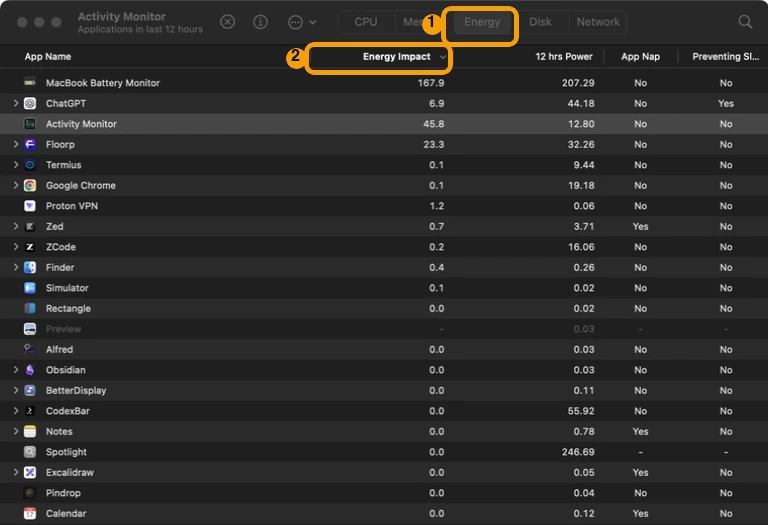
Open Activity Monitor, choose the Energy pane, and sort by Energy Impact. Reproduce the work that drains the battery, then watch which apps stay near the top. Apple defines Energy Impact as a relative measure of current app energy use. The 12 hr Powercolumn is the app's average relative impact over the previous 12 hours or since startup.
A brief spike is different from sustained activity. Let the workload run long enough to see whether the same app or helper processes remain high. Identify unfamiliar system processes before quitting them.
3. Change one variable, then repeat the same workload
A useful test keeps the work the same and changes one factor at a time. Start with a representative task and note the battery percentage, current high-impact apps, and total power if you have a watt readout. Run it again after one of these changes:
- Enable Low Power Mode in Battery settings. Apple says it reduces energy use to increase battery life, but does not promise a fixed number of extra hours.
- Lower the display to the dimmest comfortable level.
- Disconnect an external display, dock, drive, phone, or other device that draws power from the Mac.
- Quit a confirmed high-impact user app, or pause a sync, render, build, or video call.
If power falls and the battery percentage drops more slowly, you have found a workload-side cause. If the result barely changes, return to battery condition and hardware checks instead of closing more unrelated apps.
When you need live per-app watts
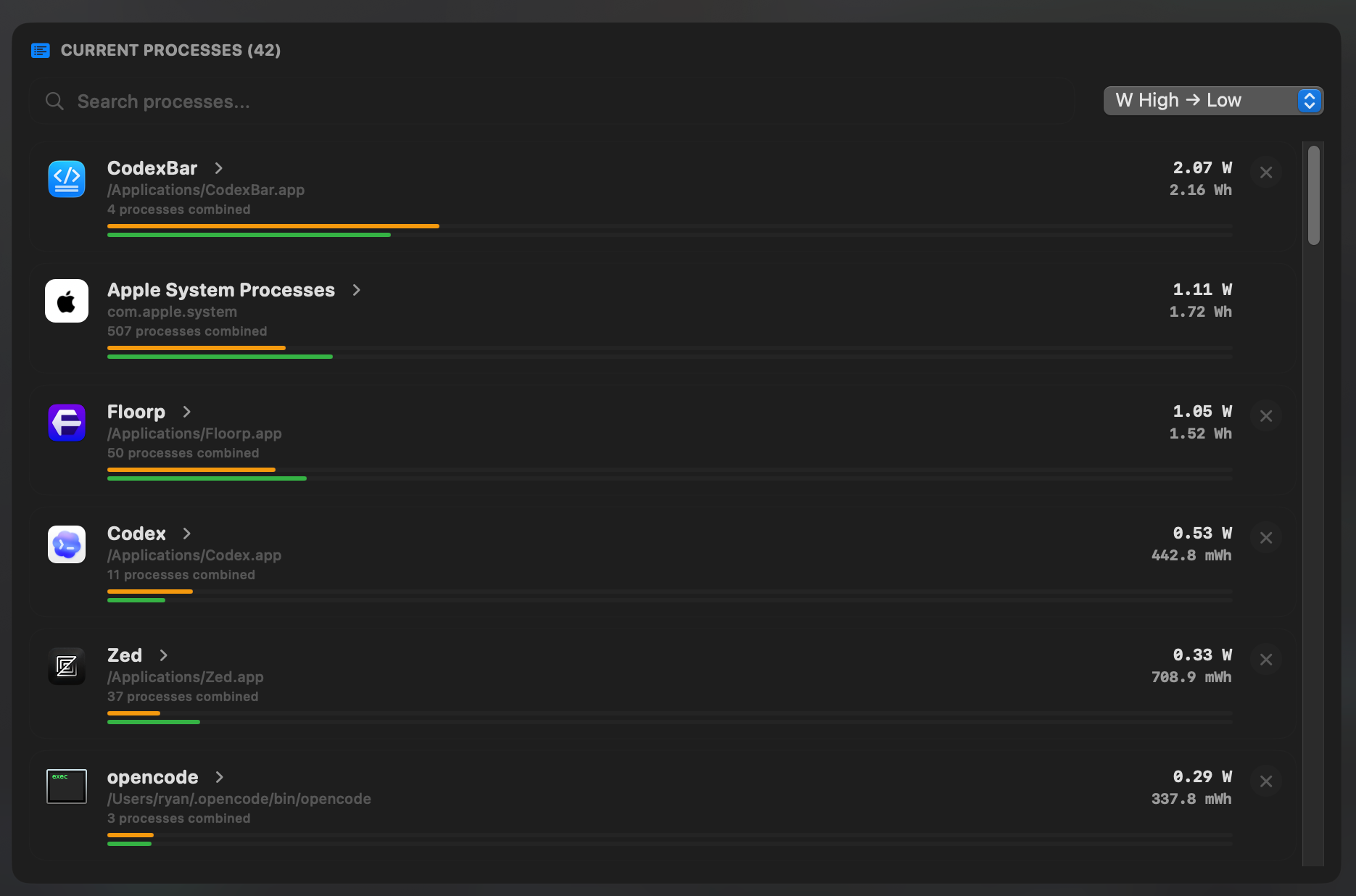
Activity Monitor is the free starting point, but its app scores are relative. MacBookBatteryMonitor shows whole-system power and live per-app watts, groups related helper processes, and keeps app controls beside the reading. That makes a before-and-after test easier: reproduce the problem, change one factor, and watch the watt values respond.
When to stop testing and consider service
Contact Apple or an authorized service provider when macOS reports Service Recommended and the reduced runtime affects your use, when the Mac shuts down unexpectedly, or when the same light workload still lasts roughly two hours after app activity and accessories have been ruled out. Run Apple Diagnostics before the appointment if you can.
If Condition is Normal and the problem follows one workload, continue with our guides to see what's draining your MacBook battery or troubleshoot a MacBook battery draining fast. Those pages go deeper on app ranking and sudden drain without repeating the battery-health decision above.
Common questions
Is two hours of MacBook battery life normal?
It can happen during a demanding workload such as gaming, compiling, rendering, or a long video call. Two hours during light reading or writing deserves investigation. Check Battery Health first, then inspect current app energy use under the workload that produces the short runtime.
Can one app drain a MacBook battery in two hours?
A sustained CPU or GPU workload can materially shorten runtime, whether it comes from one app or several related processes. Activity Monitor can rank current relative Energy Impact. MacBookBatteryMonitor can show the corresponding live per-app power in watts and group an app with its helpers.
Will Low Power Mode fix two-hour battery life?
Low Power Mode reduces energy use, but Apple does not promise a fixed runtime gain. Enable it and repeat the same workload. A clear improvement points toward power demand; little change means you should keep checking battery condition, app activity, peripherals, and hardware.
Should I replace a MacBook battery below 80% maximum capacity?
Maximum Capacity below 80% means the battery stores materially less energy than when new, but the service decision should also use macOS Condition and your symptoms. Apple says Service Recommended means capacity is reduced or the battery is not functioning normally, and service can be considered when that affects your experience.