Looking for the app? See the MacBook battery monitor.
Troubleshooting
MacBook Battery Draining Overnight? Here's the Fix
- Published
- Last edited
A sleeping MacBook can still perform brief background wakes with the display off. Those wakes, connected devices, or a process preventing sleep can explain an unexpected overnight drop, but the log and usage history should identify the pattern before you change settings. This guide starts with read-only checks, then moves to reversible options.
Quick answer
First use System Settings → Battery → Usage History to confirm when the level fell, then use the copyable wake-log command below to match that period with wake events. If the evidence points to sleep-time wakes, test Wake for network access and Power Nap one at a time in Battery Options when those controls are available. Also compare with hubs and other devices disconnected.
Why your MacBook wakes up while “asleep”
Each DarkWake lasts only seconds, but the CPU, disk, and Wi-Fi radio all draw real power for those seconds. Enough wakes in a row will drain a noticeable chunk of battery by morning. The rate of wakes is what separates a healthy night from a bad one.
These are the main paths to check:
- Power Nap schedules wakeups for email, iCloud, and Calendar sync. On some Macs the option only appears while on AC power.
- Wake for network access lets the Mac be roused for Bonjour, AirPlay, and remote screen sharing.
- Bluetooth peripherals, a plugged-in AirPods case, USB hubs, and external drives can each hold a wake assertion or draw power while the lid is closed.
- Cloud sync jobs can continue queued work. iCloud Photos (
photoanalysisd,cloudphoto), iCloud Drive (cloudd,nsurlsessiond), Spotlight reindexing, Docker containers, andcloudflaredtunnels all keep the CPU busy for as long as they have work queued.
Find out what kept it awake
Before changing anything, read the logs. macOS records every wake and the reason for it, and the built-in pmset tool exposes that history.
Run this in Terminal to show the 50 most recent wake-related entries:
pmset -g log | grep -E 'Wake from|DarkWake' | tail -n 50Example output: This was reproduced on an Apple silicon Mac running macOS 15.7.7. Your timestamps, wake reasons, power source, and charge level will differ.
2026-08-21 09:27:59 +1000 DarkWake  DarkWake from Deep Idle [CDNP] : due to smc.70070000 wifibt SMC.OutboxNotEmpty bluetooth-pcie/ Using BATT (Charge:100%) 5 secs
2026-08-21 09:31:59 +1000 Wake      DarkWake to FullWake from Deep Idle [CDNVAP] : due to Notification Using AC (Charge:100%)
Read each line from left to right. DarkWake means the Mac woke without fully lighting the display, the text after due to records the reported wake reason, and Using BATT or Using AC shows its power source. A cluster of battery-powered wakes during the same hours as the drop is more useful than one isolated entry.
To see your current sleep settings for both battery and AC, run pmset -g custom. To see what is actively preventing sleep right now, run pmset -g assertions and look for lines marked PreventUserIdleSystemSleep. That line names the process holding the wake.
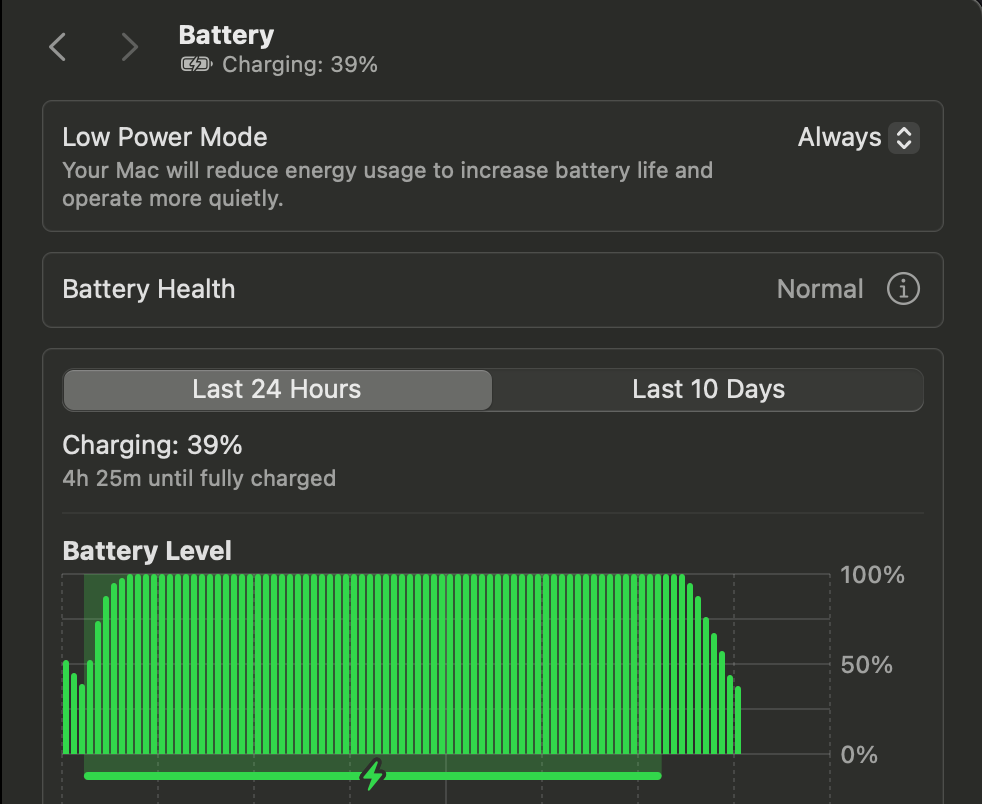
If you prefer a GUI, open System Settings → Battery → Usage History. It charts battery level over the last 24 hours and the last 10 days, and you can usually spot the overnight cliff at a glance. Activity Monitor's Energy tab adds two columns worth turning on from the View menu: Preventing Sleep and Idle Wake Ups. Sort by either to find the process that is misbehaving.
Turn off the settings that cause overnight drain
These reversible settings checks share one screen.
Open System Settings → Battery → Options and set:
- Power Nap: off. Stops the scheduled email, iCloud, and Calendar wakes. This toggle is available on supported Intel Macs. If the option is absent, leave it alone.
- Wake for network access: off. Stops the Mac from being roused for Bonjour and remote access.
Keep the Terminal checks in this guide read-only. Broad sudo pmset -a commands change battery and adapter behavior together, can disable services you rely on, and are difficult to reverse without recording the previous values. Use the documented Battery options first.
Then unpair anything that can wake the machine. A Bluetooth mouse or keyboard nudging the Mac awake, an AirPods case left plugged in, or a USB hub with always-on power can each be the culprit. Open System Settings → Bluetooth and disconnect what you do not need overnight. Physically unplugging hubs and external drives before closing the lid is the surest fix for peripheral draw.
Hunt down the runaway process
When the toggles above are off and the battery still drops, use evidence from assertions, wake reasons, and current activity. A process may be holding sleep while it works, but repeated wake events or a connected device can produce a similar symptom. Examples of sustained work include Photos processing, Drive uploads, Spotlight indexing, containers, and persistent background agents.
Activity Monitor can point you at these, but its Energy Impact score is a unitless number and its Preventing Sleep column does not tell you how much power each process actually costs. A watt-based monitor makes the runaway obvious during a controlled retest: a process pulling four watts while everything else sits near zero is the one to investigate.
That is where MacBookBatteryMonitor fits: it shows live per-app power draw in watts so you can see the offender directly, surfaces the hidden launchd agents and sync daemons that Activity Monitor buries, and stops the process in one click instead of a kill command. It diagnoses the process the System Settings toggles cannot reach. For the broader picture of which apps pull the most power, compare the best Mac power monitor apps.
Check total power and the highest-use apps
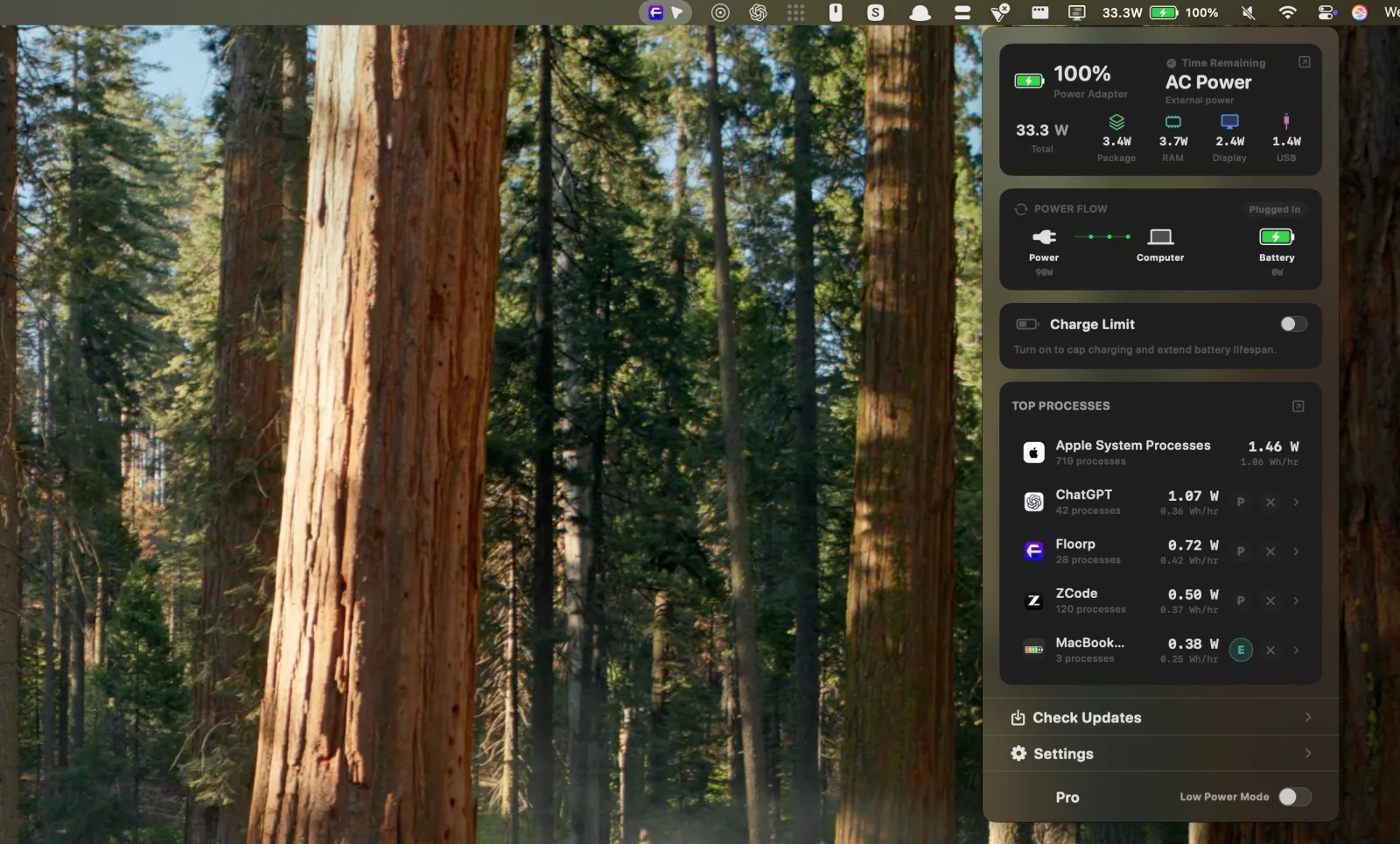
Wake logs remain the source for what happened while the Mac was asleep. Before the next overnight test, MacBookBatteryMonitor can show whether the Mac is already drawing unusual power and which apps are at the top. Check again after opening the lid to catch work that resumes immediately after wake.
Inspect every running app and background process
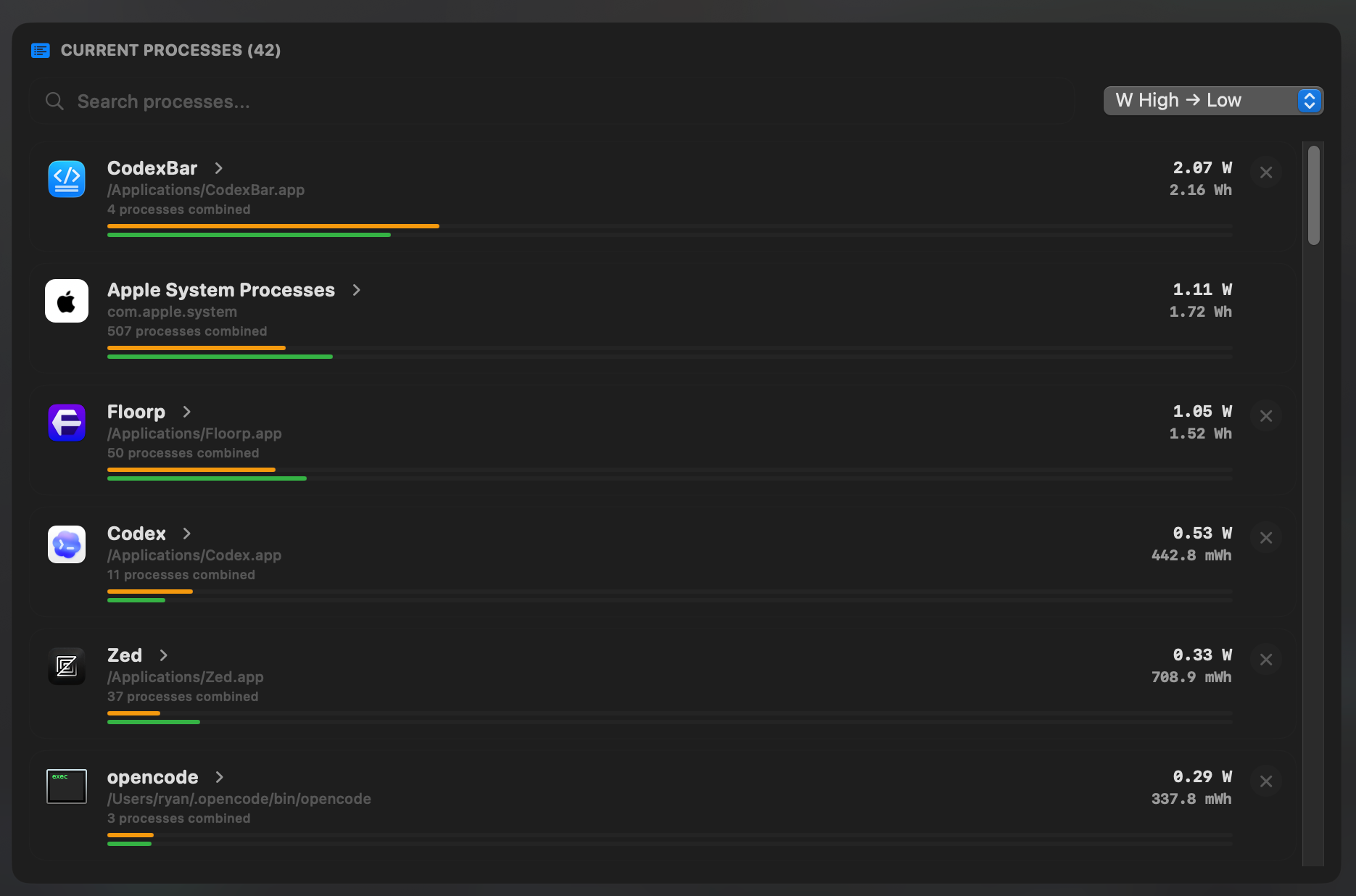
Open the complete process list when the short menu-bar ranking is not enough. It groups related processes, shows their current watts and accumulated energy, and puts controls beside workloads you recognize. Do not quit an unfamiliar system process just because it appears near the top.
When to just shut down instead
Sleep is designed for normal day-to-day use. Shutdown is useful as a comparison test, or for a longer period when you do not need instant resume.
If the Mac loses charge while asleep but holds its level after a shutdown over a comparable period, the result points toward sleep-time software, settings, or connected devices. It does not by itself identify which one, so use the logs and isolation steps above.
One Apple silicon note: there is no separate SMC-reset procedure for M-series Macs. If sleep behavior still seems broken, shut down normally, leave the Mac off briefly, restart it, and retest before escalating to Apple Diagnostics or support.
FAQ
How much battery drain overnight is normal?
Apple does not publish a universal overnight-loss threshold. Sleep drain varies with model, battery health, connected devices, network settings, and background work. Establish your own baseline over several nights, then investigate a repeatable increase with Battery usage history and the read-only `pmset` logs.
Does closing the lid put the MacBook to sleep?
It normally puts a MacBook to sleep, but macOS may perform brief background wakes depending on the model, settings, connected devices, and scheduled work. Closing the lid is not the same as shutting down.
What is DarkWake on a Mac?
DarkWake is a macOS wake event in which the display can remain off while the system performs background work. The wake reason in the power-management log is more useful than assuming one particular service caused it.
Will turning off Power Nap stop iCloud sync?
It stops the scheduled background wakes Power Nap performs for email, iCloud, and Calendar while the Mac is asleep. iCloud still syncs normally while you are using the machine. You give up middle-of-the-night background sync, not the sync itself.
Should I shut down my MacBook every night?
Usually not. Sleep is designed for normal day-to-day use. Shutting down is reasonable for a long period when you will not use the Mac, or as a troubleshooting comparison when sleep drain is unusually high.