Looking for the app? See the MacBook battery monitor.
Battery Tips
How to Extend MacBook Battery Life
- Published
- Last edited
Extend normal MacBook runtime by reducing avoidable work: use Low Power Mode, lower display brightness, disconnect hardware you do not need, and close apps that remain active in the background.
Whether you are on an Apple Silicon Mac or an older Intel machine, the same principles apply: reduce what the machine is doing, and it will last longer. The difference is that Apple Silicon Macs are efficient enough that removing avoidable power draw can materially extend runtime. The size of the improvement depends on your Mac, battery health, display brightness, and workload.
The quick version: Turn on Low Power Mode, close browser tabs you are not using, keep the display at the dimmest comfortable level, and use Activity Monitor or MacBookBatteryMonitor to find which apps are drawing the most power. The rest of this article goes into detail on each of those points and a few more.
Use Low Power Mode
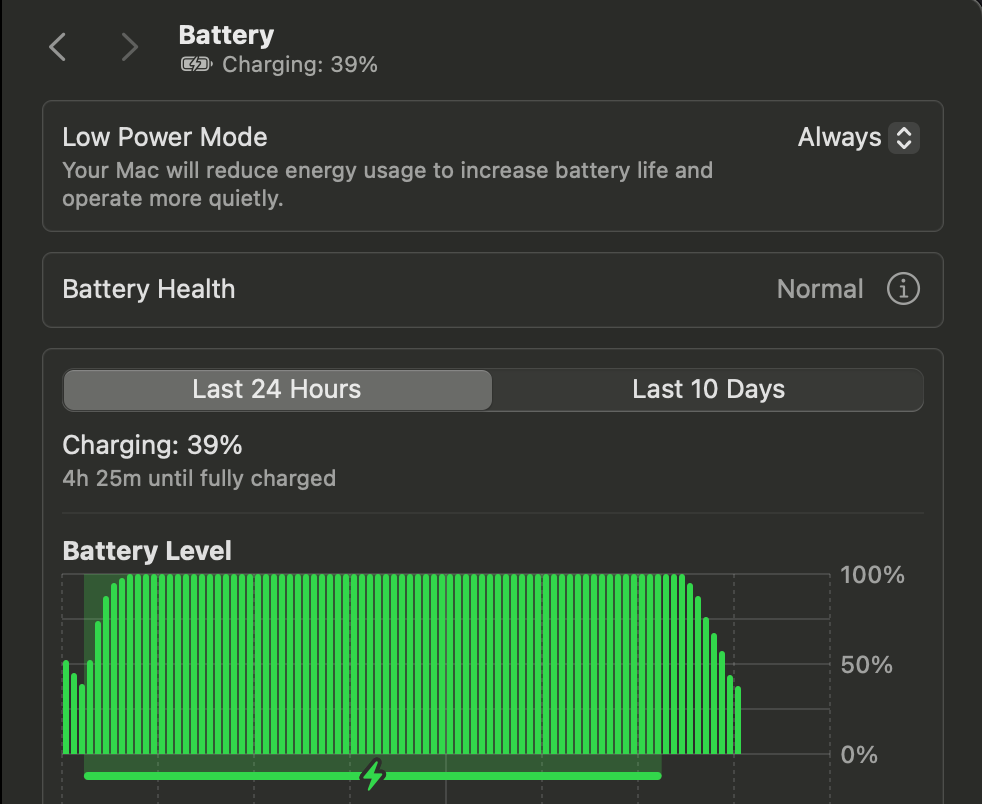
Low Power Mode reduces energy use to increase battery life. Apple does not publish a fixed runtime gain, and the result depends on the Mac and workload, so treat it as a useful mode rather than a guaranteed number of extra hours.
On a MacBook running macOS Ventura or later, open System Settings → Battery and choose Low Power Mode. On macOS Sequoia 15.1 and later, supported Macs can also expose Energy Modes in Control Center. Apple documents the current options in its Power Modes guide.
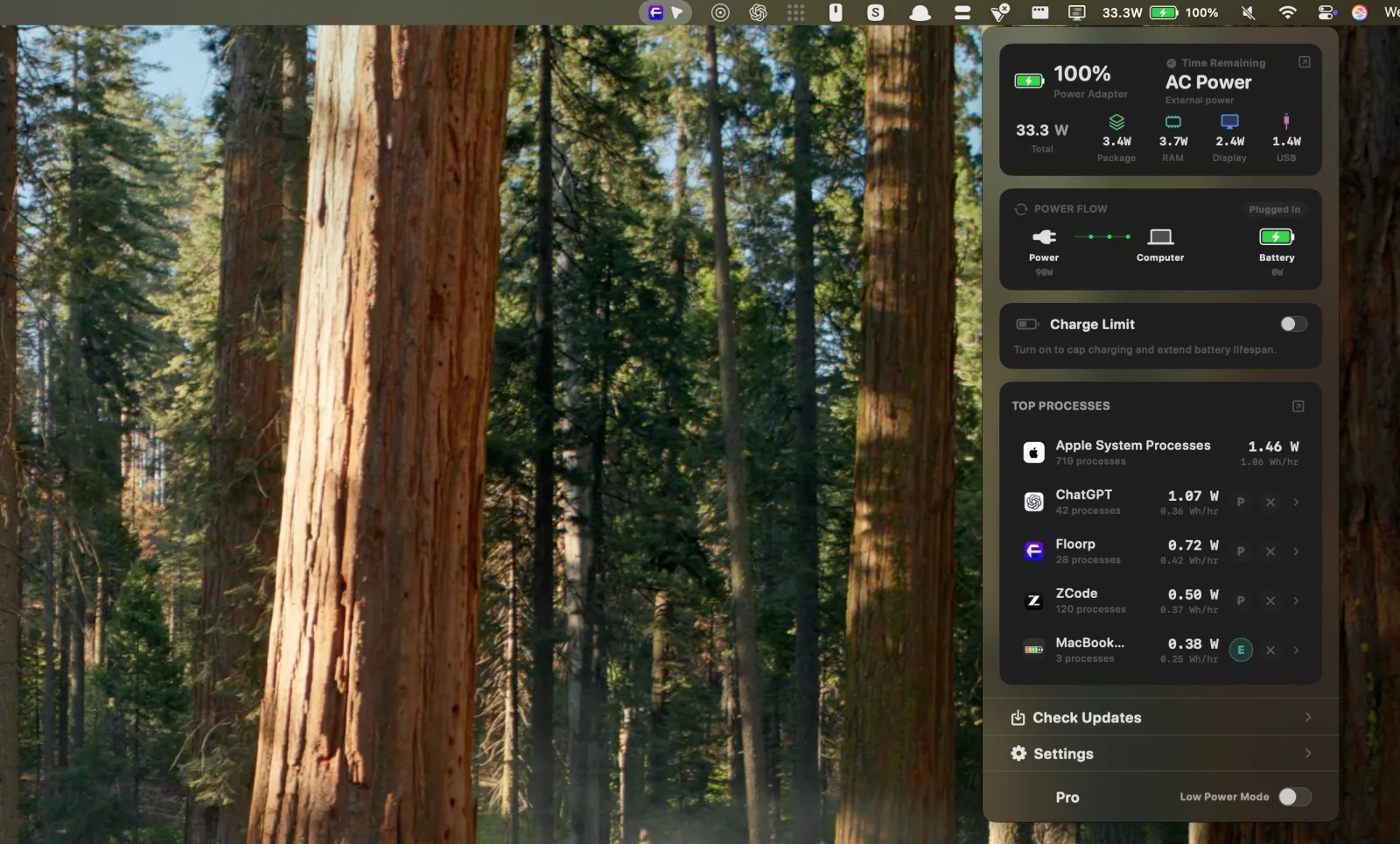
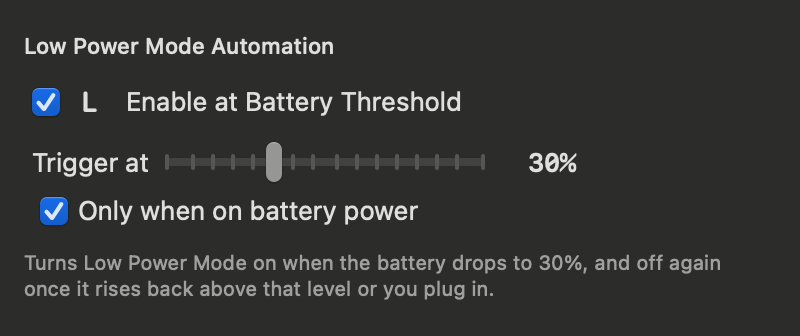
MacBookBatteryMonitor can toggle Low Power Mode directly from the menu bar. It can also turn the mode on automatically when the battery reaches a threshold you choose, then turn it off again above that level or when you connect power. You can restrict the automation to times when the Mac is running on battery.
Find which apps are draining your battery
Sustained work from an app or background process can materially reduce runtime. Measure before closing everything so you can identify which change actually lowers power use.
Activity Monitor can show you Energy Impact, but it is buried in a tab most people never open, and it does not tell you the actual watts being consumed. MacBookBatteryMonitor shows you live power draw per app in watts, right in your menu bar. You can see exactly which app is eating your battery and quit it in one click.
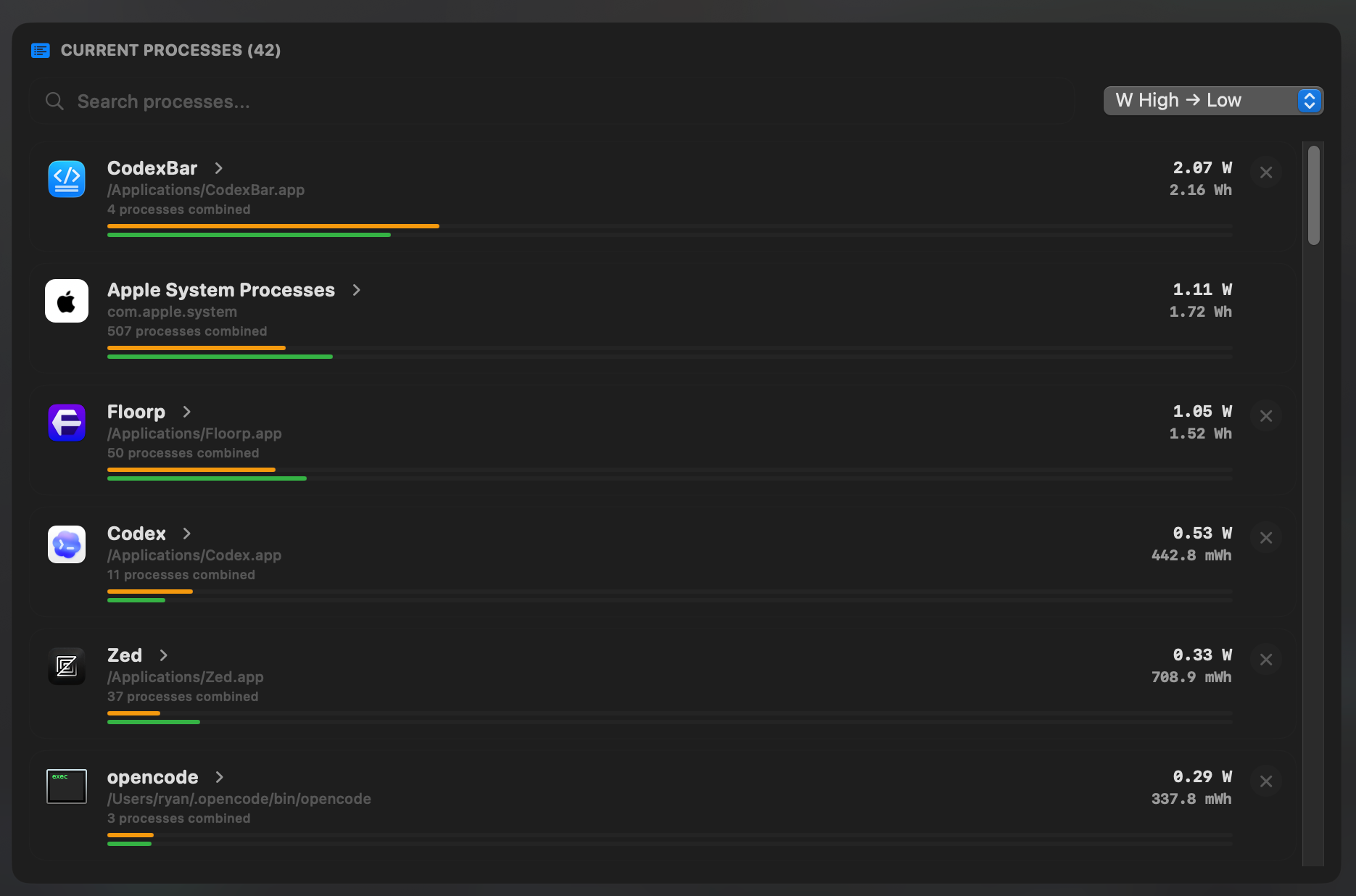
The usual suspects:
- Browsers: tabs with video, ads, scripts, or web apps can keep processes active even when the tab is not frontmost.
- Messaging apps: calls, screen sharing, animations, and background syncing can remain active when the window is hidden.
- Video calls: the camera, microphone, network, display, and video processing all add load.
- File syncing: a large Photos or Drive transfer can raise power draw for an extended period. Pause syncing when on battery if you can.
Turn down your display brightness
Display power can be a large part of a MacBook's total draw, especially at high brightness. Lowering it to the dimmest comfortable level is an immediate, reversible way to reduce consumption; the exact saving varies by model, content, ambient light, and starting brightness.
Turn on auto-brightness in System Settings if you have not already. It adjusts based on ambient light. For a measurable test, note whole-system watts, lower brightness while leaving the workload unchanged, then compare after the display settles.
Manage Wi-Fi and Bluetooth
If you are working offline, you can turn Wi-Fi off from Control Center. macOS does not have the single Airplane Mode switch found on an iPhone, so Wi-Fi and Bluetooth must be controlled separately. Do not expect a fixed saving: the benefit depends on whether the radios and connected devices were active.
Bluetooth is less of a drain unless you have multiple devices connected. If you are using AirPods, a mouse, and a keyboard all at once, that adds up. Disconnecting devices you are not actively using helps.
Close what you are not using
Every open app and browser tab consumes memory and CPU cycles, even when it is in the background. macOS is good at suspending inactive apps on Apple Silicon, but it is not magic. Apps that maintain network connections, run timers, or poll for updates will keep drawing power.
Be honest about what you need open right now. Close the 30 browser tabs you have not looked at in an hour. Quit Slack if you are in deep work mode. Close Figma if you are not designing. The fewer things running, the longer your battery lasts.
Keep your Mac cool
Sustained heat accelerates lithium-ion battery aging. Heavy workloads can also increase both heat and power consumption, so keeping vents clear and avoiding hot environments helps runtime and long-term battery health.
Avoid using your MacBook on soft surfaces like beds or couches where the vents get blocked. A hard desk or a simple lap desk works better. If you are doing heavy work and the fans are loud, that is your Mac working harder than it needs to, and your battery is paying for it.
Check your battery health
Reduced maximum capacity means the battery stores less energy than when it was new, but capacity percentage does not convert directly into the same percentage of runtime. Workload, brightness, temperature, and power management still affect the result.
You can check your battery health in System Settings → Battery → Battery Health. Or you can see it at a glance in MacBookBatteryMonitor, which shows you the current maximum capacity percentage, cycle count, and condition all in one place.
Use maximum capacity together with the reported Condition and your symptoms. If macOS says Service Recommended, review the service options for your exact model and coverage rather than treating one percentage as an automatic diagnosis.
Bonus: Monitor your battery in real time
All the tips above are useful, but they require you to remember to do them consistently. The most effective thing you can do is actually see what is happening with your battery in real time.
That is what MacBookBatteryMonitor is for. It sits in your menu bar and shows you:
- Live power draw in watts: see exactly how much power your Mac is consuming right now.
- Per-app power usage: see which apps are drawing the most and control them directly.
- Energy history charts: look back at your battery usage over time to spot patterns.
- Battery health details: cycle count, maximum capacity, and condition at a glance.
- One-click app quitting: act on a high-use app without switching windows.
Normal runtime or abnormal drain?
This guide is for extending otherwise normal runtime. If the battery suddenly drops much faster than it used to, follow the MacBook fast battery-drain diagnosis. If a full charge lasts only about two hours, use the two-hour runtime test to separate reduced capacity from high live power draw. To see how long current models should last, compare which MacBook has the best battery life.
Quick checklist
- Turn on Low Power Mode.
- Use MacBookBatteryMonitor to find which apps are draining your battery.
- Use the dimmest comfortable display brightness.
- Disconnect radios and peripherals only when you do not need them.
- Close apps and tabs you are not using.
- Keep your Mac cool.
- Check maximum capacity, Condition, and symptoms together.